

Use the Slidecrew Room Timer and Timer Controller to manage countdowns and send messages to the speaker during a session.
Short answer: The Timer Controller sets the countdown and sends messages; the Room Timer displays them. Use SET TIME for a manual countdown, or enable both AUTO in the controller and Timer Master on the device launching presentations for automatic timing. If either setting is off, launching a file will not start the countdown.
How do I open the controller and timer display?
Open the standalone Timer Controller from Rooms in the App Launcher, or use the embedded controller in the Technician, Kiosk or Moderator App.
The embedded controller is available through the app menu and replaces the session list with a full-screen view. In the Moderator App, it is also always shown in the right sidebar. All versions work the same way.
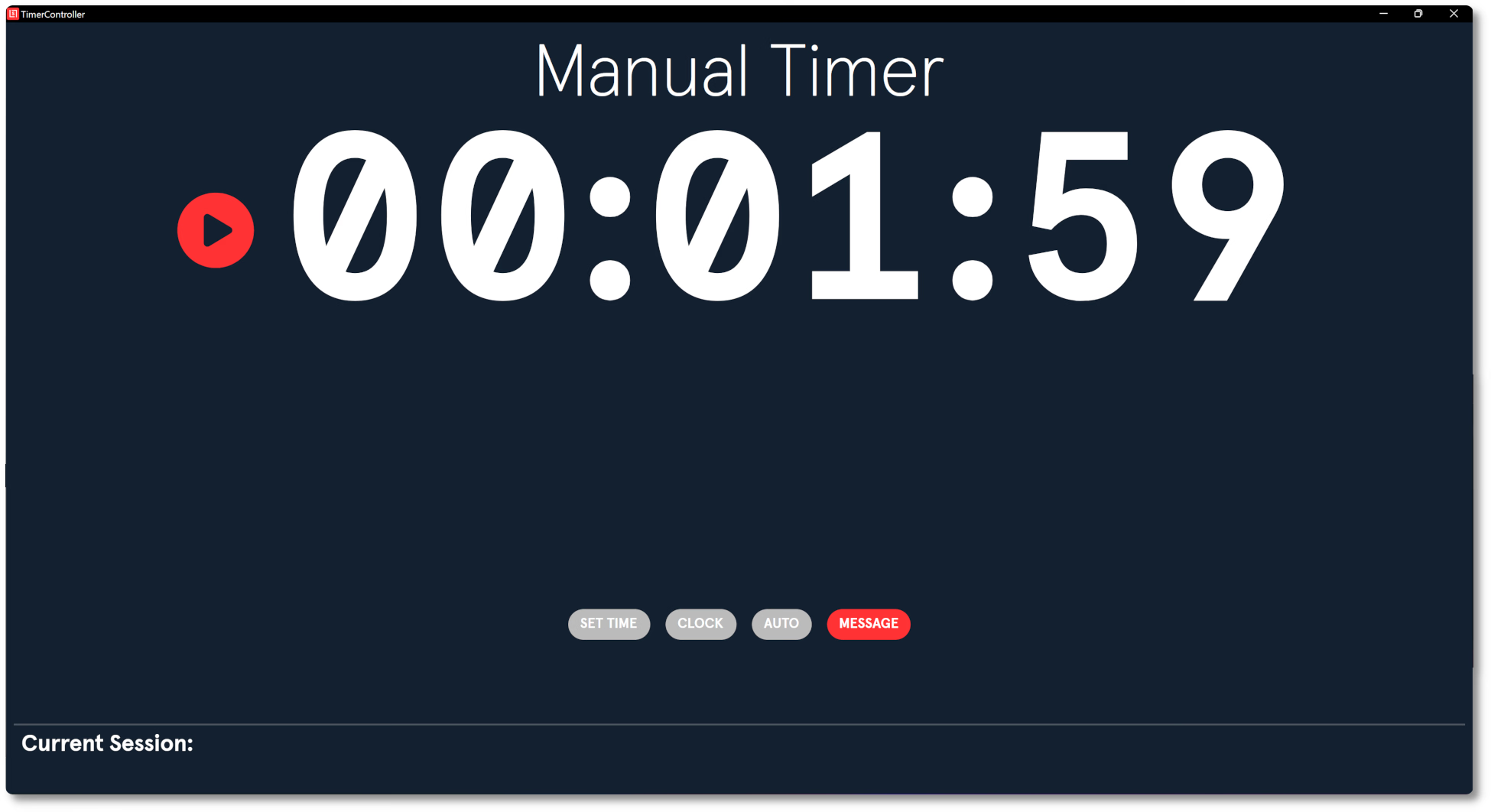
For the display, open the App Launcher on its device, select Rooms, then click Room Timer. This app is display-only and needs no further setup on the device. Its branding comes from the device’s assigned Style.
What do the Timer Controller controls do?
Use SET TIME for a manual countdown, CLOCK to show the device time, AUTO to switch automatic timing on or off, and MESSAGE to send text to the display.
| Control | Notes |
|---|---|
| SET TIME | Opens the Set Time pop-up for setting a manual countdown |
| CLOCK | Switches the Room Timer display to show the current device time instead of a countdown |
| AUTO | Turns the automatic countdown on or off. See Automatic Timer Behaviour below. |
| MESSAGE | Opens the Send Message pop-up |
| Current Session | Label at the bottom. Fills with the session name when a presentation is live. |
How do I start a manual countdown?
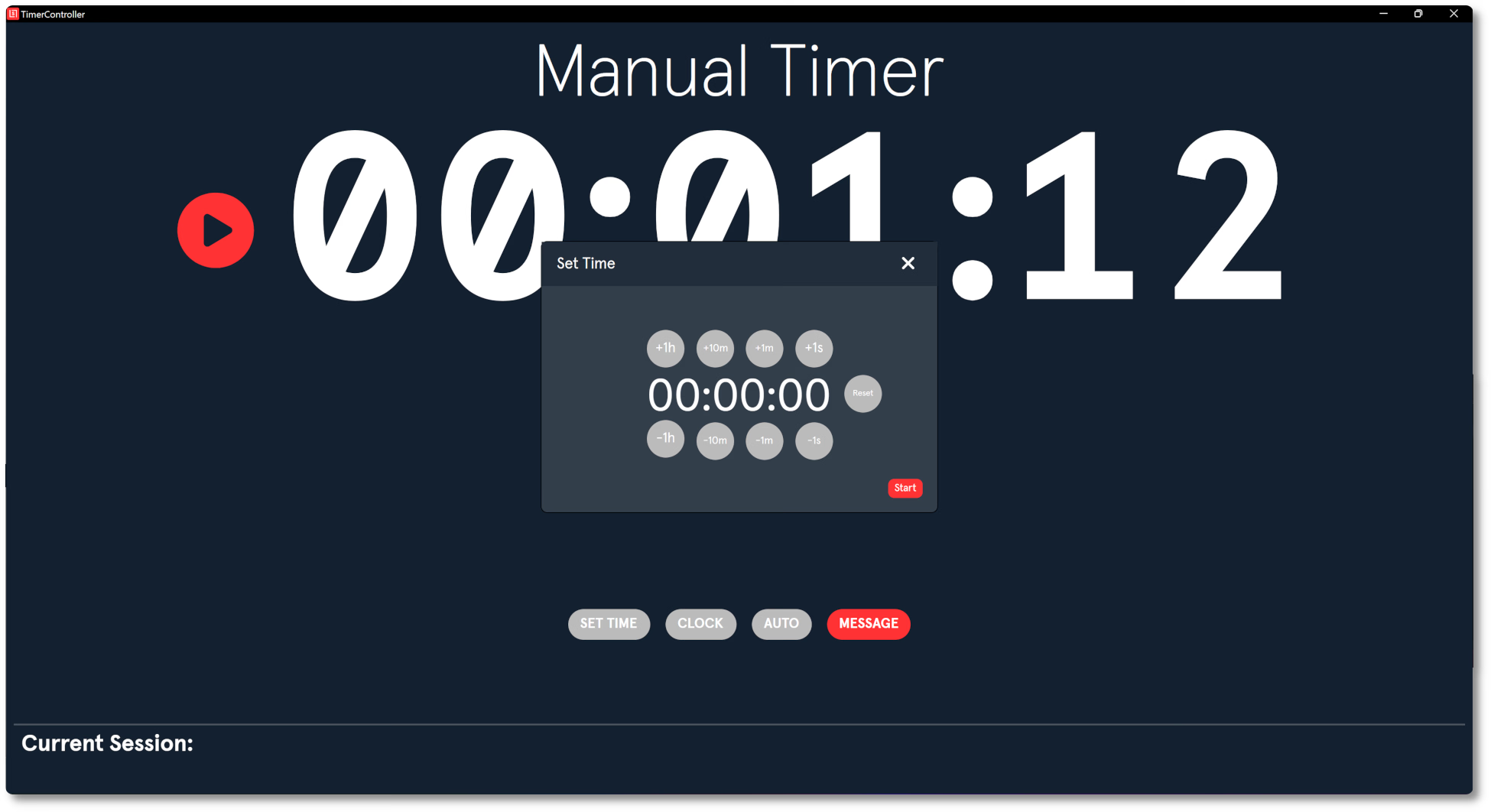
Set the duration through SET TIME, then click Start to begin the countdown.
- Click SET TIME.
- Add time with +1h, +10m, +1m and +1s. Use the matching − buttons to reduce it if needed.
- Click Start when the duration is set.
Reset clears the timer back to zero if you need to start setting it again.
How do I send a message to the speaker?
Click MESSAGE to open the Send Message pop-up.
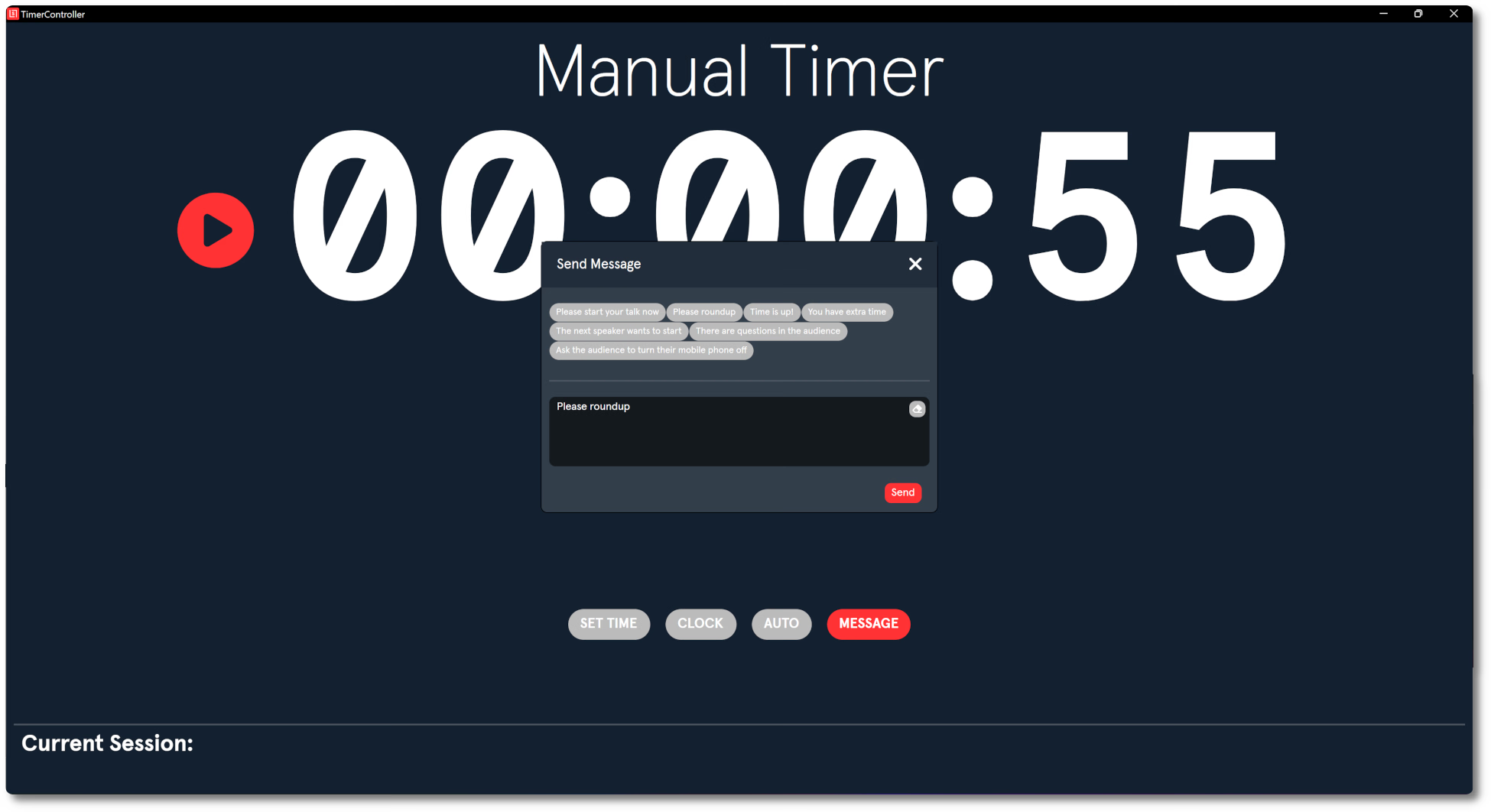
Choose a preset message or enter your own text, then click Send.
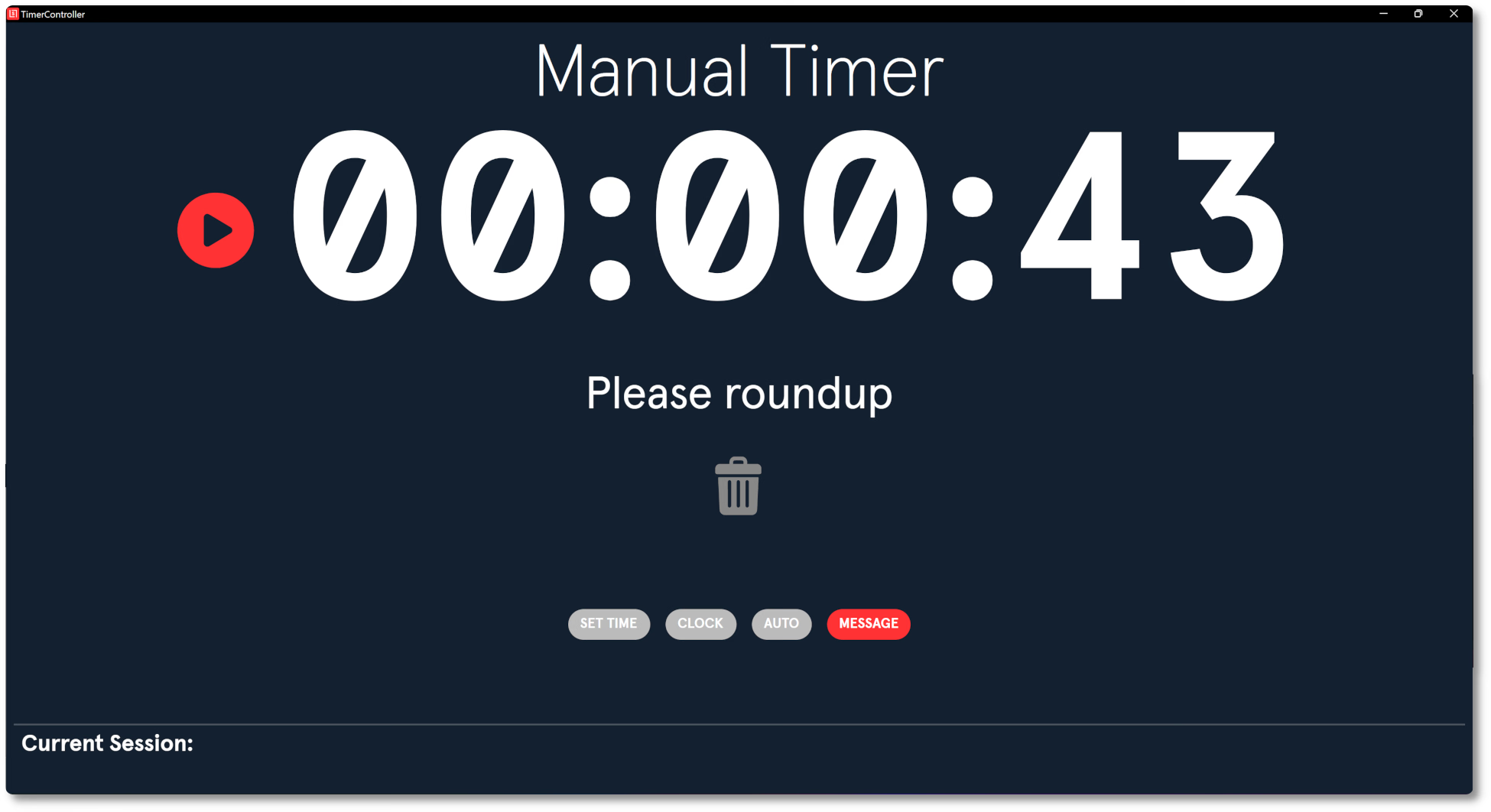
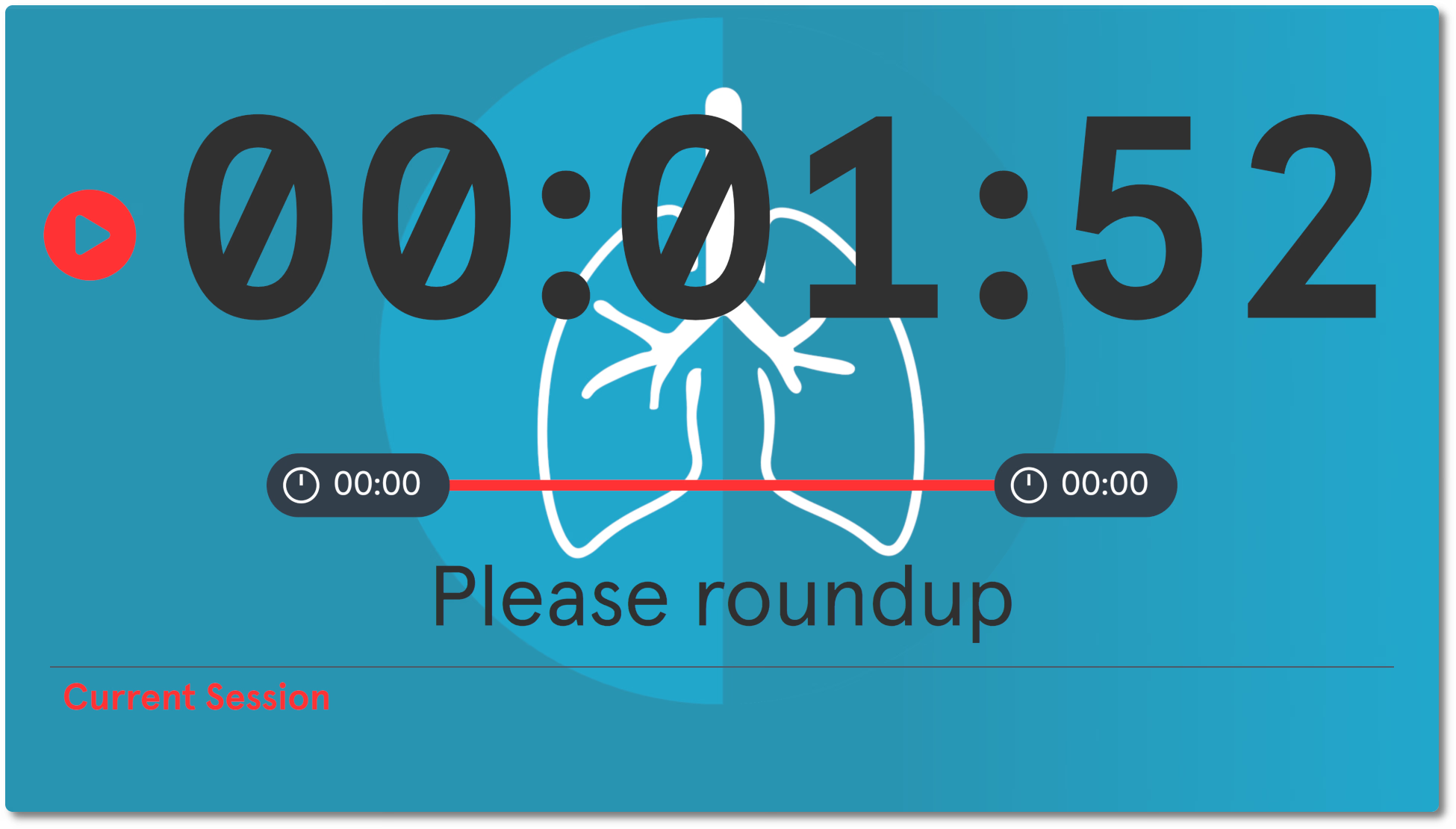
The message appears as a text overlay in the centre of the Room Timer display.
Why is the room timer not starting automatically?
The countdown will not start when a presentation is launched unless both AUTO and Timer Master are enabled. Check these two settings:
- Enable AUTO in the Timer Controller.
- In the portal, navigate to Core → Devices and open the row for the device launching the presentation. Enable Timer Master, then click away to save. Timer Master is off by default.
Automatic Timer Behaviour
With both settings active, launching a file starts a countdown equal to the presentation’s scheduled duration. This also applies to automatic timing in self-service Kiosk rooms: the room must be configured for it.
Launching a file from a Technician or Kiosk App device with Timer Master enabled also triggers the Name Screen in the same room.
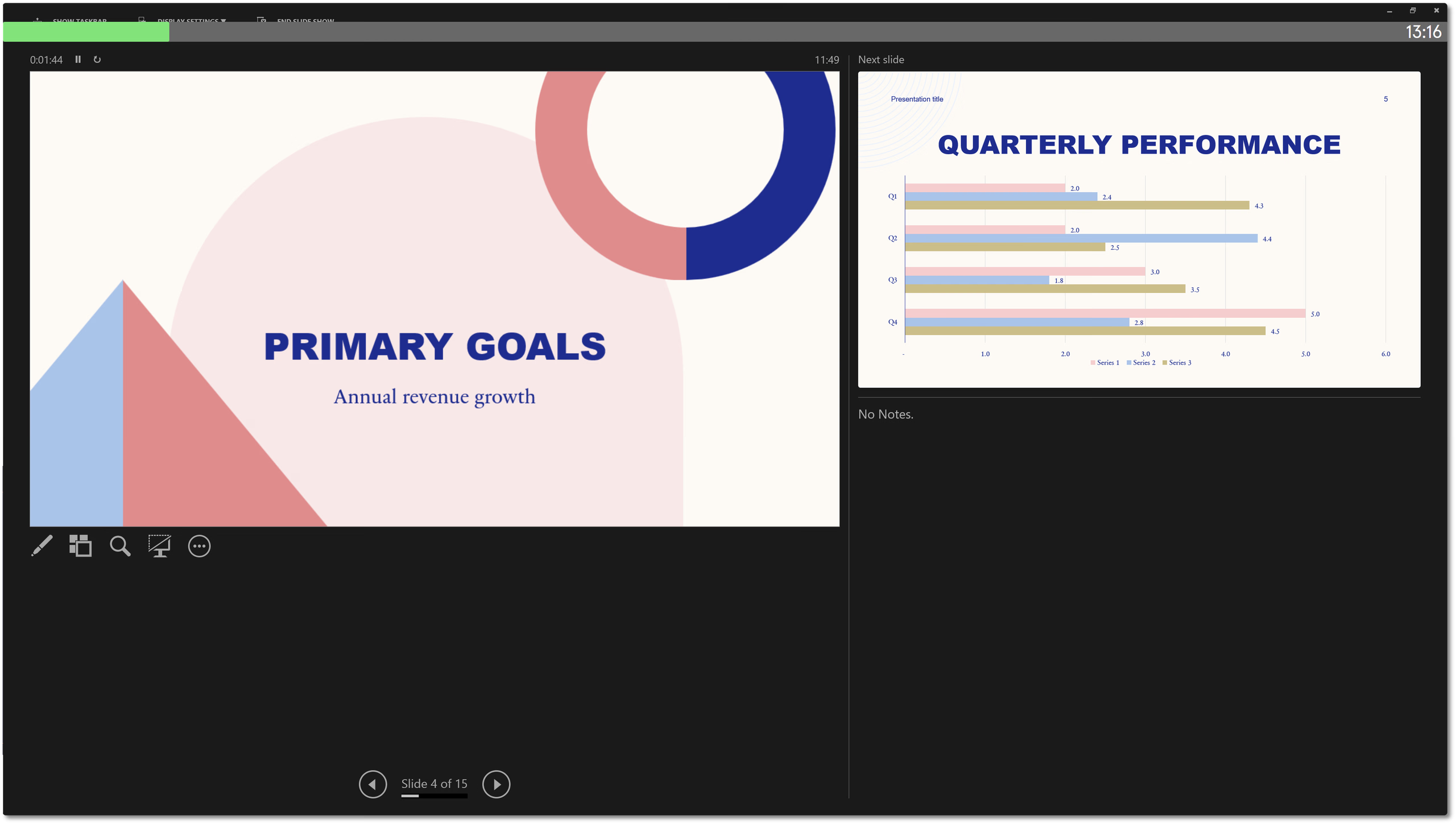
The countdown appears on the Room Timer display and as a timer bar in PowerPoint Presenter View on the speaker-facing screen. It does not appear on the audience display.
What does the Room Timer display show?
The Room Timer shows the countdown in hours, minutes and seconds, or the current device time when no countdown is active.
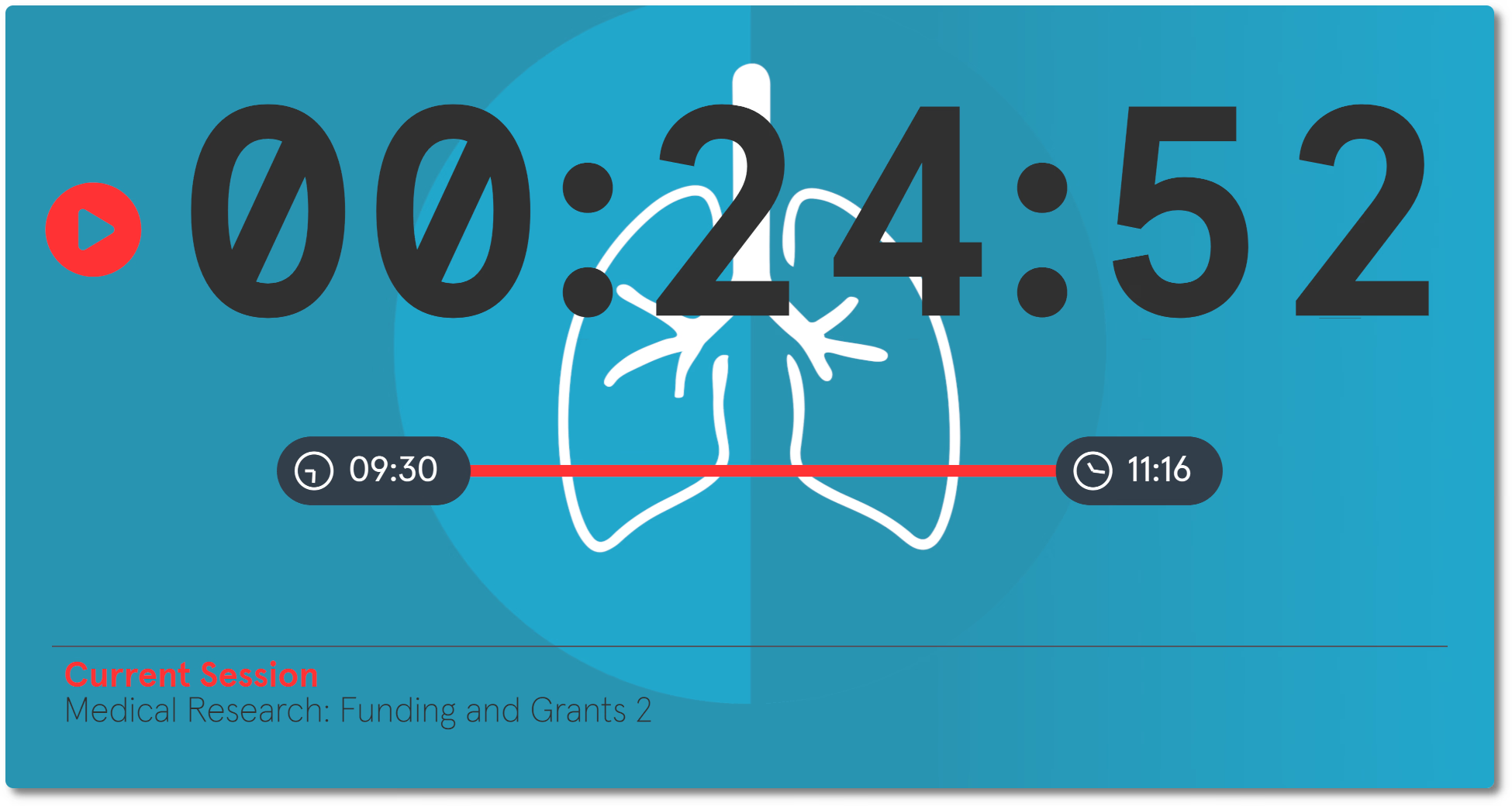
A red play icon to the left of the time shows that the countdown is running. The bar below it shows the scheduled session start and end as clock times, not elapsed or remaining time. The bar does not shrink as the session progresses. When a presentation is live, Current Session at the bottom shows the session name.
Related guides
- How do I set up and use the Technician, Kiosk and Moderator apps? → Run presentations with the other conference room apps
- How do I manage, reset or update devices and use the Screen Matrix? → Manage device settings in the portal and App Launcher
- Organiser Manual → Full Organiser Manual reference