

Choose the Slidecrew conference room apps that fit each device’s role.
Short answer: Choose an app for each device’s role. To run apps on separate displays connected to one computer, use Screen Matrix. Choose an app based on its typical operator and device, or use a display-only app when no operator is needed. Pair the device with your event first. To change its role, open a different app on the same device.
Match each app to its typical operator and device
Use this table to match each app with its typical operator and device.
| App | Typical operator | Typical device |
|---|---|---|
| Technician App | AV technician | Primary room device at the technician position |
| Kiosk App | Speaker, self-service | Lectern device where the speaker launches their own presentation |
| Moderator App | Moderator | Device at the moderator position |
| Timer Controller (standalone) | AV technician, Room Host or moderator | Dedicated device for controlling the countdown and displaying messages to the Room Timer |
| Room Timer | Display only, no operator | Secondary screen visible to the speaker on stage |
| Room Signage | Display only, no operator | Screen in the corridor or foyer outside the room |
The standalone Timer Controller is a separate app under Rooms. The Technician App also has a Timer Controller setting with a Show control that opens Timer Controller full-screen.
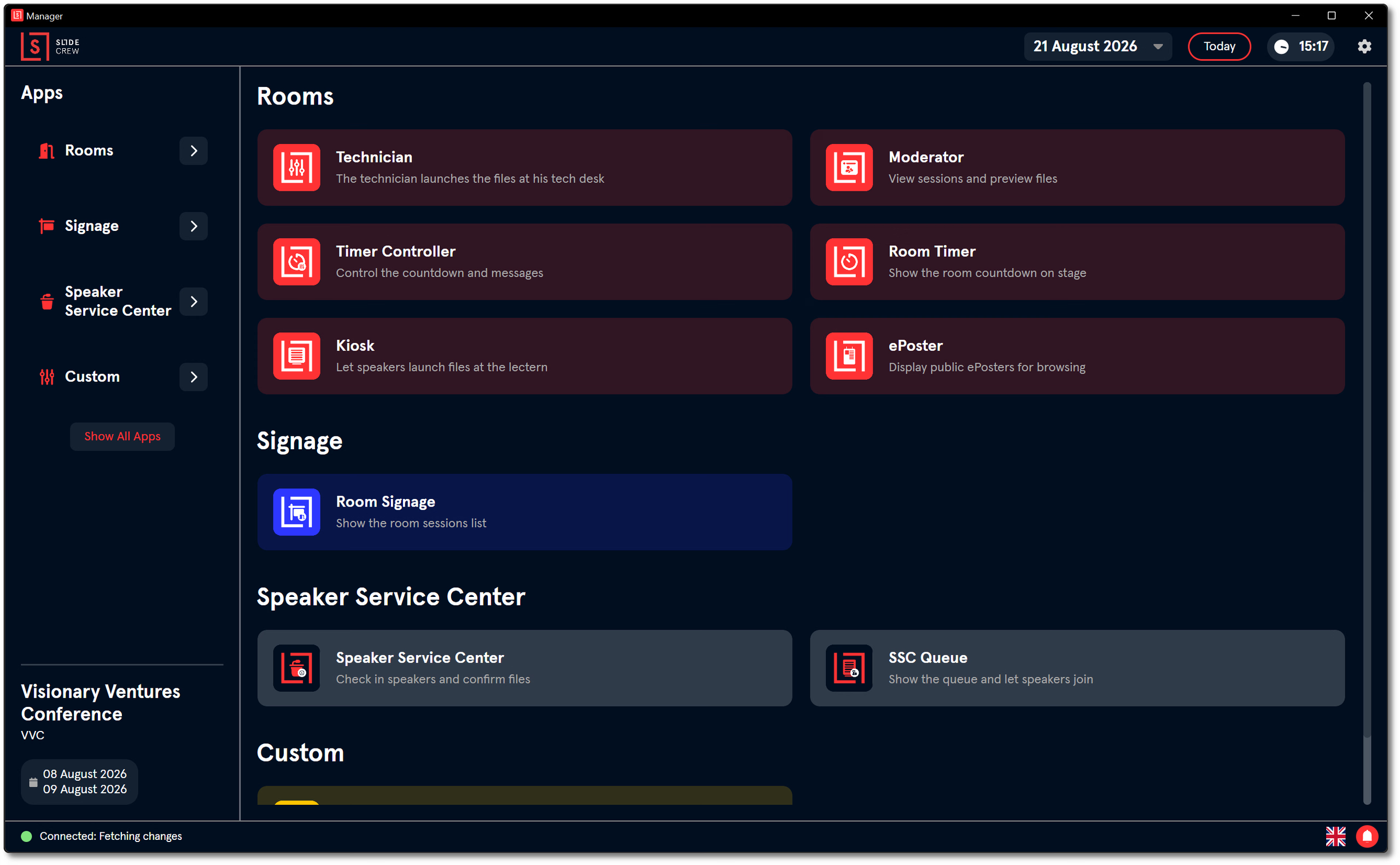
In the App Launcher, Technician, Kiosk, Moderator, Timer Controller and Room Timer are grouped under Rooms. Room Signage is under Signage. To change a device’s role, open a different app on that device.
For pairing steps, see How do I install the Slidecrew App Launcher and pair a device?.
How do I open Room Signage on an App Launcher device?
On a paired App Launcher device, open Signage → Room Signage. Room Signage is display-only and does not need further device-side configuration. Its appearance uses the Style assigned to the device.
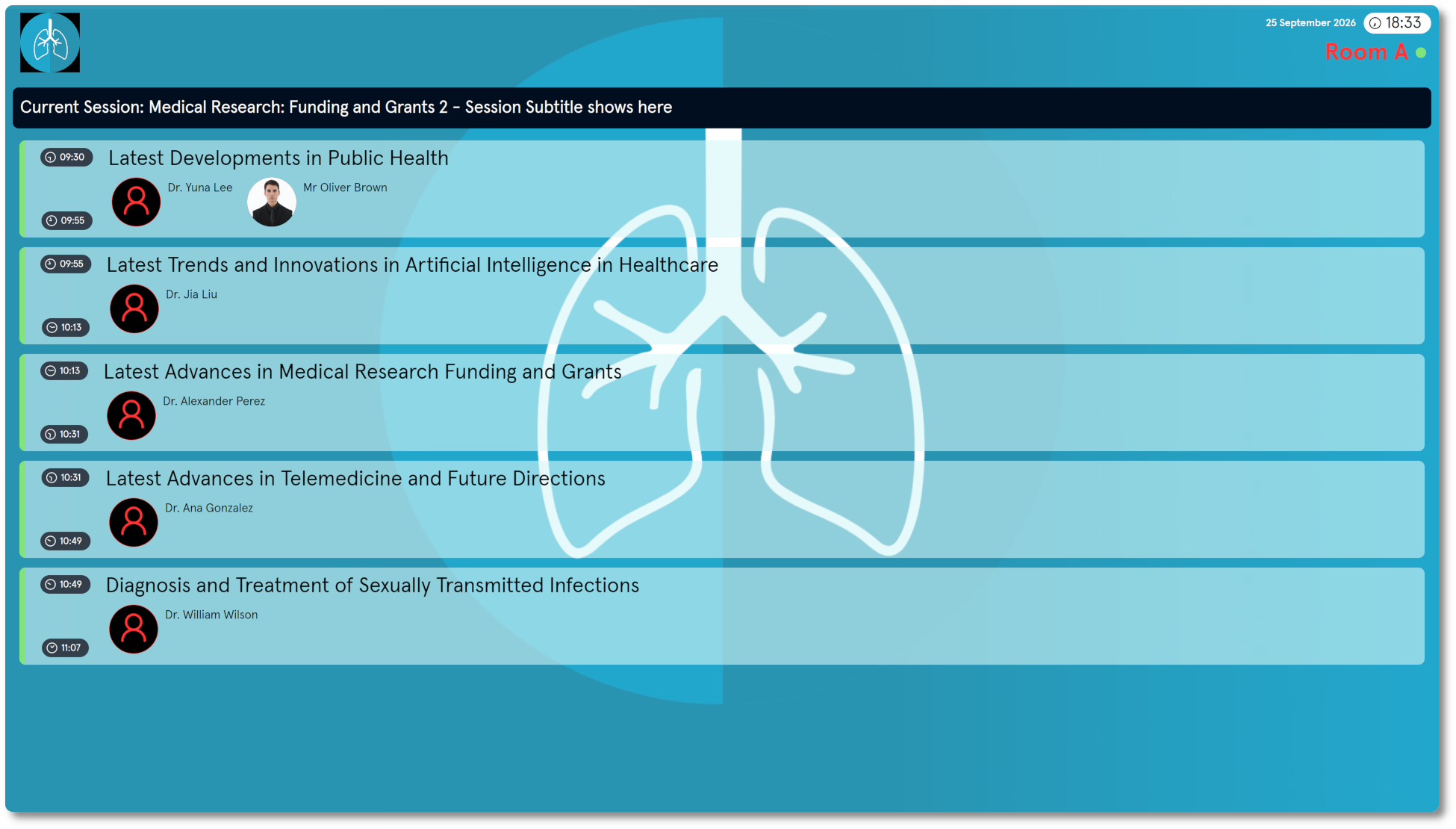
Room Signage lists the sessions for that room on the current day, with each session’s start time, end time and title. When a session goes live, the display switches to that session’s presentation list, showing presentation titles and speaker names. A session goes live when its scheduled start time has passed or when a presentation file is launched in the room. When the session ends, the display returns to the full session list for the day.
Which apps can I run through Web Apps?
Slidecrew Web Apps can run the six apps listed here.
| App | Notes |
|---|---|
| Room Signage | Works the same way as the App Launcher version. See Setting Up Conference Rooms. |
| Room Timer | Works the same way as the App Launcher version. See Setting Up Conference Rooms. |
| Queue | Works the same way as the SSC Queue screen. See Setting Up the Speaker Ready Room. |
| Name Screen | Only available in the Web App. Displays presenter’s or moderator’s name and presentation title, depending on configuration. |
| ePoster Screen | A limited version of the ePoster App. Only shows the first page of each ePoster and does not support video. |
| Airport Screen | Only available in the Web App. Displays all sessions across all rooms in a departure-board layout. |
Room Signage is also available through Web Apps and works the same way as the App Launcher version. For choosing and pairing a Web App, see How do I set up the Slidecrew Web App?.
Related guides for app setup and pairing
Use these guides to pair devices and find full app setup details.
- How do I install the Slidecrew App Launcher and pair a device? → Pair an App Launcher device with your event
- How do I set up the Slidecrew Web App? → Choose and pair a Web App
- Setting up room signage with Slidecrew Web Apps → Set up Room Signage through Web Apps; this guide covers Web Apps only
- Organiser Manual → Read the full device and conference room app reference