

Set up the Slidecrew Speaker Upload Page and choose when speakers must finish uploading files.
Short answer: Go to Event → Event Information → Upload page, set the page options and Pre-upload closed deadline, then select Save. The deadline closes new uploads through each speaker’s personal upload page. Staff can still upload in the portal, and speakers can still upload at a Speaker Ready Room check-in station.
Where do I find the Speaker Upload Page settings?
Open Event → Event Information, find the Upload page section, change the settings you need, then select Save.
What can I change in the Upload page section?
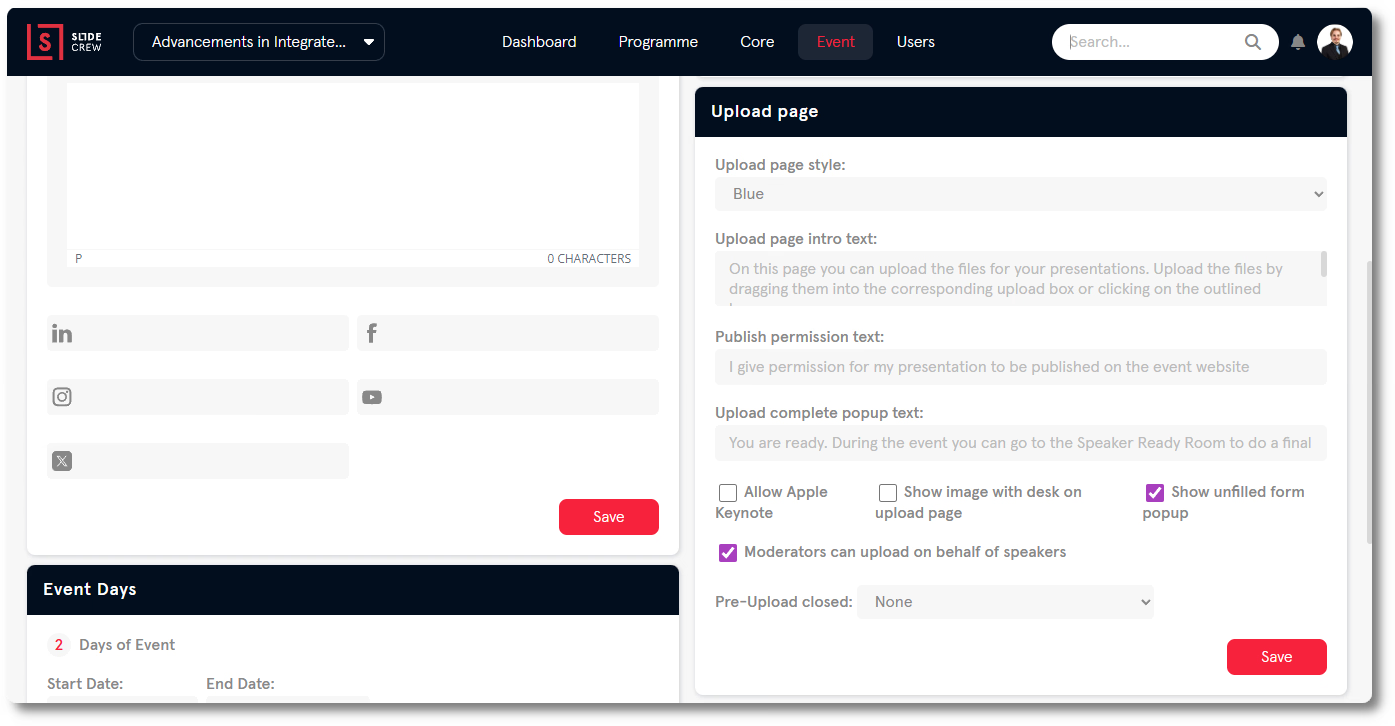
The Upload page section has nine settings.
| Setting | Notes |
|---|---|
| Upload page style | The Style applied to the speaker upload page |
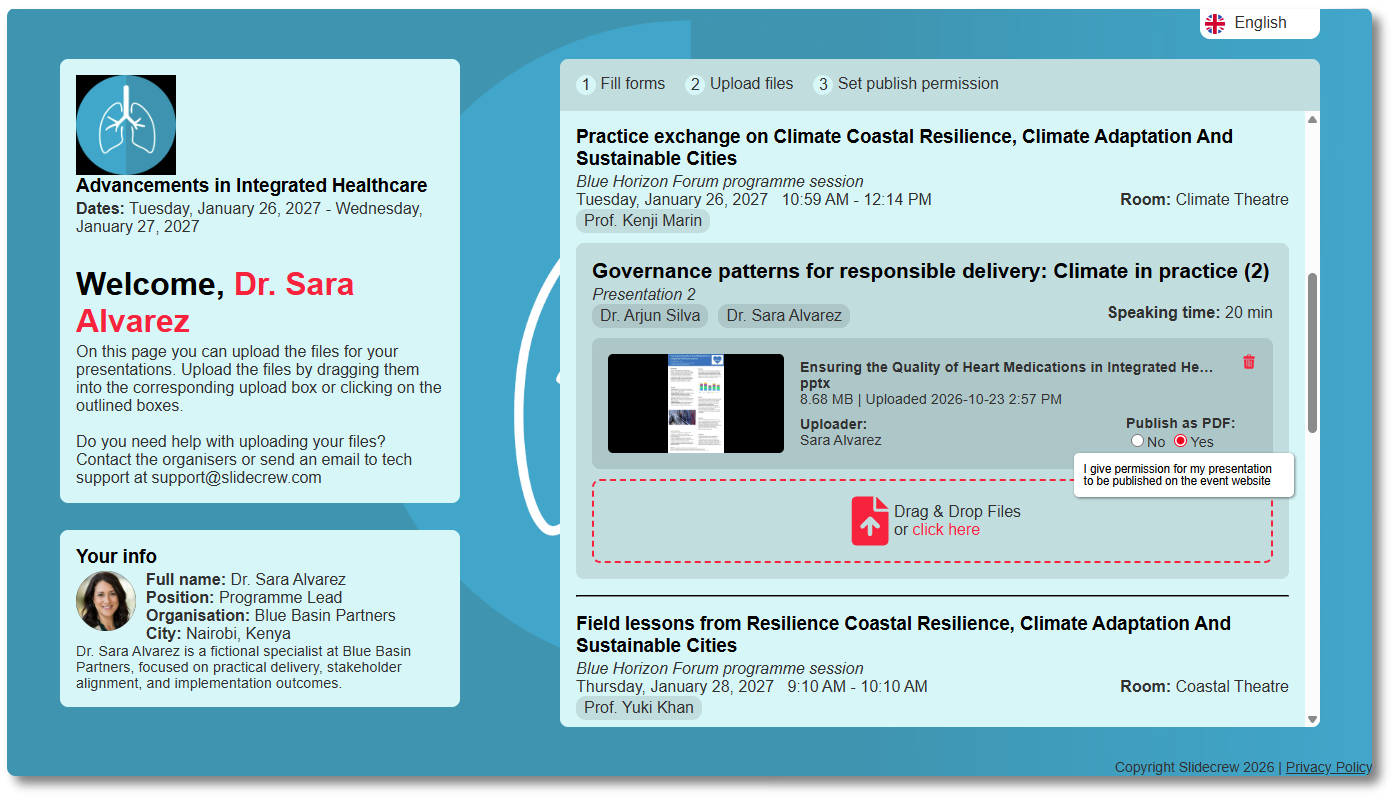
| Upload page intro text | The welcome message shown to speakers in the left panel |
| Publish permission text | The label shown next to the publish permission radio buttons |
| Upload complete pop-up text | The message shown after a successful upload |
| Allow Apple Keynote | When enabled, speakers can upload Keynote files. Disabled by default. |
| Show image with desk on upload page | When enabled, a decorative desk illustration appears on the upload page |
| Show unfilled form pop-up | When enabled, speakers are reminded to complete any outstanding forms when they open the upload page |
| Moderators can upload on behalf of speakers | When enabled, moderators can upload files for presentations in their sessions from the moderator page |
| Pre-upload closed | Sets a deadline after which the upload page no longer accepts new uploads |
The intro text appears in the left panel. The publish-permission text labels the permission radio buttons, and the upload-complete text appears after a successful upload. Turn on Allow Apple Keynote if speakers need to upload Keynote files; it is disabled by default.
How do I set an upload deadline?
Set the Pre-upload closed date and time in Event → Event Information → Upload page, then select Save.
- Open Event → Event Information.
- Find the Upload page section and open the Pre-upload closed dropdown.
- Select the cut-off date and time.
- Select Save.
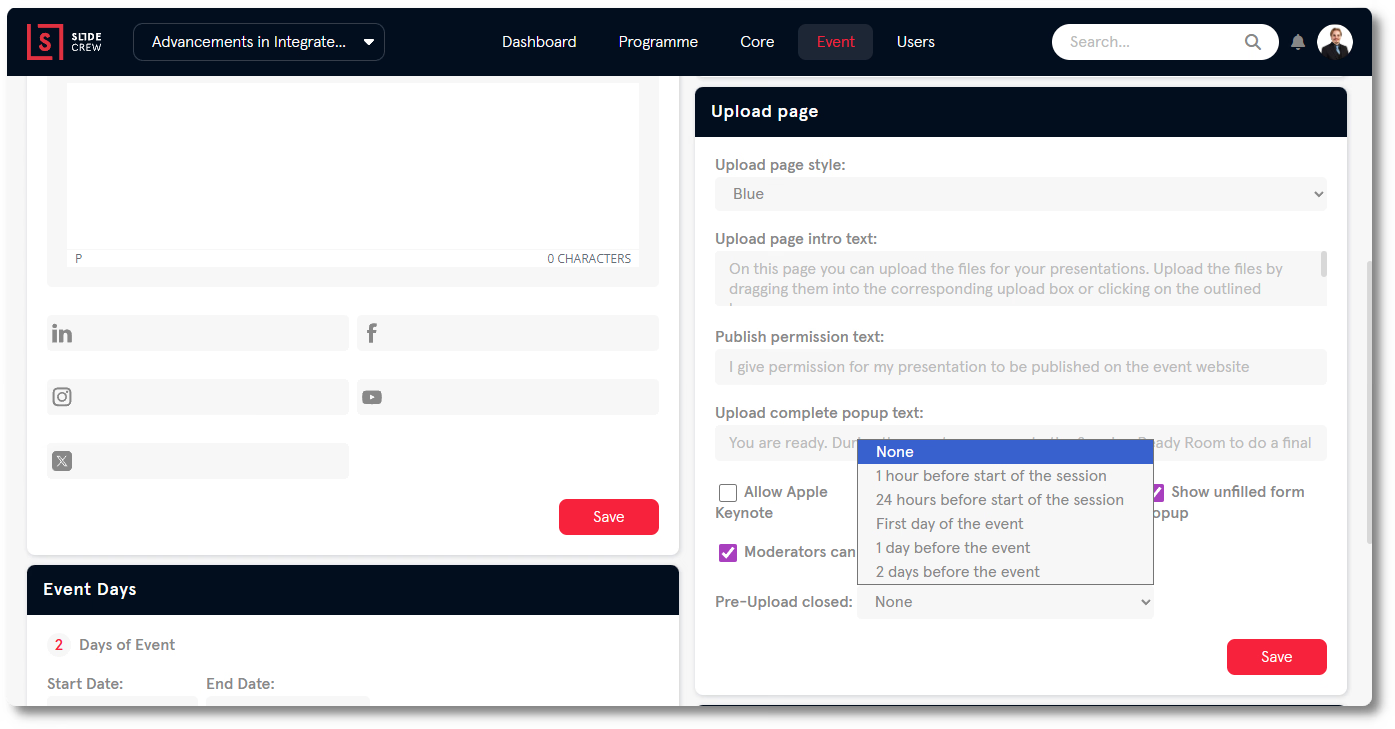
After the deadline passes, speakers can no longer upload new files through their personal upload page. Uploading remains possible through the event portal or at a Speaker Ready Room check-in station.
Which file types can speakers upload?
The supported types include PowerPoint, PDF, video, images and Apple Keynote. Keynote is disabled by default and must be enabled in the Upload page settings.
| Type | Notes |
|---|---|
| PowerPoint | .ppt and .pptx. This is the most common format. |
| Fully supported | |
| Video | Supported as an embedded presentation element or as a standalone file |
| Images | Supported as standalone files or as an embedded presentation element |
| Apple Keynote | Disabled by default. Enable it in the Upload page settings if needed. |
Related guides
- How do I upload my presentation file? → See the speaker’s upload steps
- What file formats can I upload for presentations and ePosters? → See supported presentation and ePoster formats
- Organiser Manual → Open the Organiser Manual