

After importing programme data, use Programme Errors to find issues and check what changed before correcting records or retrying the import.
Short answer: If you see “Import validation failed. No records saved.”, correct the named rows and import again. If the import completed with failed records, read its feedback, check which records changed and review the mappings before retrying. Then run Programme Errors to check all four tabs. Do not delete the whole programme or all attendee records as a first response.
Run the Programme Errors check
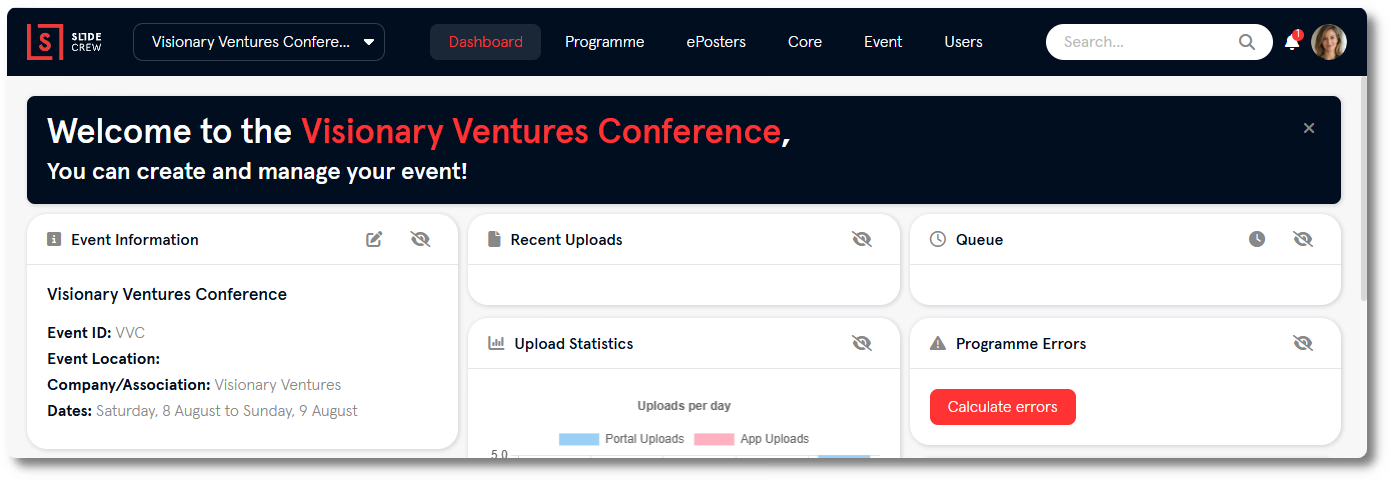
Run the check from either the dashboard or the Programme Errors page. On the dashboard, click Calculate errors in the Programme Errors widget. Or go to Core → Programme Errors. The dashboard widget does not calculate errors automatically. Opening the Programme Errors page runs the check after a brief loading animation.
Check what happened during the import
If the message says Import validation failed. No records saved., Slidecrew saved no records. Correct the rows named in the message, then import again.
If the import completed but some records failed, Slidecrew may still have saved other records. Before importing again:
- Read the feedback for the failed rows or records, and keep a copy of the spreadsheet and feedback while you investigate.
- Check which records were created or changed.
- Check the column mappings and values in the affected rows. Decide which records need correcting.
- Run Programme Errors to check for issues such as duplicate people, conflicting commitments or duration problems.
Do not delete the whole programme or all attendee records as your first response. If you cannot tell what changed, ask Slidecrew support before retrying or deleting data.
If sessions appear on the wrong dates after an import, check whether the day and month were swapped. Text dates with slashes are read month first, while text dates with dashes are read day first. Correct affected sessions before importing again: without record IDs, another import can create new sessions instead of moving the existing ones.
If sessions or presentations are missing, check the import feedback, column mappings and affected records before retrying. Check for duplicates as well as missing records.
Use the four Programme Errors tabs
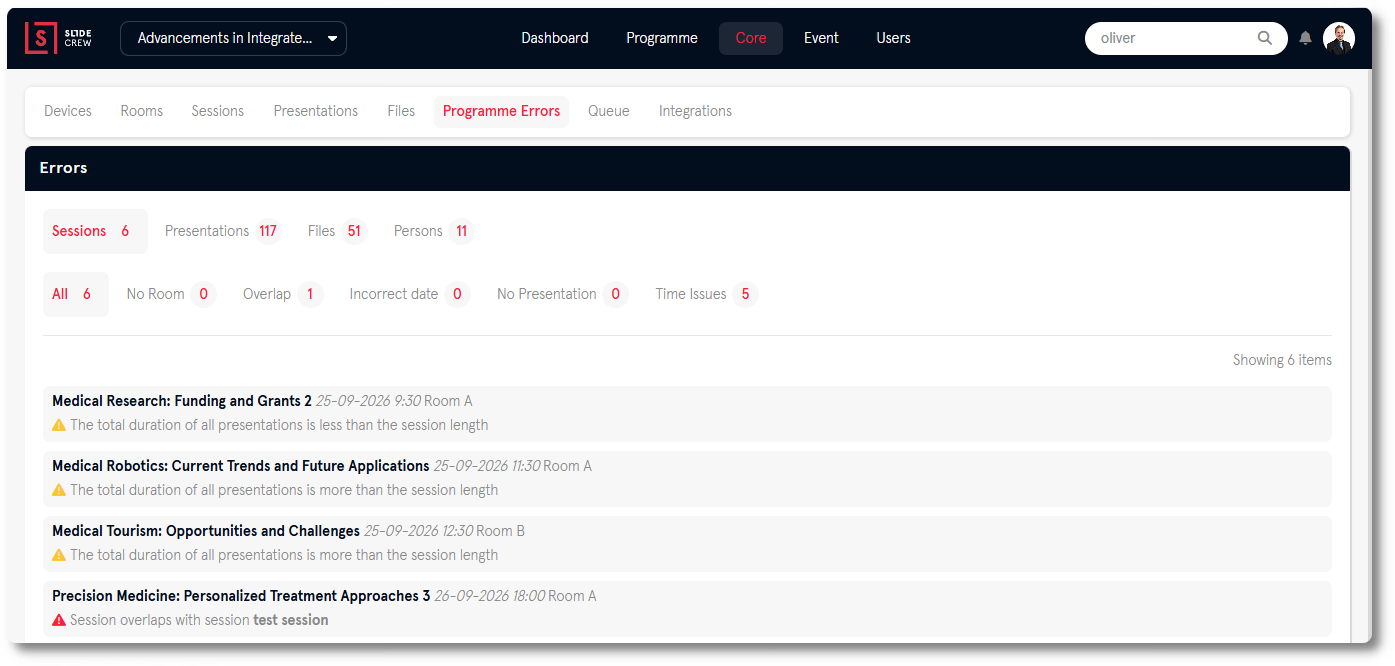
The tabs group errors by the type of record. Select a subtab to see all errors for that record type or a particular issue.
Sessions
| Subtab | What it flags |
|---|---|
| All | Every session error |
| No Room | Sessions not assigned to a room |
| Overlap | Sessions in the same room with overlapping times |
| Incorrect Date | Sessions dated outside the event’s configured days |
| No Presentation | Sessions with no presentations assigned |
| Time Issues | Sessions with missing or invalid start or end times |
Presentations
| Subtab | What it flags |
|---|---|
| All | Every presentation error |
| Title Errors | Presentations with missing or duplicate titles |
| No Session | Presentations not assigned to a session |
| No Speakers | Presentations with no speakers assigned |
| No Files | Presentations with no files uploaded |
Files
| Subtab | What it flags |
|---|---|
| All | Every file error |
| No Presentation | Files not linked to a presentation |
| Unknown Publication Status | Files where the speaker has not set a publish permission |
| Not Scanned | Files that have not been scanned by the file check process |
| External References Not Embedded | Files containing links to external files rather than embedded content |
| No Disclosure | Files with no disclosure slide detected |
Persons
| Subtab | What it flags |
|---|---|
| All | Every person error |
| No Email Address | Users with no email address |
| Email Not Valid | Users with a malformed email address |
| Overlap | Speakers assigned to overlapping presentations |
| No Presentation | Speakers with no presentation assigned |
| Email Used Twice | Two users sharing the same email address |
| Similar | Users with similar names or emails that may be duplicates |
| Invited | Users who have been invited but have not yet accepted |
For example, No Room identifies sessions without a room, while Overlap on the Sessions tab identifies sessions in the same room with overlapping times. Email Used Twice identifies two users sharing an email address, and Similar identifies users whose names or emails may indicate duplicates.
Related guides
- How do I import my programme into Slidecrew from a spreadsheet? → steps for preparing and importing programme data
- Importing your programme from a spreadsheet → the spreadsheet import walkthrough