

Use the Slidecrew Programme page to see your event schedule, rooms, sessions and presentation file status at a glance.
Short answer: The Programme page is a grid of rooms and sessions. Colour strips show the file status of presentations, while session blocks show programme details and warnings. Use the day tabs to move between event days, and use Room groups to filter the view when your event has 10 or more rooms.
How to read the Programme page
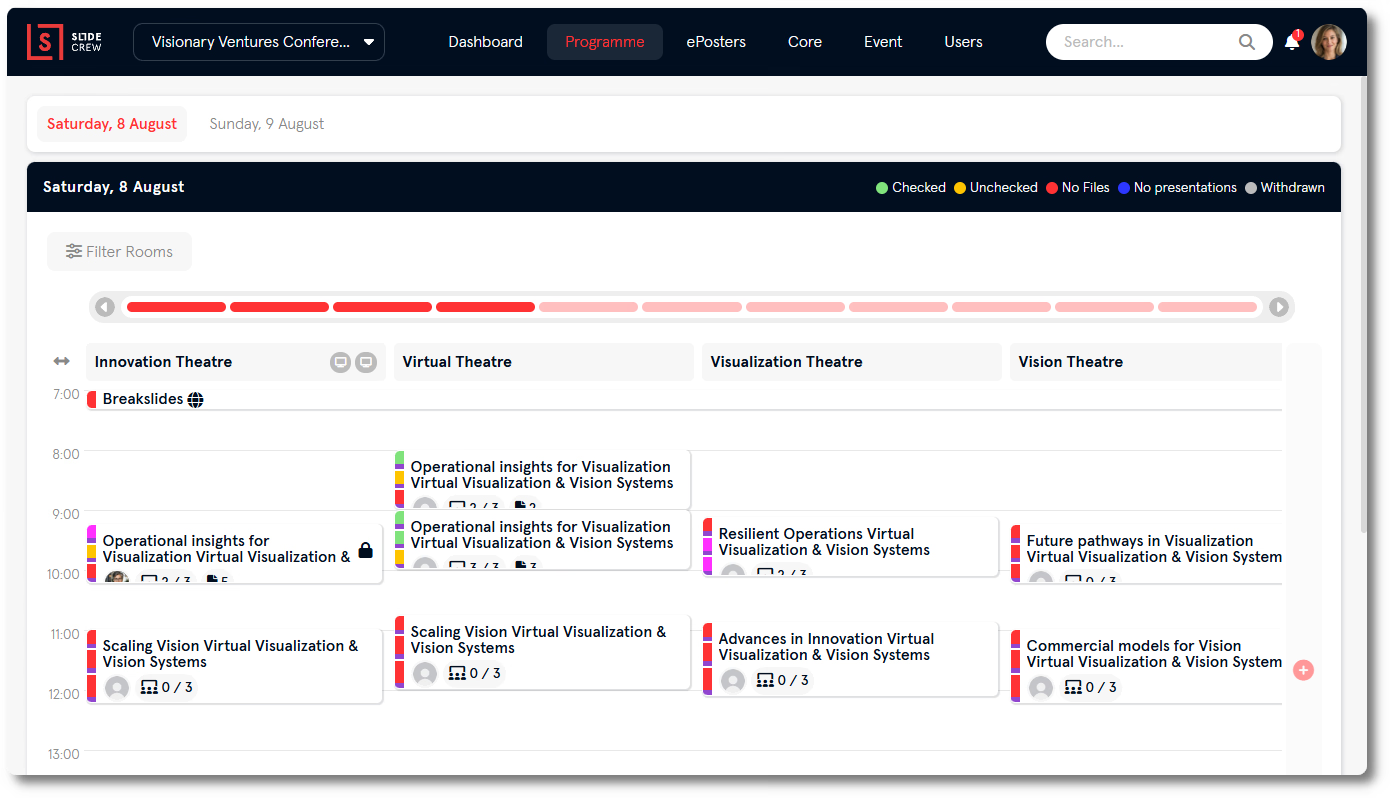
The Programme page is a calendar-style grid. Each column represents a room, and each block represents a session. A block’s height follows its start and end times. Scroll down to move through the day in time order.
The Event Day tabs at the top show each day and date. Select a tab to see that day’s sessions. ePosters are opened separately from the ePosters item in the top menu.
What the presentation colour strips mean
Each session block has a strip along its left edge. Each segment represents one presentation and shows its current file status.
| Colour | Status |
|---|---|
| Green | Checked. Files have been reviewed and confirmed. |
| Yellow | Unchecked. Files have been uploaded, but are not yet checked. |
| Red | No files. No files have been uploaded for this presentation. |
| Blue | No presentations. The session has no presentations assigned or the presentations don’t fill the session time completely. |
| Grey | Withdrawn. The presentation has been marked as withdrawn. |
How to read the room index and device indicators
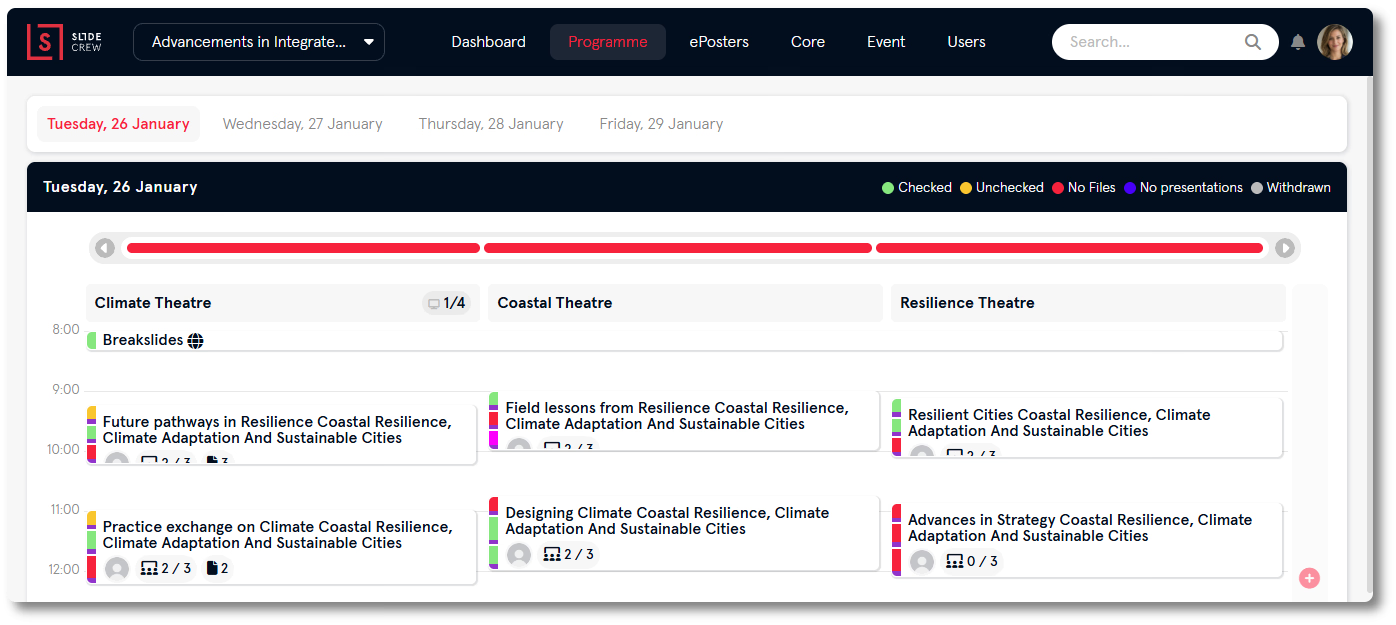
The room index strip sits above the grid. For events with fewer than 10 rooms, red lines show rooms in view and grey lines show rooms that need horizontal scrolling. Use the left and right arrows to move across the rooms.
For events with 10 or more rooms, Room Groups are available. When groups are configured, coloured segments replace the red and grey lines. Each segment matches a group colour, and its rooms appear as individual pills. Room column headers also use the group colour.
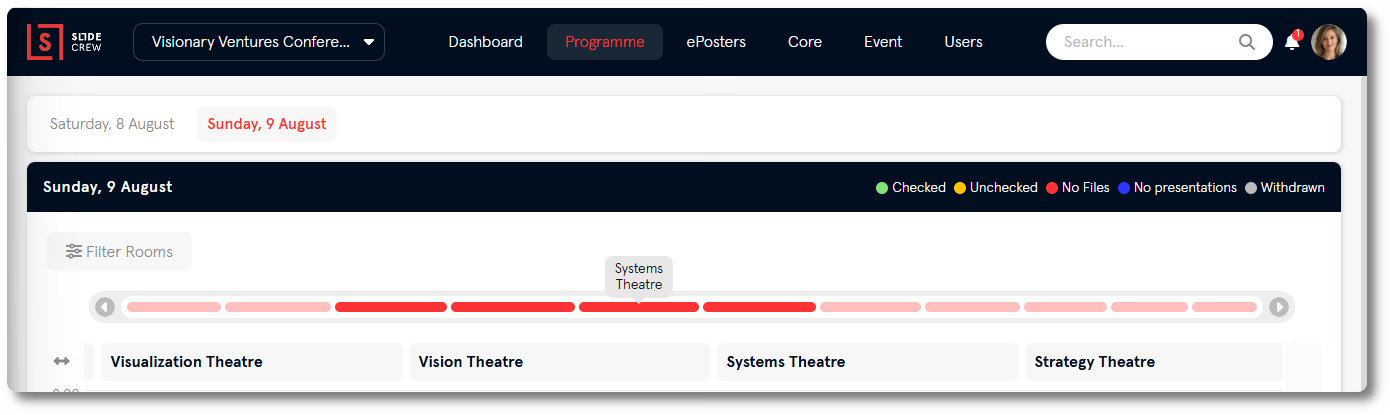
A green dot in a room header means at least one device is connected to that room. A monitor icon with a fraction, such as 2/3, shows connected devices compared with the total devices.
How to filter the Programme view by room group
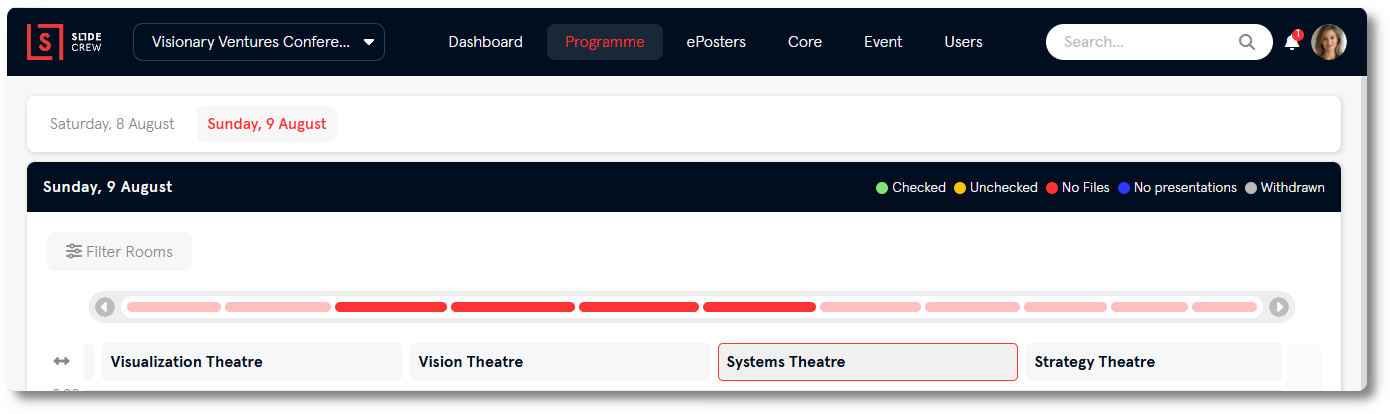
Select Room groups above the room index strip, then tick or untick the groups you want to show. The Programme view updates immediately. If you untick every group, all rooms appear.
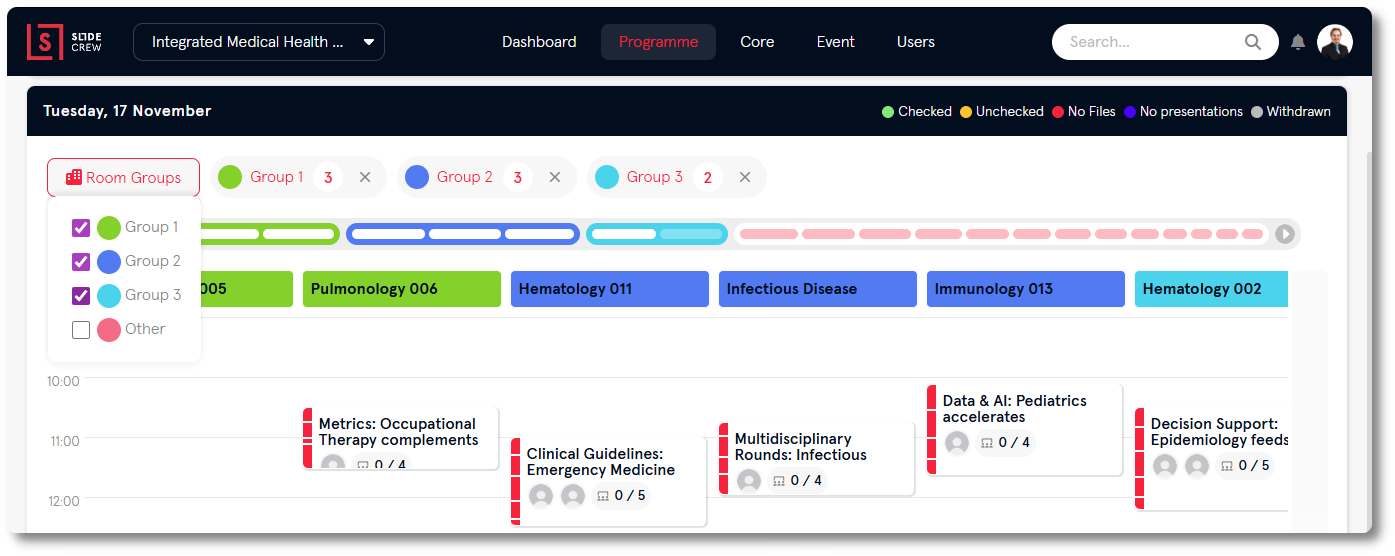
What a session block shows
A session block shows its title, moderator profile pictures when moderators are assigned, and a presentation count. The fraction shows how many presentations have files compared with the total presentations. A separate number shows the total file count for the session.
A warning triangle appears when the session has programme errors. A globe icon means the session is a Global Session that spans all rooms in that timeslot. The colour strip at the left shows the file status for each presentation.
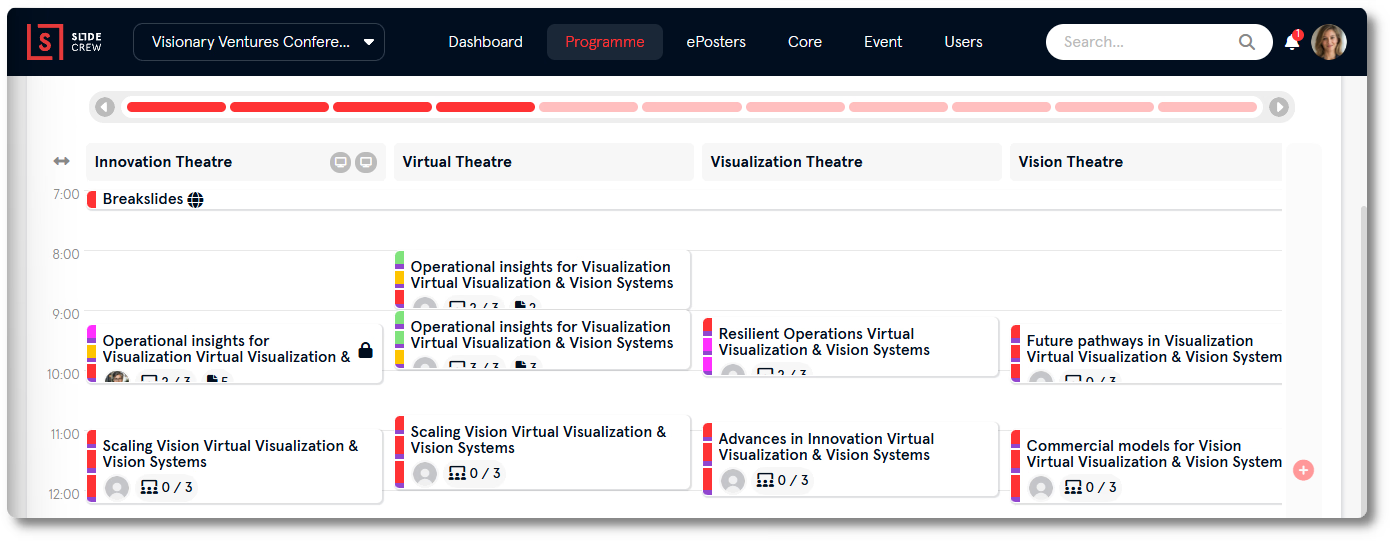
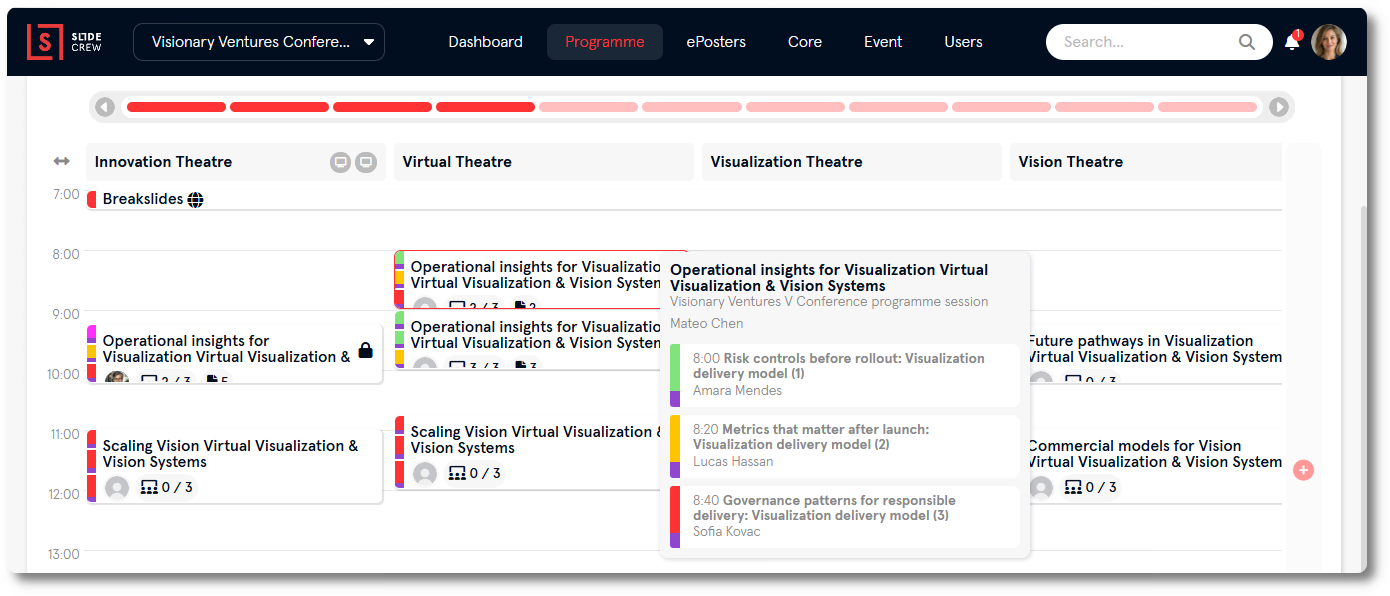
Hover over a session block to preview its title, moderator names and presentation and speaker names.
Related guides
- How do I add, edit, move and delete rooms, sessions and presentations? → Add, move or delete rooms, sessions and presentations
- How do I find and fix programme errors after an import? → Find and fix programme errors
- How do I manage, reset or update devices and use the Screen Matrix? → Manage event devices and their settings
- Organiser Manual → Full Organiser Manual