

This page explains how to create a Slidecrew account, accept an event invitation, log in and manage your account settings.
Short answer: Create an account at app.slidecrew.com with your email address and a password, or sign in with Google or Microsoft. If you receive an event invitation and do not yet have an account, use the link in the invitation email to create one. You can then log in, update your profile, enable two-factor authentication or reset your password.
Create a Slidecrew account
You can create one account for yourself and use it to access multiple event portals. Access and permissions are set separately for each event.
When you start signing up at app.slidecrew.com, Slidecrew redirects you to login.slidecrew.com. This is expected. Continue the sign-up process there.
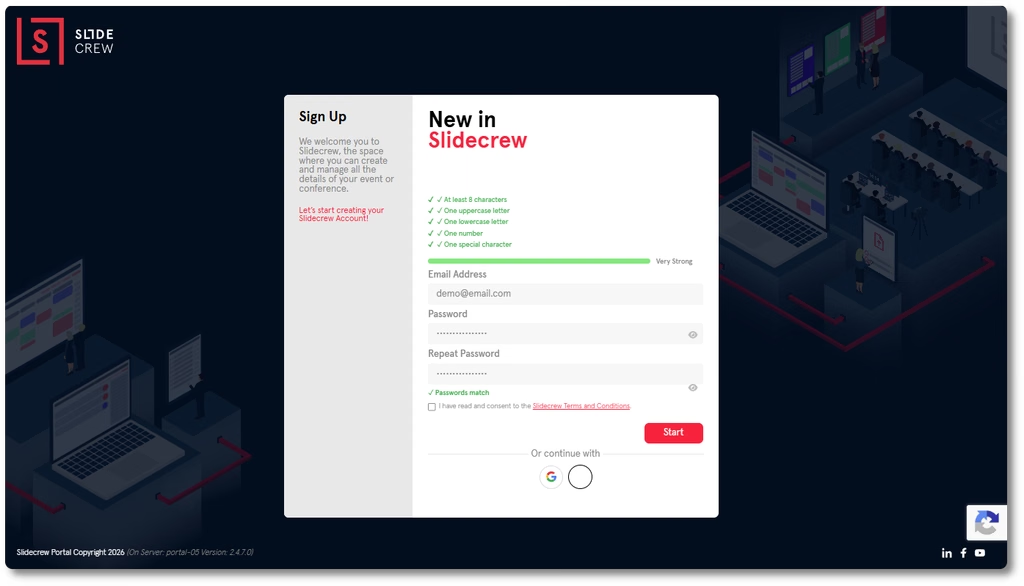
- Go to app.slidecrew.com and select Sign up.
- Enter your email address and choose a password, then accept the terms and conditions. Or choose Sign in with Google or Sign in with Microsoft.
- Complete your personal information when prompted.
- Open the verification email from Slidecrew and select its link. The link expires after 24 hours.
If the verification email has not arrived, check your spam folder. If it is not there, or if the link has expired, contact support@slidecrew.com to request a new link.
Create an account from an event invitation
If you do not already have a Slidecrew account, you can create one from the event invitation email.
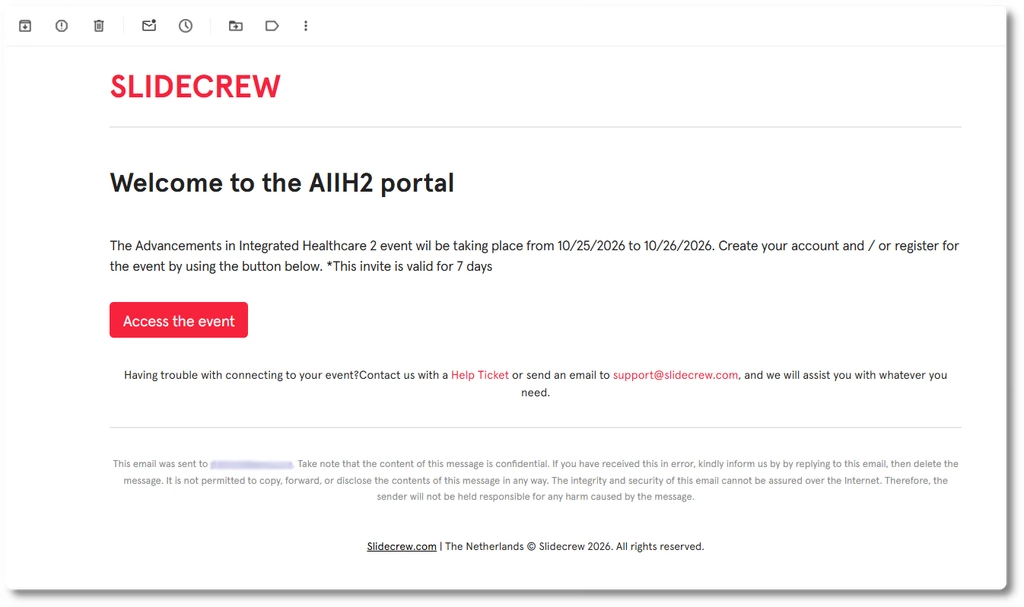
- Open the invitation email from event@invite.slidecrew.com.
- Select the link in the email.
- Enter a password and accept the terms and conditions. You can also complete your personal information when prompted.
Your account is created and linked to the event automatically.
Log in to Slidecrew
Go to app.slidecrew.com. Slidecrew redirects you to login.slidecrew.com, where you can sign in.
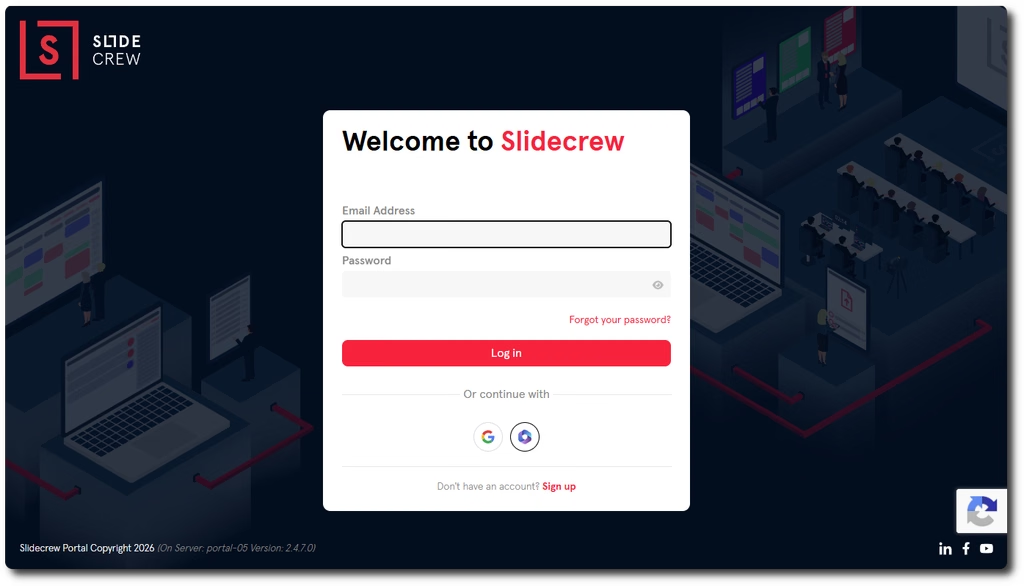
Enter your email address and password, then select Log in. If you registered with Google or Microsoft, select the matching sign-in option.
Update your personal information
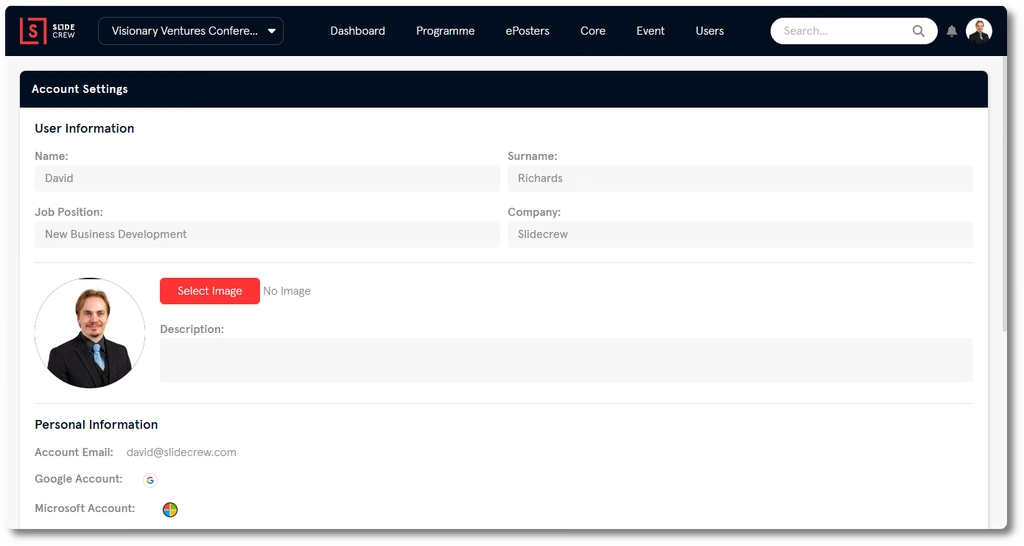
You can change your personal information from Account Settings after you log in.
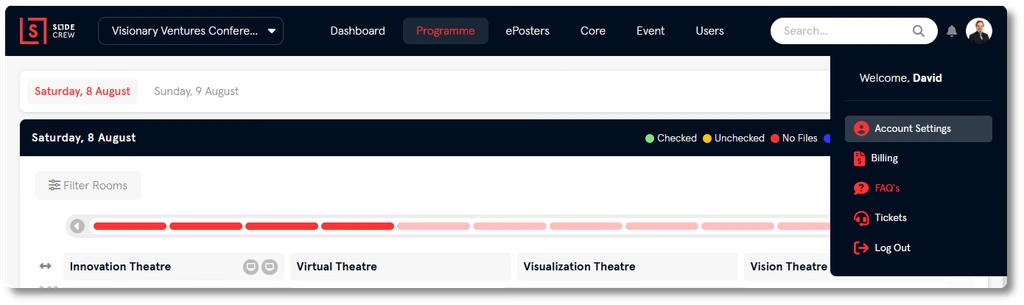
- Select your profile picture or account icon at the top right of a portal page.
- Select Account Settings.
- Update the fields in the Personal Information section.
Turn on two-factor authentication
Two-factor authentication adds an email confirmation step when you log in. You can enable or disable it from Account Settings.
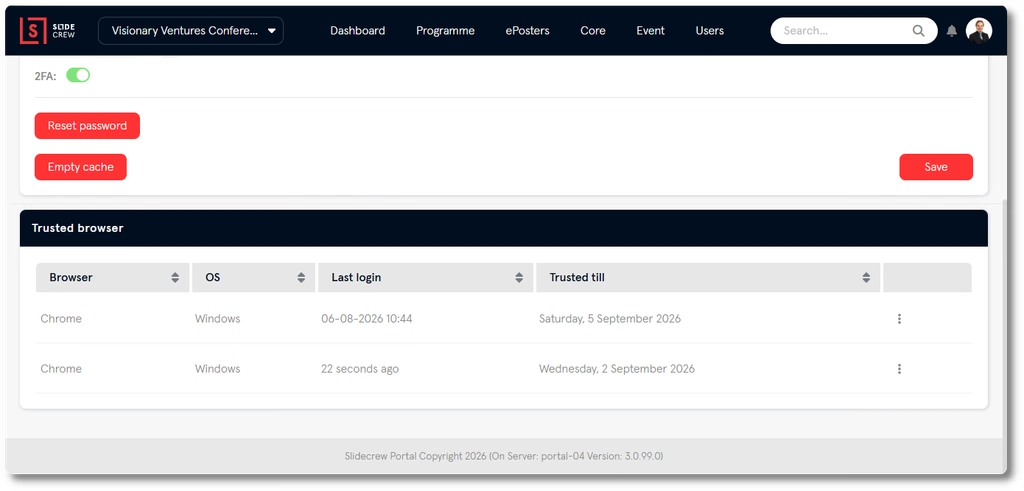
- Open Account Settings from your profile picture or account icon.
- In the Personal Information section, select the toggle next to 2FA.
When you log in, you can select trust the current browser for 30 days. The confirmation email is sent when you log in on a new device or after 30 days have passed.
Reset your password
You can reset your password from the login page or from Account Settings if you are already logged in.
Reset it from the login page
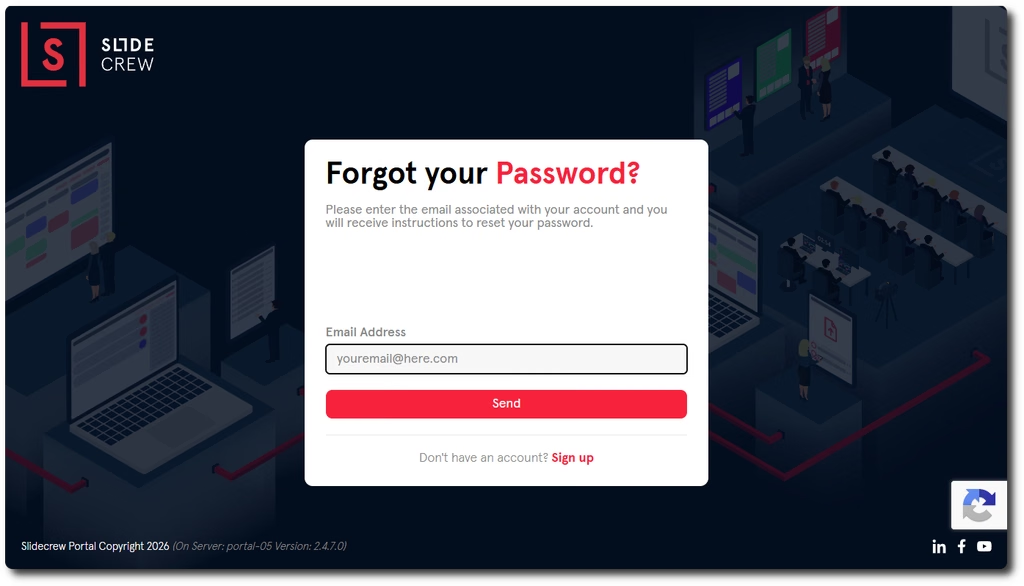
- Go to app.slidecrew.com. Slidecrew redirects you to login.slidecrew.com.
- Select Forgot your password?
- Enter your email address and select Send.
- If an account exists for that email address, Slidecrew sends an email with a password reset link. Open it and follow the instructions.
Reset it from Account Settings
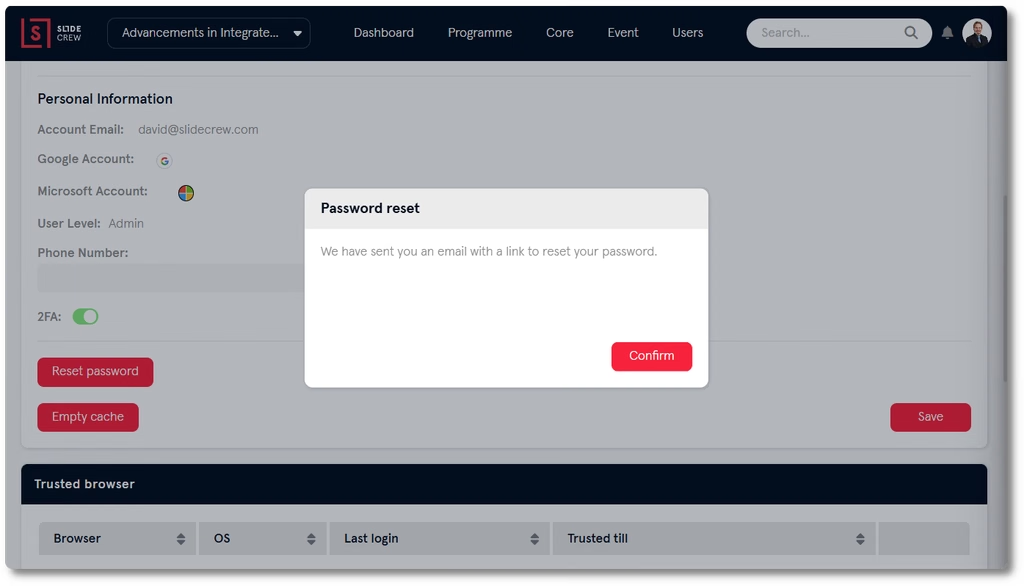
- Open Account Settings from your profile picture or account icon.
- Select Reset password at the bottom of the Personal Information section.
- A Password reset pop-up confirms that a reset email has been sent.
- Select Confirm to close the pop-up.
- Open the email from Slidecrew and follow the link to set a new password.
Clear cached portal data
If a portal page is not showing the latest data after a change, clear the cached data from Account Settings.
- Open Account Settings from your profile picture or account icon.
- Select Empty cache at the bottom of the Personal Information section.
The portal reloads with fresh data.
If you cannot see an event
If you can log in but cannot see an event you expect to have access to, refresh your browser first, especially if you have recently been invited. If the event still does not appear, check that you accepted the invitation using the correct email address. If you need an invitation, ask an Admin or Organiser on that event to invite you.
Related guides
- How do I add users and choose their role? → Learn how to invite users to an event and choose their roles
- Organiser Manual → Read the full Organiser Manual