

To import programme into Slidecrew, prepare the spreadsheet, then check each column mapping before you start.
Short answer: Download the Slidecrew import template or prepare your own spreadsheet with the programme fields you need. Keep existing record IDs when updating data, repeat matching session details across rows, and check every suggested column mapping before you click Start import. Text dates are read differently depending on their separators.
Prepare the spreadsheet
You can download the Slidecrew import template or use your own spreadsheet. If you use your own, use the same column headings where possible and check each mapping during upload. For field details, see the spreadsheet column reference below.
The template colours show which fields are required:
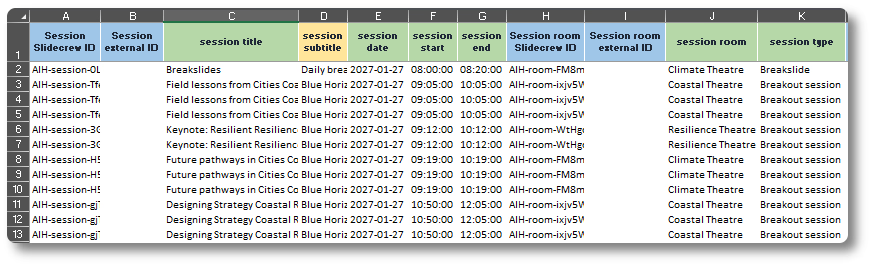
- Green fields are required for programme sessions. On
eposterrows, you can leave the session date, start, end, room, duration and order blank. - Blue fields hold Slidecrew IDs and external IDs from your own system.
- Yellow fields are optional.
Check these formats before uploading:
- Enter presentation duration and Q&A time as whole minutes, such as
20, not20:00. - Choose
Breakout sessionorBreakslidefor programme sessions, andeposterfor ePosters. Do not enterE-poster session. - Set presentation status to
Normal,RemoteorNoFiles. The separate presentation is panel and presentation is remote columns cannot both be set toTrue. - Enter email addresses and phone numbers as text.
- Import an extra barcode in a later spreadsheet, on a complete row for that person. Do not put two rows with different barcodes for one person in the same spreadsheet.
Keep record IDs when updating data
An import can add new records or update existing ones. Keep Slidecrew IDs with the records you intend to update. Importing the same spreadsheet again without record IDs can create duplicate sessions and presentations. Blank cells do not clear existing values. To remove a value, edit that record in the portal.
Add multiple speakers or chairs
Give each presentation its own row. For another speaker, add a row with the same session and presentation values, then enter that speaker’s details. If the first row has session or presentation IDs, keep them on the new row and check that the speaker ID belongs to the additional speaker. Add another chair by repeating the session values and entering the additional chair’s details.

Keep matching details consistent
Slidecrew matches rows for the same presentation using the session title, date, room and presentation title. Keep these values identical across related rows, including spaces and capitalisation. Enter the same speaker or moderator details identically on every row. Without a person’s ID, Slidecrew looks for a match by first and last name. A single match updates that person, and a different email address replaces the saved email. If more than one person matches, the import stops before saving and names the row. Add that person’s Slidecrew ID from an event export.
Upload presentation and ePoster files separately
The spreadsheet imports programme data only. Upload presentation and ePoster files through the portal or the Speaker Upload Page.
Check date formats
The template formats the date column as YYYY-MM-DD. Dates can be entered as Excel date cells or as text. For dates stored as text, Slidecrew interprets these formats as follows:
| Date entered as text | Order Slidecrew reads | Date interpreted |
|---|---|---|
04/03/2027 (slashes) | Month / day / year | 3 April 2027 |
04-03-2027 (dashes, year last) | Day – month – year | 4 March 2027 |
2027-03-04 (dashes, year first) | Year – month – day | 4 March 2027 |
Use YYYY-MM-DD, such as 2027-03-04, when entering dates as text.
Check the dates after importing. If sessions are already on the wrong dates, correct them in the portal before importing again. Re-importing without record IDs can create new sessions instead of moving the existing ones.
Upload and check the spreadsheet
Upload the prepared spreadsheet from Event → Imports and review each suggested field mapping before starting the import.
- In the portal, go to Event → Imports.
- Click Select File and choose your spreadsheet.
- Check the dropdown for every column in the preview. The suggested field can be missing or incorrect, so select the right Slidecrew field yourself. Custom data columns also need to be mapped manually.
- Click Start import.
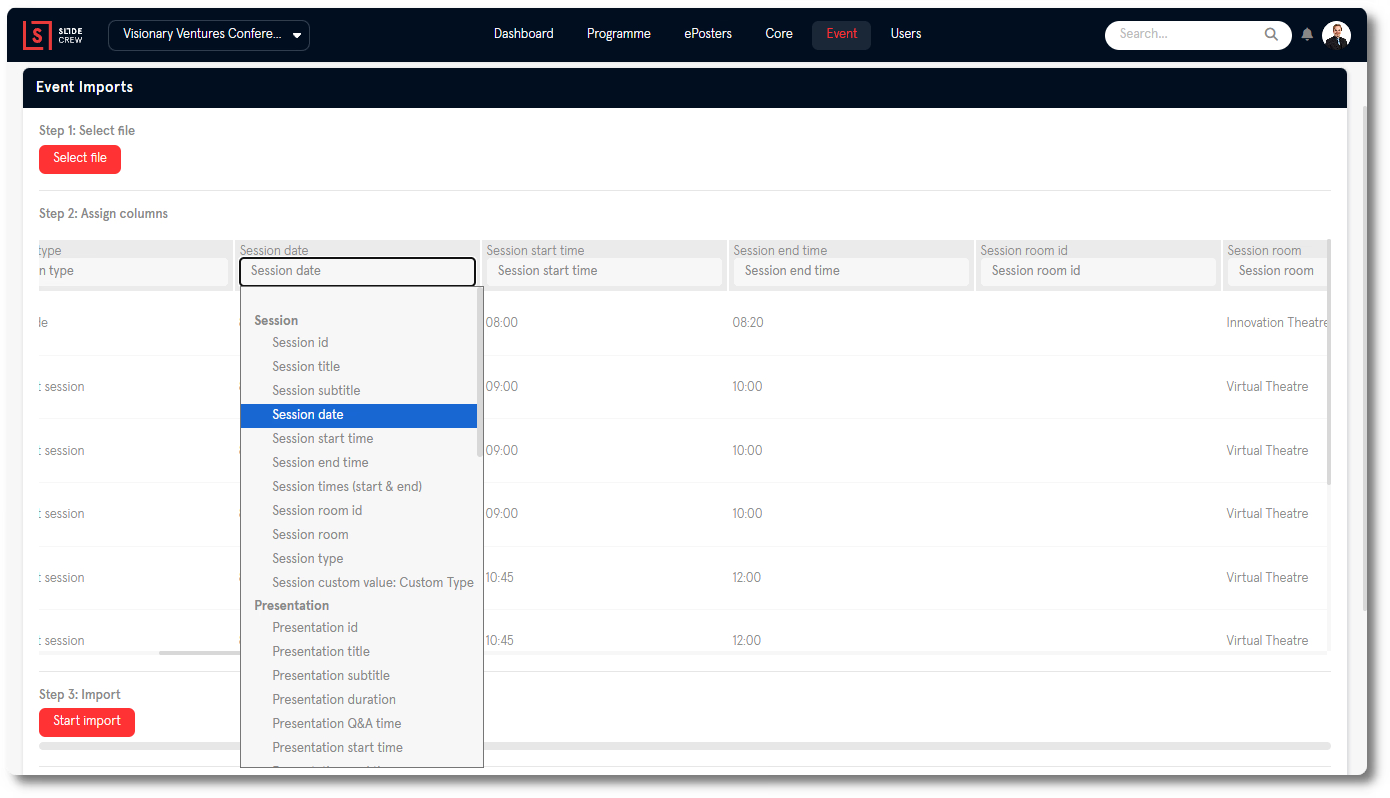
Slidecrew then processes the file and adds or updates its data in your event. Check the session dates and review Programme Errors at Core → Programme Errors after importing. If records are missing or the programme does not look right, see How do I find and fix programme errors after an import.
Reference
Use these tables to check each template column and the value it accepts.
Session columns
| Column title | What to enter |
|---|---|
| Session Slidecrew ID | Identifies the session. Created by Slidecrew: copy it from an export, never type your own. Keep it with its record when preparing an update. |
| Session external ID | Optional. Your own identifier for the session, for example from your event management system. Add it when the session is first imported: adding an external ID to a session that already exists does not save it. Once used, keep it the same. |
| session title | Required. The name of the session as it appears in the portal |
| session subtitle | Optional. A subtitle for the session |
| session date | Required. The template formats this column as YYYY-MM-DD. Leave blank on eposter rows |
| session start | Required. The start time, for example 09:00. Leave blank on eposter rows |
| session end | Required. The end time. Must be later than the start time. Leave blank on eposter rows |
| Session room Slidecrew ID | Identifies the room. Created by Slidecrew: copy it from an export, never type your own. |
| Session room external ID | Optional. Your own identifier for the room. Add it when the room is first imported; adding it to an existing room does not save it. |
| session room | Required. The name of the room. The same spelling creates the same room. Leave blank on eposter rows |
| session type | Required. Choose from the dropdown. For programme sessions, choose Breakout session or Breakslide. For ePosters, choose eposter: the session title becomes the ePoster Category and the presentation title becomes the ePoster. Do not enter “E-poster session” or other similar names, as it creates a normal programme session instead of an ePoster |
Moderator columns
Leave these columns blank on rows without a chair. For each new chair, complete at least the first name, last name and email.
| Column title | What to enter |
|---|---|
| chair Slidecrew ID | Identifies the person. Created by Slidecrew: copy it from an export, never type your own. |
| chair external ID | Optional. Your own identifier for the person. Add it when the person is first imported; adding it to an existing person does not save it. |
| chair title | Optional. Honorific, e.g. Dr, Prof |
| chair first name | The chair’s first name |
| chair infix | Optional. A name prefix such as van or de, kept separate from the last name |
| chair last name | The chair’s last name |
| chair email | The email address Slidecrew uses to contact the chair. Enter as text |
| chair barcode | Optional. A barcode for the chair’s badge. See Barcodes below the tables |
| chair jobtitle | Optional. The chair’s job title |
| chair company | Optional. The chair’s organisation |
| chair city | Optional |
| chair country | Optional |
| chair biography | Optional. The chair’s biographical text, shown on their personal pages |
| chair phone | Optional. Enter as text to preserve + signs, spaces, and leading zeros |
Presentation columns
| Column title | What to enter |
|---|---|
| Presentation Slidecrew ID | Identifies the presentation. Created by Slidecrew: copy it from an export, never type your own. |
| Presentation external ID | Optional. Your own identifier for the presentation. Add it when the presentation is first imported; adding it to an existing presentation does not save it. |
| presentation title | Required. The name of the presentation |
| presentation subtitle | Optional. A subtitle for the presentation |
| presentation duration | Required. Enter the duration as a whole number of minutes, for example, 20 for 20 minutes. Do not enter 20:00 for 20 minutes; the import tool reads that as 20 hours. Leave blank on eposter rows |
| presentation qa time | Optional. Enter the Q&A duration as a whole number of minutes, for example 5 for five minutes. |
| presentation order | Required. The position of the presentation in its session: 1, 2, 3 and so on. Leave blank on eposter rows |
| presentation abstract | Optional. The presentation abstract text. Required for eposter rows, where it becomes the ePoster abstract |
| presentation status | Optional. Leave blank for a normal presentation. Normal, Remote and NoFiles can be imported. Set any other status in the portal |
| presentation is panel | Optional. Choose True if this is a panel discussion. Leave blank or choose False for a normal presentation |
| presentation is remote | Optional. Choose True if the speaker is presenting remotely. Leave blank or choose False if they are not. Do not mark a presentation as both panel and remote |
Speaker columns
Leave these columns blank on rows without a speaker. For each new speaker who needs an upload link, complete at least the first name, last name and email: Slidecrew sends the upload link to that address.
| Column title | What to enter |
|---|---|
| speaker Slidecrew ID | Identifies the person. Created by Slidecrew: copy it from an export, never type your own. |
| speaker external ID | Optional. Your own identifier for the person. Add it when the person is first imported; adding it to an existing person does not save it. |
| speaker title | Optional. Honorific, e.g. Dr, Prof |
| speaker first name | The speaker’s first name |
| speaker infix | Optional. A name prefix such as van or de, kept separate from the last name |
| speaker last name | The speaker’s last name |
| speaker email | The email address Slidecrew uses to send the speaker their upload link. Enter as text |
| speaker barcode | Optional. A barcode for the speaker’s badge. See Barcodes below the tables |
| speaker jobtitle | Optional. The speaker’s job title. On the import screen this column maps to Speaker job description |
| speaker company | Optional. The speaker’s organisation |
| speaker city | Optional |
| speaker country | Optional |
| speaker biography | Optional. The speaker’s biographical text, shown on their personal upload page |
| speaker phone | Optional. Enter as text to preserve + signs, spaces, and leading zeros |
Submitter columns
Leave these columns blank on rows without a submitter. For each new submitter, complete at least the first name, last name and email.
| Column title | What to enter |
|---|---|
| submitter Slidecrew ID | Identifies the person. Created by Slidecrew: copy it from an export, never type your own. |
| submitter external ID | Optional. Your own identifier for the person. Add it when the person is first imported; adding it to an existing person does not save it. |
| submitter title | Optional. Honorific, e.g. Dr, Prof |
| submitter first name | The submitter’s first name |
| submitter infix | Optional. A name prefix such as van or de, kept separate from the last name |
| submitter last name | The submitter’s last name |
| submitter email | The submitter’s email address. Enter as text |
| submitter barcode | Optional. A barcode for the submitter’s badge. See Barcodes below the tables |
| submitter jobtitle | Optional. The submitter’s job title |
| submitter company | Optional. The submitter’s organisation |
| submitter city | Optional |
| submitter country | Optional |
| submitter biography | Optional. The submitter’s biographical text |
| submitter phone | Optional. Enter as text to preserve + signs, spaces, and leading zeros |
Barcodes
Each person can have more than one barcode. To add another barcode to a chair, speaker or submitter, import the barcode in a later spreadsheet, on a complete row for that person (session, presentation and person details, not only the IDs). The new barcode is added alongside the existing one. Do not put two rows with different barcodes for the same person in one spreadsheet: the import fails and nothing is saved. Barcodes do not appear in the programme export. Check them on the person’s record in the portal.
Related guides
Use these resources for the full import guide and related tasks.
- Importing your programme from a spreadsheet → PDF walkthrough of preparing, mapping and uploading an import
- Organiser Manual → Full spreadsheet column reference and import rules
- How do I find and fix programme errors after an import? → Check and fix programme problems after an import
- How do I export my programme or copy it to another event? → Find out how to export the programme and keep its Slidecrew IDs