

Set up a Slidecrew API integration to import programme data from a supported third-party event platform and manage scheduled syncs.
Short answer: An API integration sends programme data one way from a supported third-party platform into Slidecrew. Add an integration under Core → Integrations → 3rd Party Integrations. For Events Air, enter your platform credentials, choose import options, map custom fields and set a sync interval. The first sync runs at the next scheduled interval.
How the API sync works
The integration syncs programme data from the connected third-party platform into Slidecrew. It is one-way, so make programme changes in that platform. Changes made in Slidecrew to synced records are overwritten at the next sync. Sessions, presentations and ePosters created manually in Slidecrew, with no corresponding source record, are not changed by syncs.
You can also import programme data from a spreadsheet. Use the API integration when Slidecrew supports your event platform and you want Slidecrew to keep checking it for updates. For the spreadsheet workflow, see How do I import my programme into Slidecrew from a spreadsheet?.
Set up an Events Air integration
In the event portal, go to Core → Integrations. Under 3rd Party Integrations, select +. In the Api Integration window, choose your platform from Select a platform.
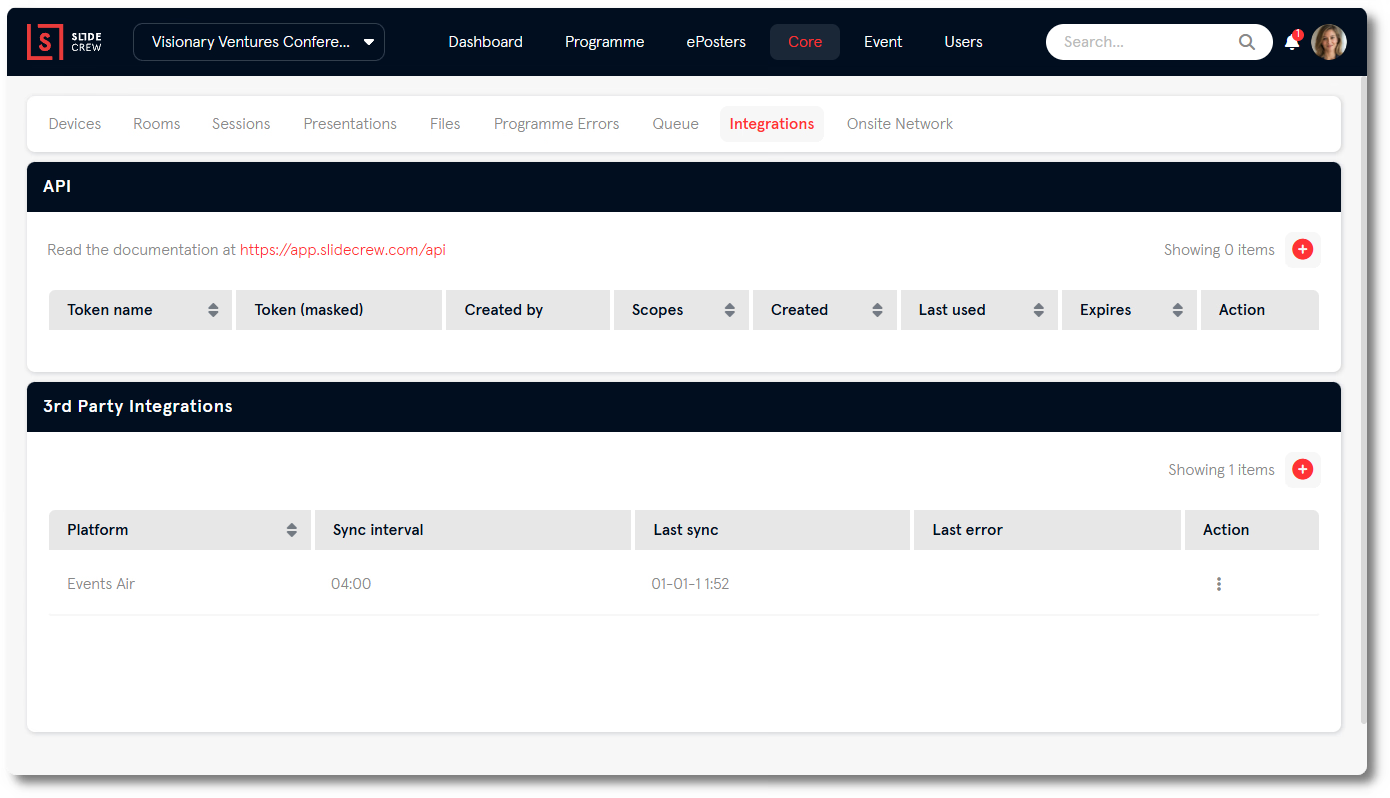
For Events Air, enter the TenantId, ClientId, ClientSecret and EventId supplied by your platform administrator. Select Start setup. When Slidecrew loads the configuration options, choose the import settings and map the data fields you want to bring in. Set Sync every to an interval from 00:30 to 12:00 in 30-minute increments, then select Save. The integration syncs at the next scheduled interval, so the first sync is not immediate.
Choose Events Air import options and map custom fields
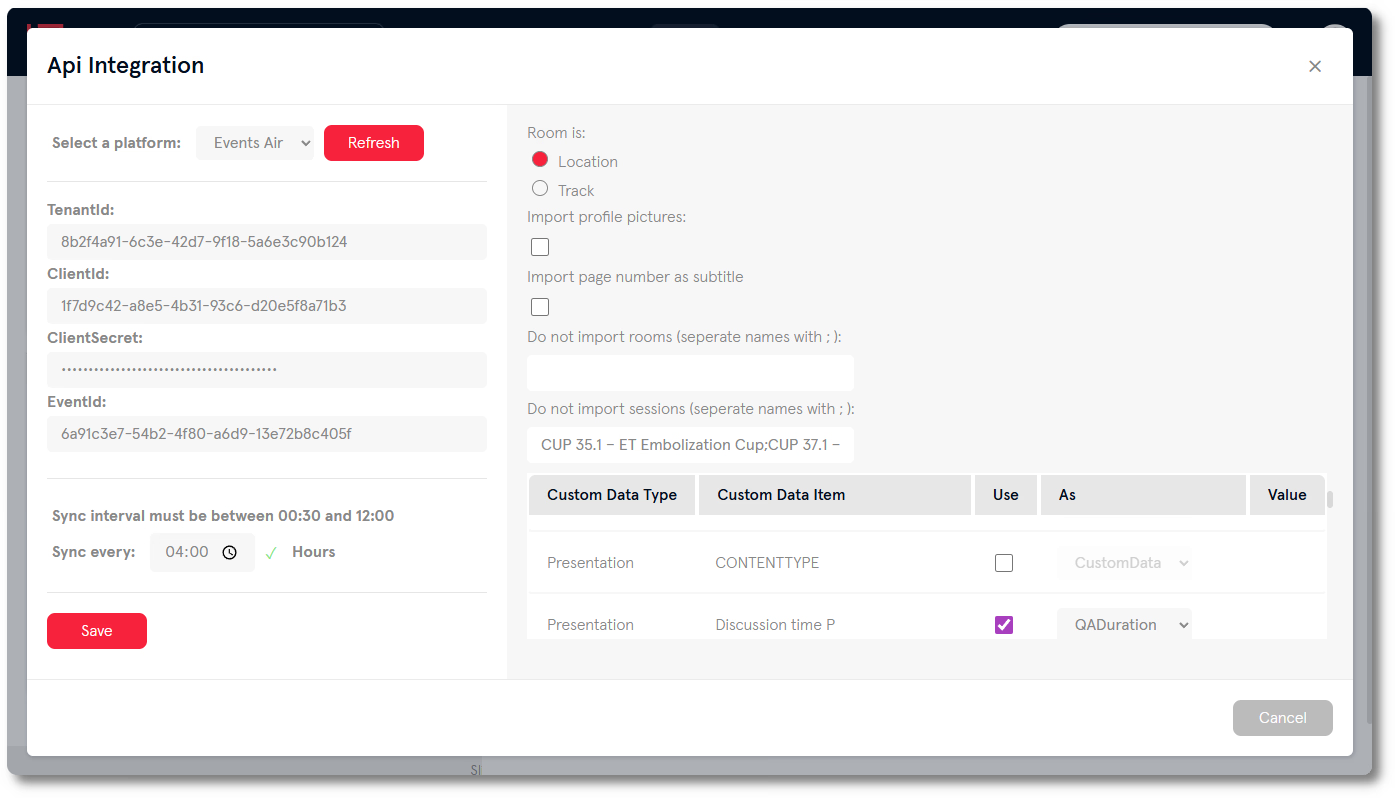
For Events Air, the import options control how Slidecrew reads rooms and which data it brings across. In Room is, choose Location if your platform uses locations for rooms, or Track if it uses tracks. Check your Events Air configuration if you are unsure which applies. You can also choose whether to import speaker profile pictures and page numbers as subtitles, and list rooms or sessions to leave out.
| Option | What it does |
|---|---|
| Room is | Sets how Slidecrew interprets rooms in your platform’s account. Select Location if rooms are set up as locations in, for example, Events Air, or Track if they are set up as tracks. Check the configuration within your source platform if you are not sure. |
| Import profile pictures | When ticked, imports speaker profile pictures from your platform. |
| Import page number as subtitle | When ticked, imports the page number from your platform as a subtitle field in Slidecrew. |
| Do not import rooms | Enter the names of any rooms to exclude from the import, separated by semicolons. |
| Do not import sessions | Enter the names of any sessions to exclude from the import, separated by semicolons. |
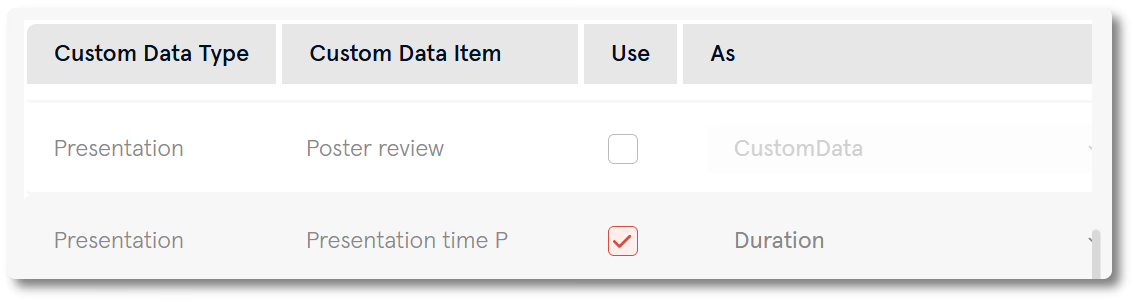
In the Custom Data table, tick Use for each field you want to import. Choose the Slidecrew field from As. If Value appears, choose the data type. Fields left unticked are ignored during sync.
Manage syncs and fix an authorisation error
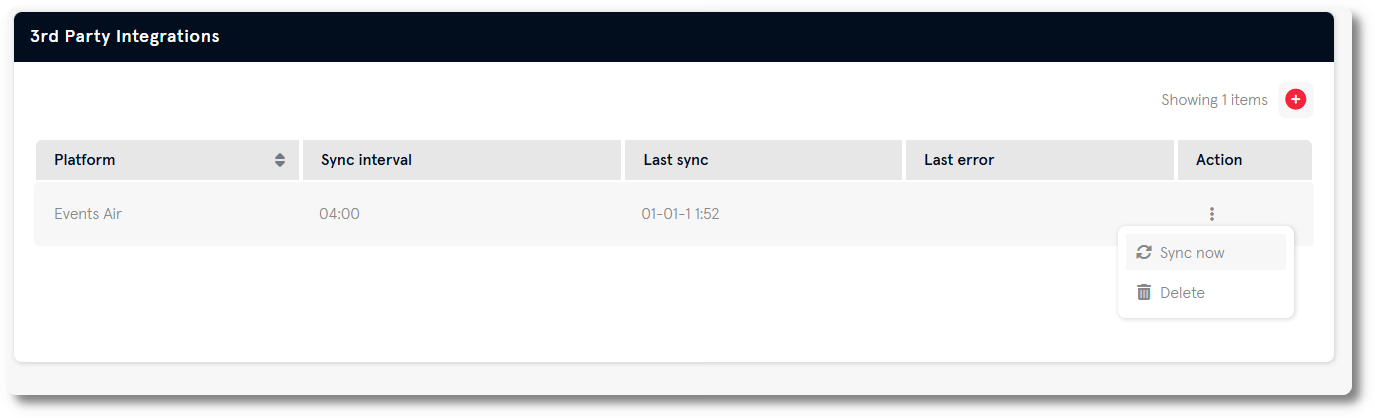
The 3rd Party Integrations table shows the platform, sync interval, last sync time and any error from the last sync attempt. To start a sync immediately, select the three-dot menu beside the integration and choose Sync now. To update credentials or field mappings, select the integration row to reopen its configuration.
If the Custom Data table shows “One of the authorization fields is not valid.” instead of field data, one or more credentials are incorrect. Check the TenantId, ClientId, ClientSecret and EventId against the values in your Events Air account, then try setup again.
Related guides
- How do I import my programme into Slidecrew from a spreadsheet? → Import a programme from a spreadsheet
- Slidecrew API documentation → Developer documentation for connecting to Slidecrew’s own API
- Organiser Manual → Organiser Manual