

Set up the Slidecrew Web App by opening its address in Chrome or Edge, choosing a screen and pairing that screen with your event.
Short answer: The Web App runs in a Chromium-based browser, so nothing needs to be installed. Open the Web Apps page, choose one of its six screens, then pair that screen in Core → Devices using its six-digit code or QR code. After pairing, it opens for the room assigned to the device.
What you need before setup
Use Google Chrome or Microsoft Edge on the display device. Firefox and Safari are not supported.
Because the Web App runs in a browser, you don’t need to install software.
Open the Web Apps screen and choose an app
Open https://app.slidecrew.com/webapp/ in Chrome or Edge, then click the app you want to run on the Slidecrew Web Apps screen. You can also open the page from the Dashboard Tools widget by selecting Web Apps (For use on Chromium).
| Download | Notes |
|---|---|
| Slidecrew Installer (Windows 11) 64-bit | The App Launcher for Windows devices |
| Slidecrew Installer (macOS 15.5+) | The App Launcher for macOS devices |
| Web Apps (For use on Chromium) | Opens the browser-based Web Apps pairing page |
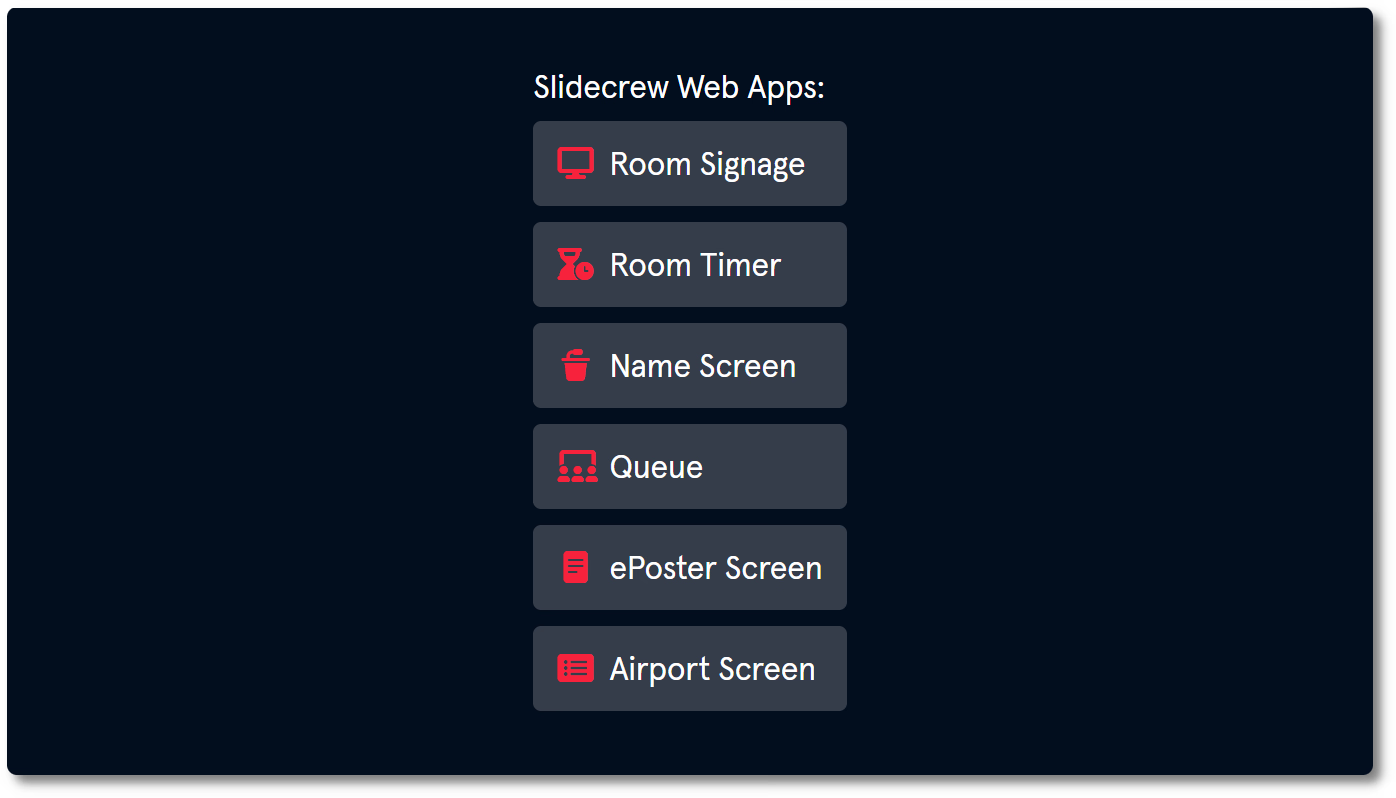
The Web App has six options:
| App | Notes |
|---|---|
| Room Signage | Works the same way as the App Launcher version. See Setting Up Conference Rooms. |
| Room Timer | Works the same way as the App Launcher version. See Setting Up Conference Rooms. |
| Queue | Works the same way as the SSC Queue screen. See Setting Up the Speaker Ready Room. |
| Name Screen | Only available in the Web App. Displays presenter’s or moderator’s name and presentation title, depending on configuration. |
| ePoster Screen | A limited version of the ePoster App. Only shows the first page of each ePoster and does not support video. |
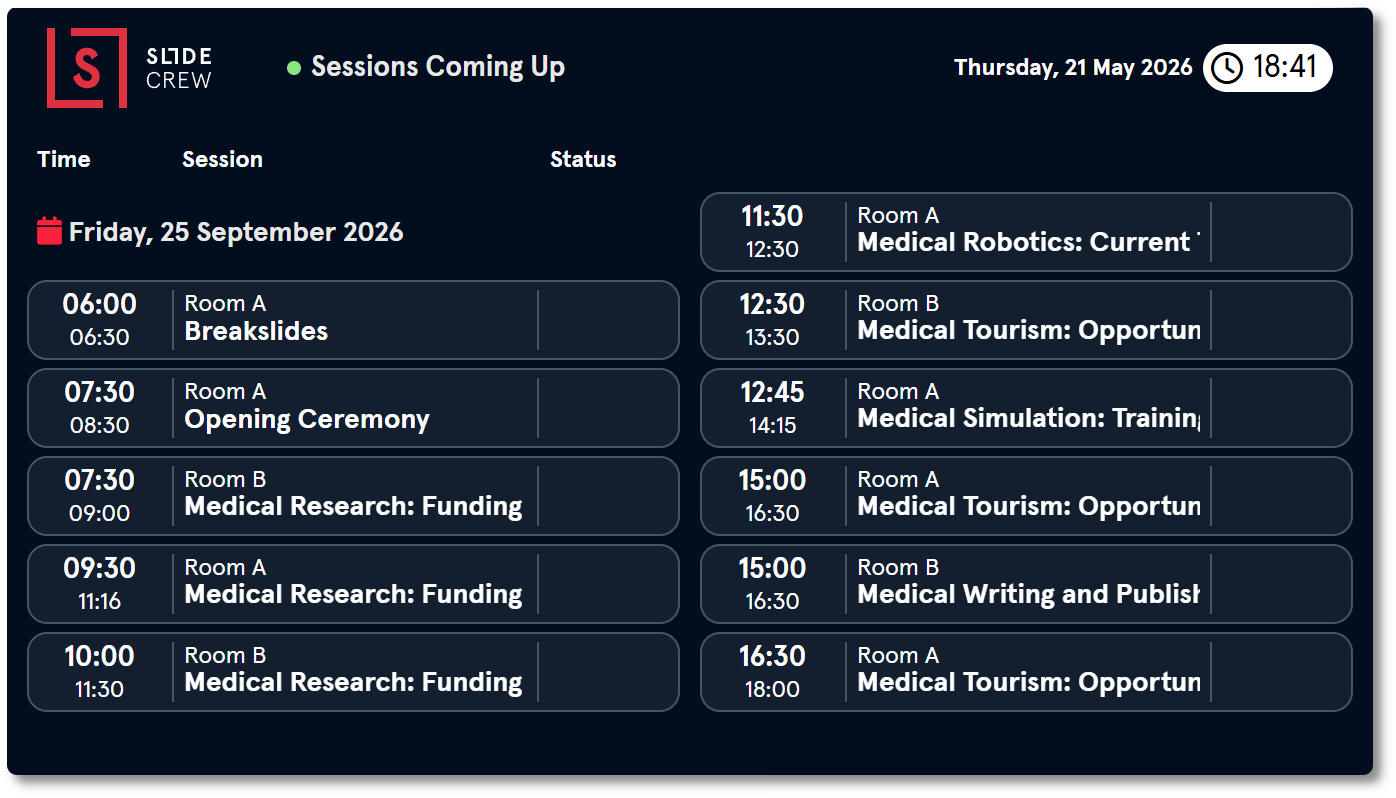
| Airport Screen | Only available in the Web App. Displays all sessions across all rooms in a departure-board layout. |
Pair the selected screen with your event
After you choose an app, its pairing screen shows a six-digit code and a QR code. Pair that screen through the portal.
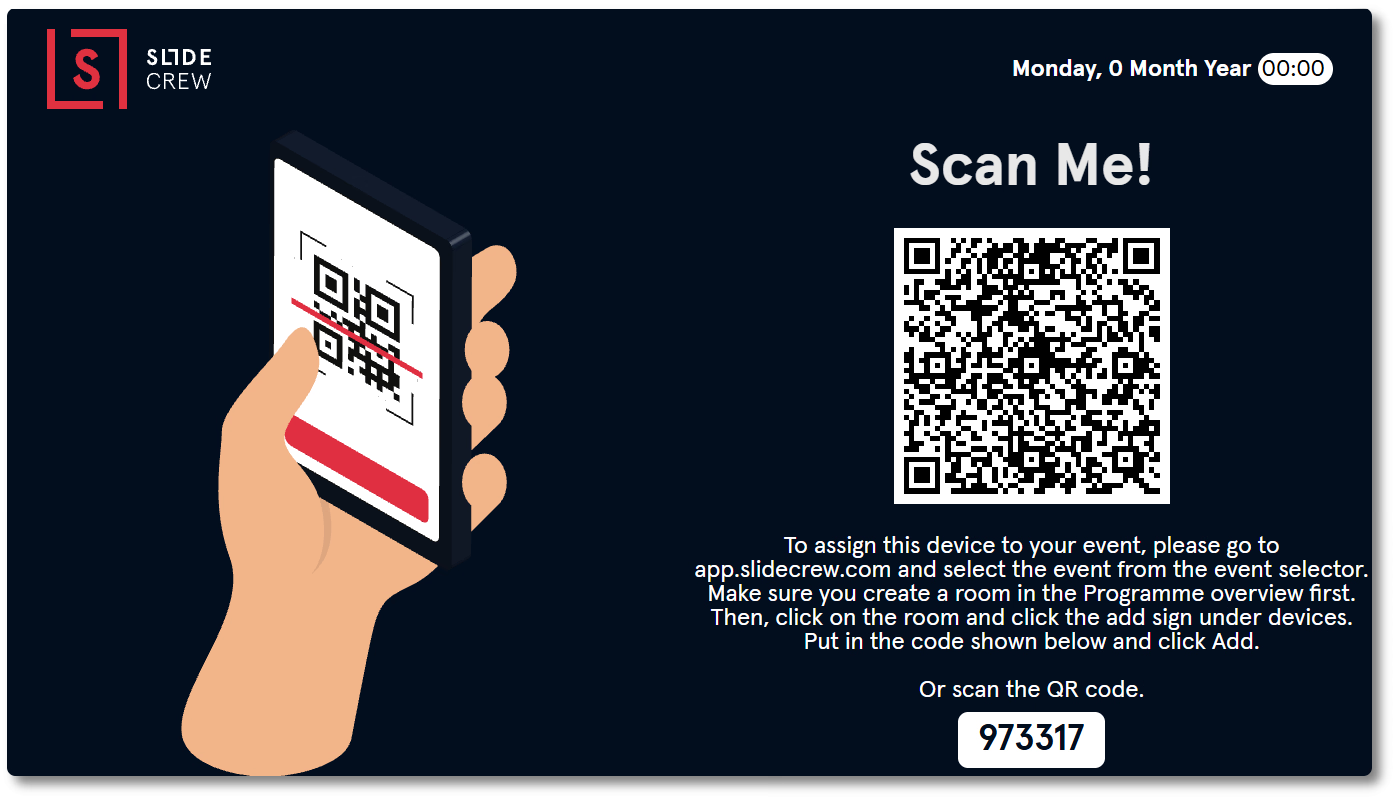
To pair by code, open Core → Devices in the portal and click the red add button to open the New Device sidebar. Enter the six-digit code in Device Code.
To pair by QR code, scan the QR code with a mobile device. Log in to the portal if prompted. The portal opens at Core → Devices with the New Device sidebar open and Device Code filled in.
Complete the fields in the New Device sidebar. The device’s assigned Device Default Style controls the appearance of its apps. Click away from the last field to create and pair the device. There is no Save button.
The Device Code field takes the six-digit code shown on the Web App pairing screen.
| Field | Notes |
|---|---|
| Room | The room this device is assigned to |
| Device Code | The six-digit code shown on the Web App pairing screen. Pre-filled when pairing by QR code. |
| Device Name | The name this device will use in the Devices list |
| Device Default Style | The Style applied to apps on this device. |
| Timer Master | When enabled, launching a presentation on this device starts the room timer automatically. Off by default. |
Set up the ePoster Screen
Choose ePoster Screen on the app selection screen. It displays ePosters with Public status and needs no further setup.
| Limitation | Detail |
|---|---|
| First page only | Only the first page of each ePoster is shown. Multi-page ePosters cannot be scrolled. |
| No video playback | Video-only ePosters show as a still image |
| No embedded video | PowerPoint ePosters with embedded video show the video as a static image |
| Abstracts | Not supported |
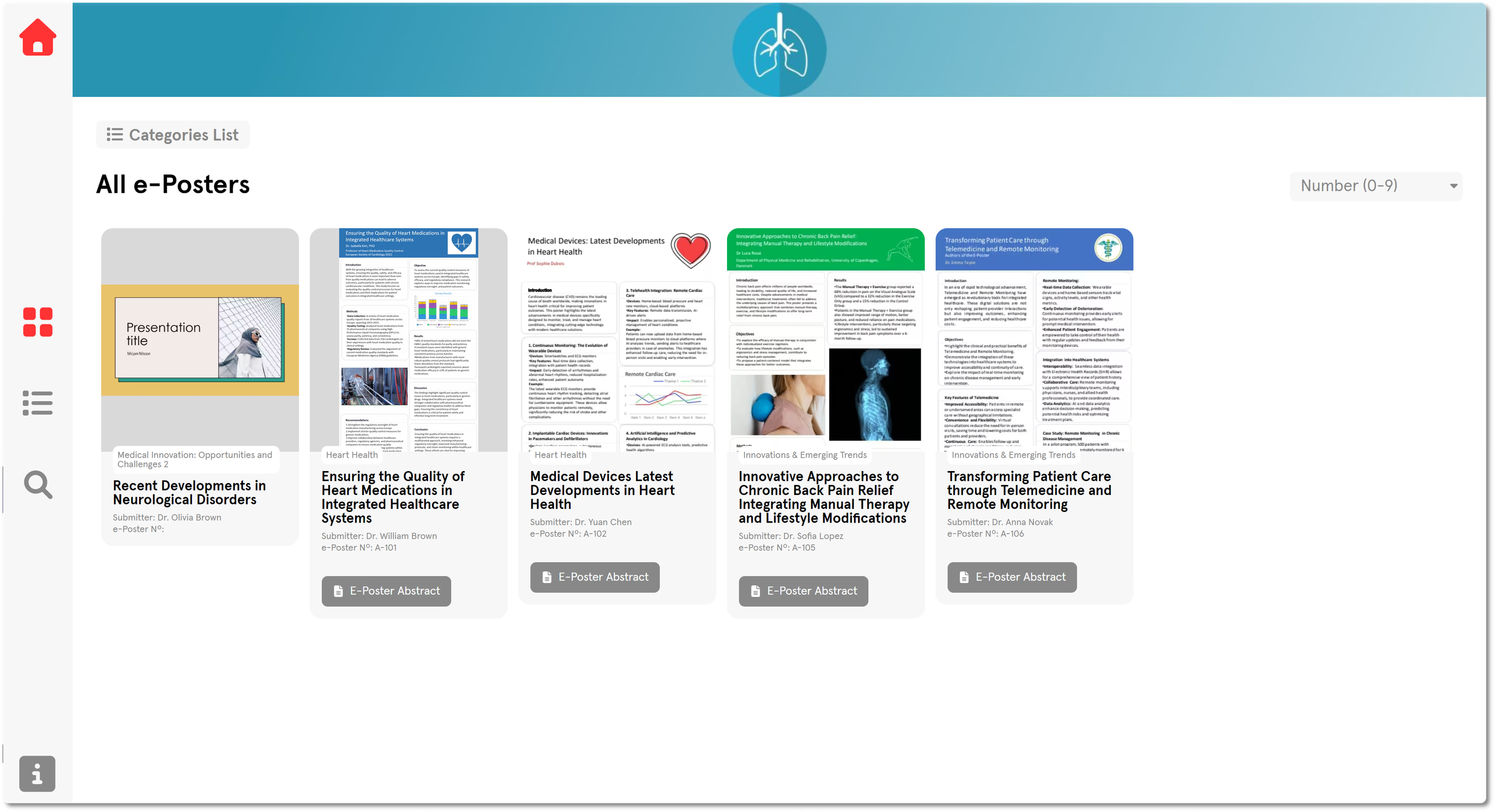
For multi-page viewing or more ePoster features, see Slidecrew Web App or App Launcher: which do I need?.
Set up the Airport Screen
Choose Airport Screen on the app selection screen. It then opens and fills automatically, with no further configuration.
Related guides
- Slidecrew Web App or App Launcher: which do I need? → Compare the Web App with the App Launcher
- How do I install the Slidecrew App Launcher and pair a device? → Install and pair the App Launcher
- Organiser Manual → Full product instructions