

Use this page to add staff and attendees to a Slidecrew event and choose the right user role.
Short answer: Staff use the portal; attendees use personal pages and on-site apps. Invite staff from Users → Staff and add attendees from Users → Attendees. Choose a staff Level when inviting. Slidecrew assigns Speaker, Moderator and Presentation Submitter roles when attendees are linked to a presentation or session.
What access do staff and attendee roles have?
Only staff roles can access the portal. Attendee roles have no portal access.
Staff roles
Staff roles can access the Slidecrew portal. Admin and Organiser have full access to the portal. The detailed tables below show the more limited Technician and Hostess access.
Access levels: Edit means the role can change the area. View means the role can see the area but not change it. Hidden means the area is not available.
Core and Event permissions
| Permission area | Technician | Hostess |
|---|---|---|
| Core | Edit | View |
| Core → Devices | Edit | View |
| Core → Errors | Edit | Hidden |
| Core → Integrations | View | Hidden |
| Core → Rooms | View | View |
| Event → Billing | Hidden | Hidden |
| Event → Break Slides | Hidden | Hidden |
| Event → Custom Data | Hidden | Hidden |
| Event → Email Templates | Hidden | Hidden |
| Event → Export | Hidden | Hidden |
| Event → Forms | Hidden | Hidden |
| Event → Import | Hidden | Hidden |
| Event → Info | Edit | View |
| Event → Server Licences | Hidden | Hidden |
| Event → Style | Edit | Hidden |
Persons, ePosters, and Programme permissions
| Permission area | Technician | Hostess |
|---|---|---|
| Persons → Contact Info | Edit | Hidden |
| Persons → Info | Edit | Edit |
| Persons → Thumbnail | Edit | Edit |
| Persons → User Level | View | View |
| ePosters | Hidden | Hidden |
| Programme | Edit | Edit |
These tables describe portal-area permissions.
Attendee roles
| Role | Portal access | Interacts via |
|---|---|---|
| Speaker | None | Speaker Upload Page, Speaker Service Centre App, on-site presentation apps |
| Moderator | None | Moderator page, Moderator App |
| Presentation Submitter | None | Speaker Upload Page, for the presentations they are assigned to |
| ePoster Submitter | None | Speaker Upload Page (ePoster upload flow) |
How do I invite a staff user?
Invite staff from Users → Staff using their email address and Level.
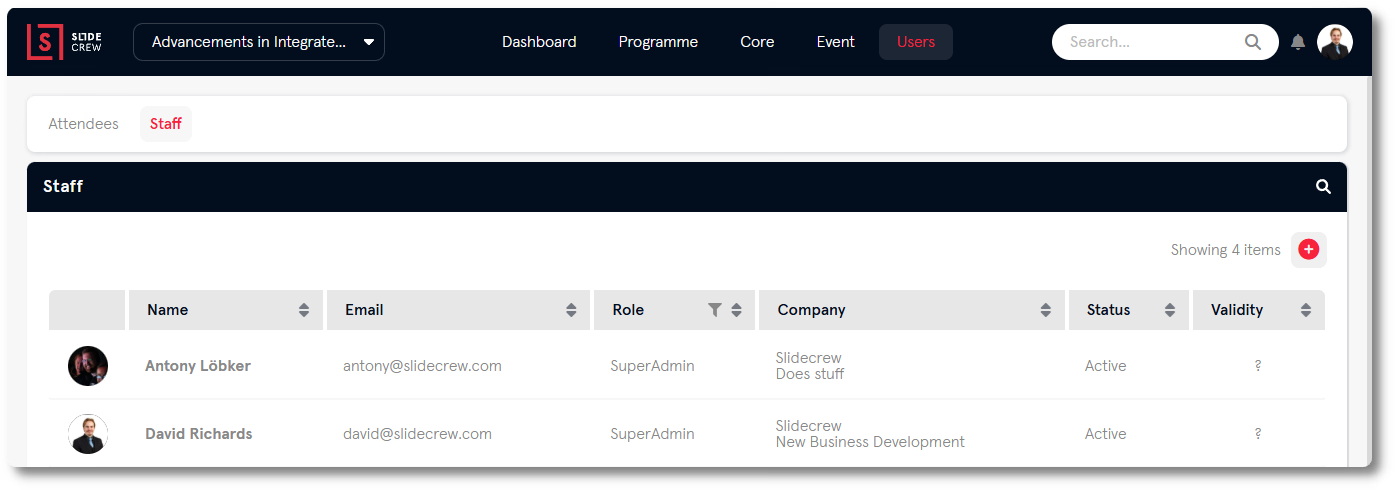
- Go to Users → Staff.
- Enter the user’s email address and choose a role from Level.
- Select Invite.
Slidecrew sends an invitation email. The user then creates their account from the link in that email.
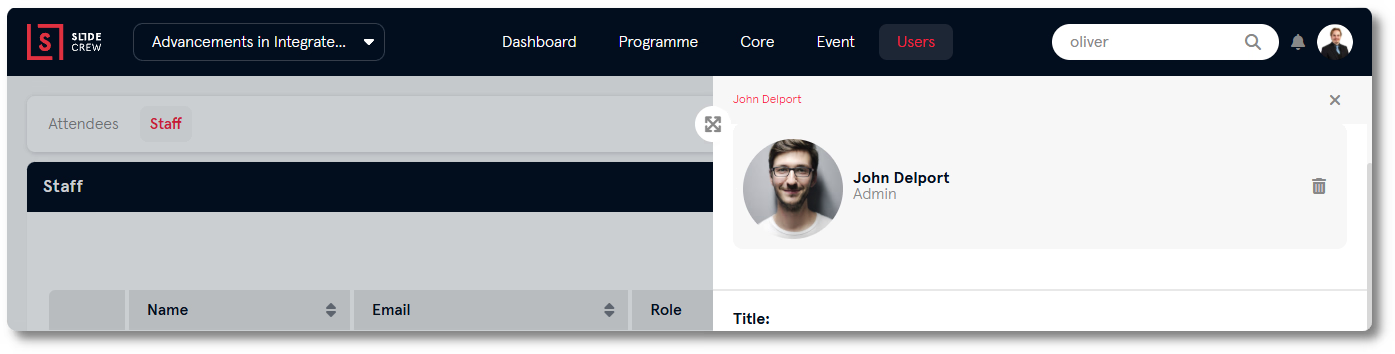
To change another staff user’s Level, go to Users → Staff, click their row and update Level in the sidebar. Users with Admin or Organiser access can do this.
To remove a staff user’s portal access, go to Users → Staff, click their row to open the sidebar, then select Delete (the bin icon). This removes the user’s portal access, not their Slidecrew account.
How do I add an attendee?
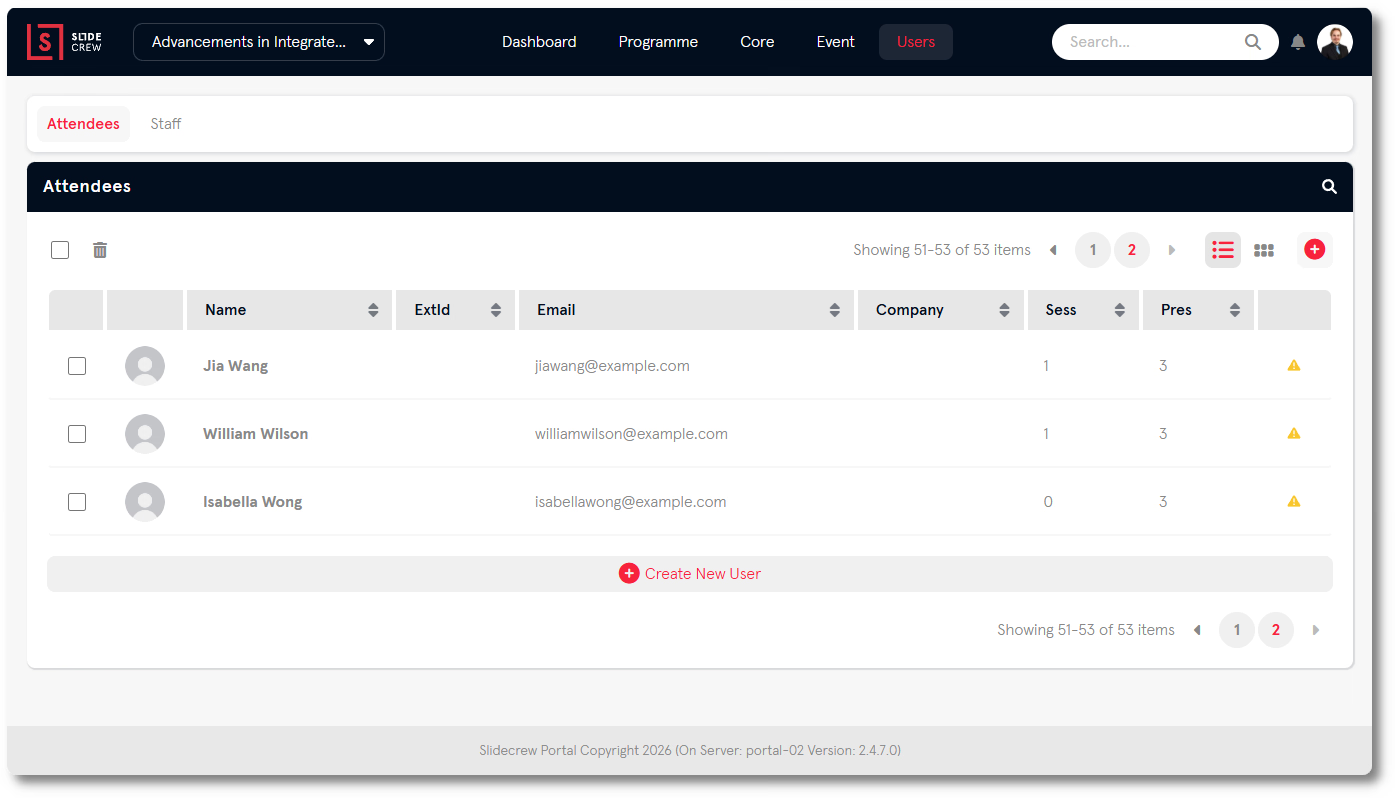
Add attendees from Users → Attendees and complete their details in the sidebar.
- Go to Users → Attendees and select Add new User.
- Complete the fields in the sidebar.
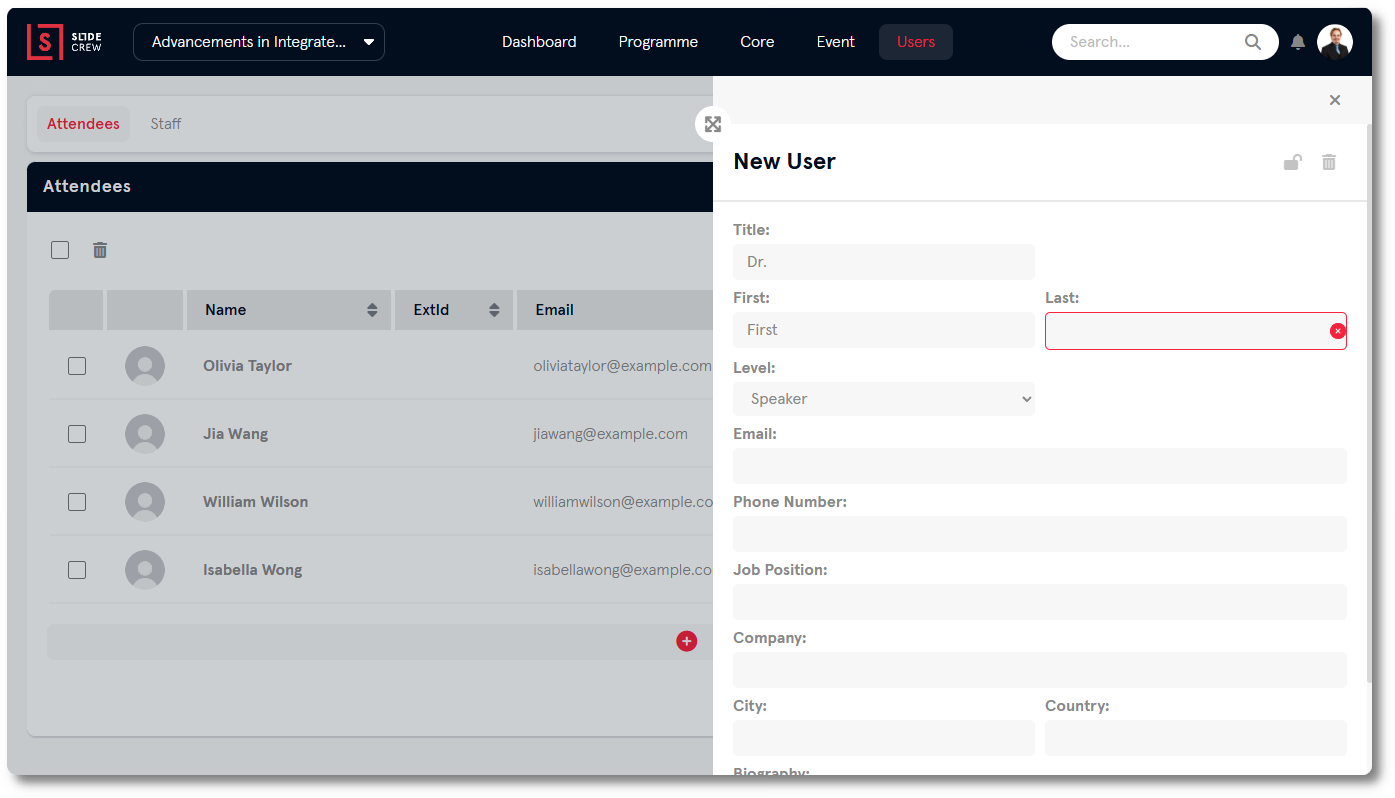
- Click outside the sidebar to save.
When adding a speaker, set Level to Speaker. Slidecrew assigns Speaker, Moderator and Presentation Submitter roles when you link an attendee to a presentation or session.
How do I assign a presentation submitter?
Assign an existing attendee to the presentation in the Submitters field. A presentation submitter uploads files for a presentation without being one of its speakers.
- Open the presentation for editing.
- In Submitters, search for the attendee and select them. You can add more than one.
- Save the presentation.
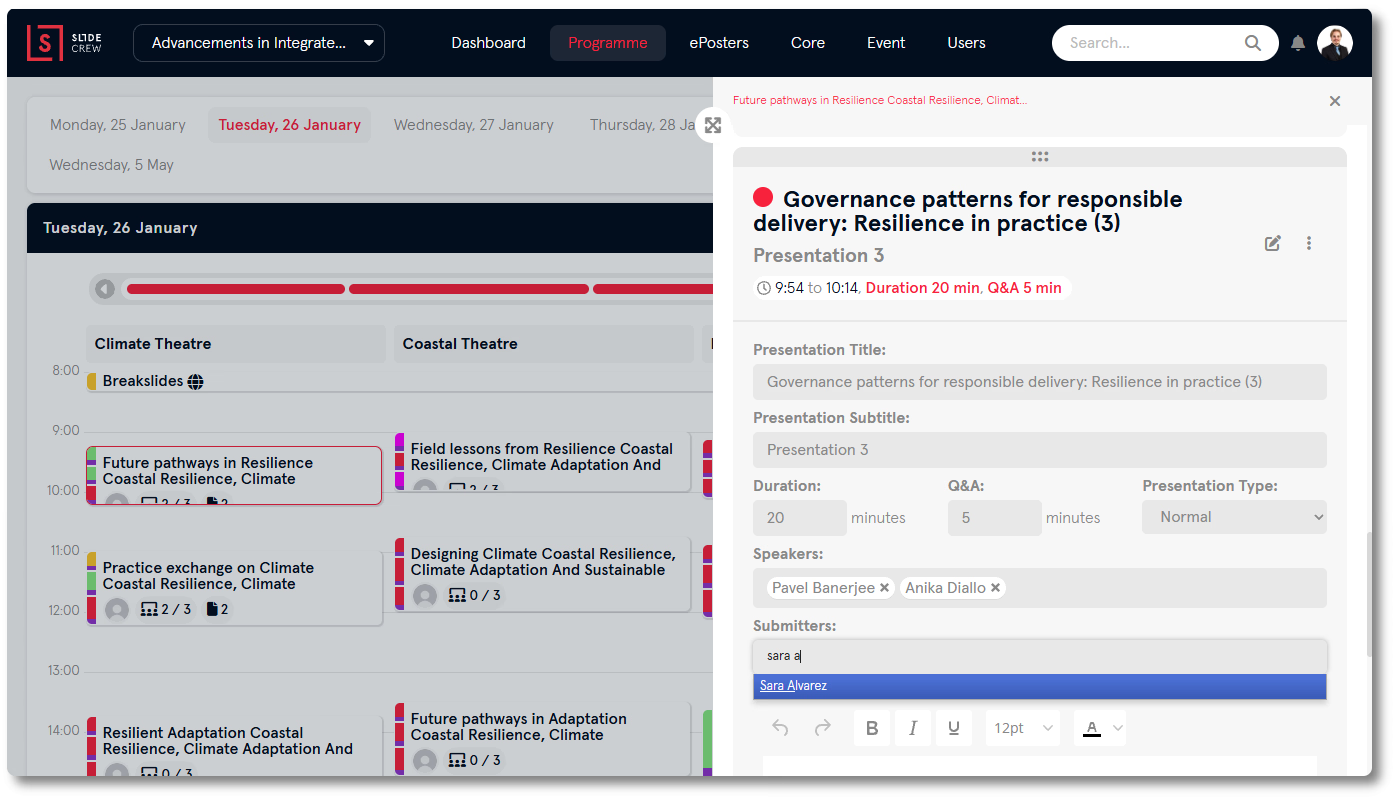
You can also add submitters through a spreadsheet import.
How do I find or remove a user?
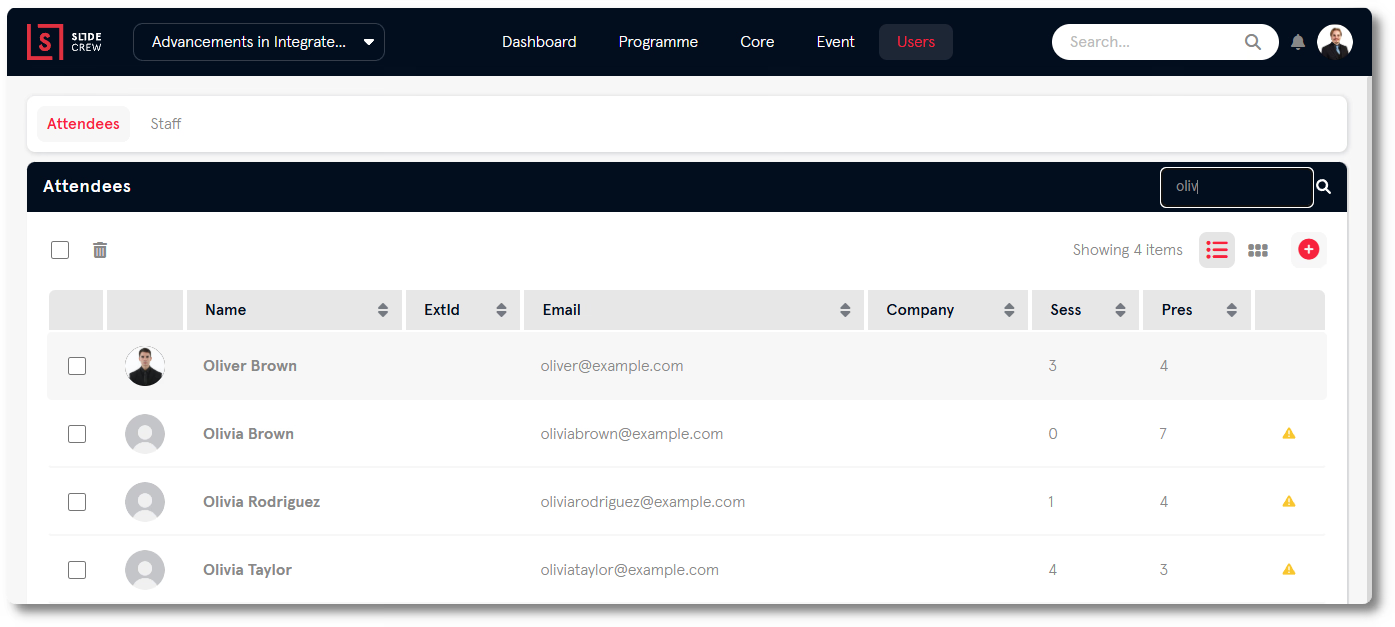
Search for a user by name or email using the search bar in the tab header. On the Staff tab, use the Role filter to narrow the list.
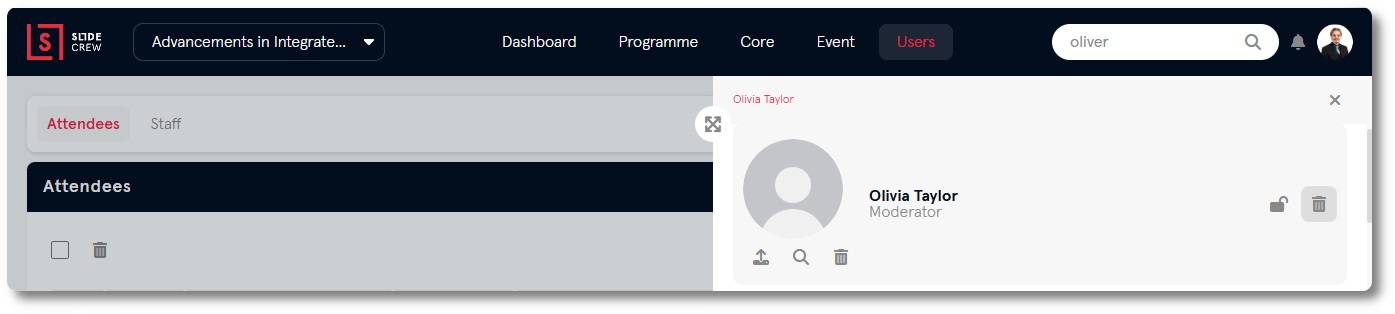
To remove an attendee, open their sidebar and select the bin icon.
For several attendees, tick the checkbox on each user’s row and choose Delete Selected.
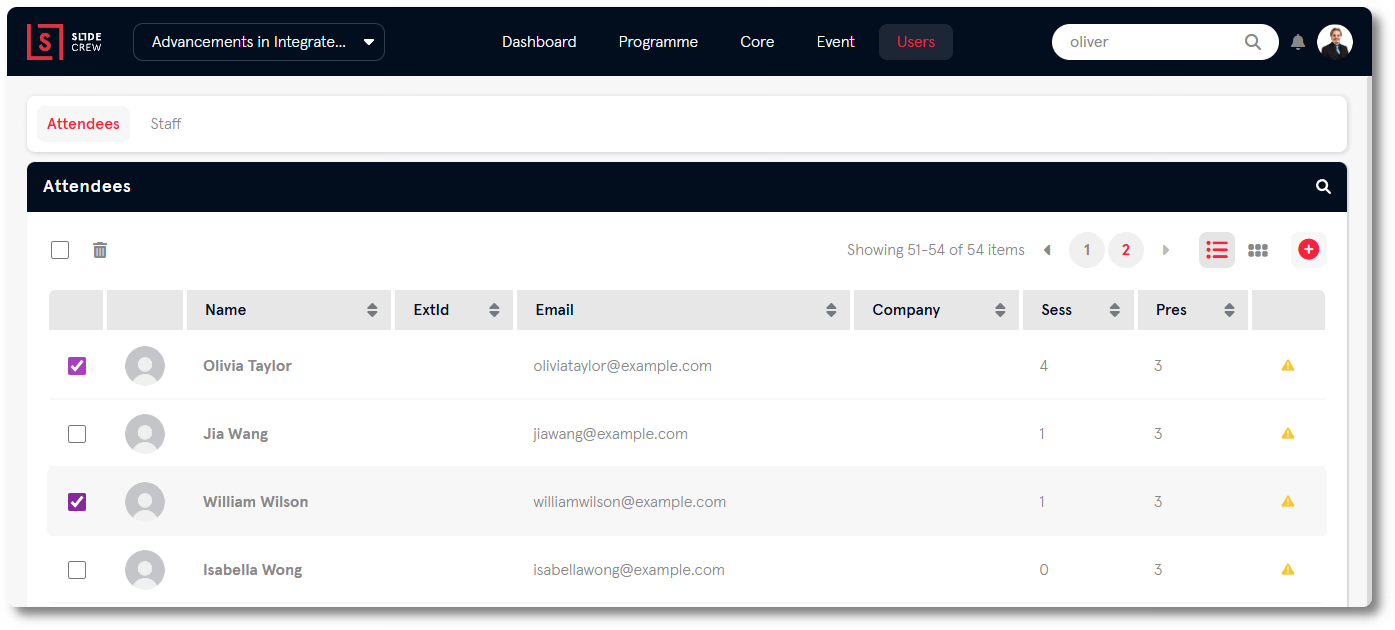
When you delete an attendee, their presentations remain in the programme but become unassigned. Files they uploaded are retained.
Related guides
- Slidecrew role permissions → compare Technician and Hostess access by portal area
- Organiser Manual → full reference for adding and managing users
- Manage rooms, sessions and presentations → see how to link attendees to presentations