

Create a Slidecrew email template for speakers in Event → Email Campaigns to give speakers their upload link, barcode or event details.
Short answer: Open Email Templates, add a template and complete its required fields. Insert the tags you need in the body, then select Receive Test to check the message. Test emails go to your logged-in account, and some tags may not work in a test. Save the template so you can select it when you create a campaign.
How do I create and save an email template?
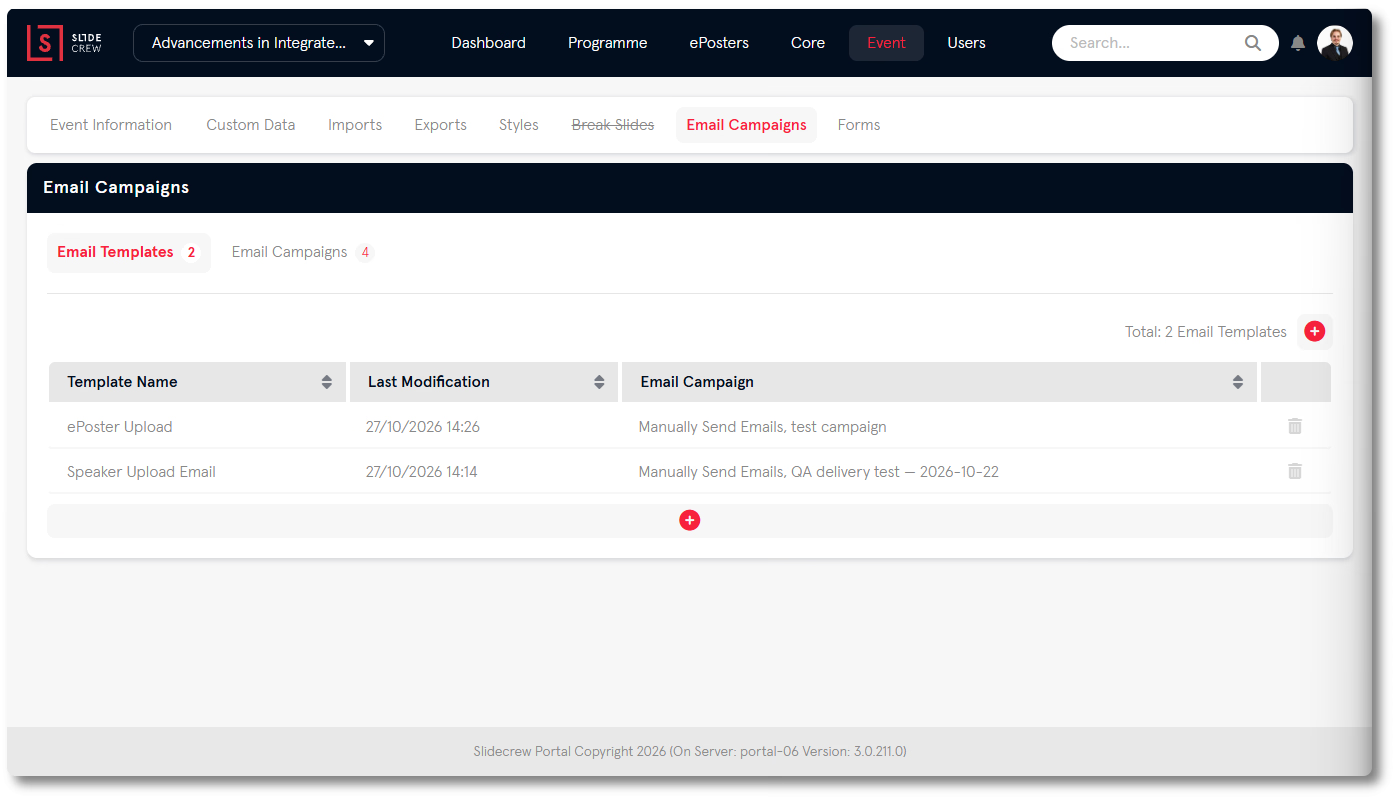
Go to Event → Email Campaigns and open Email Templates. Select the add button above or below the table to open the template editor.
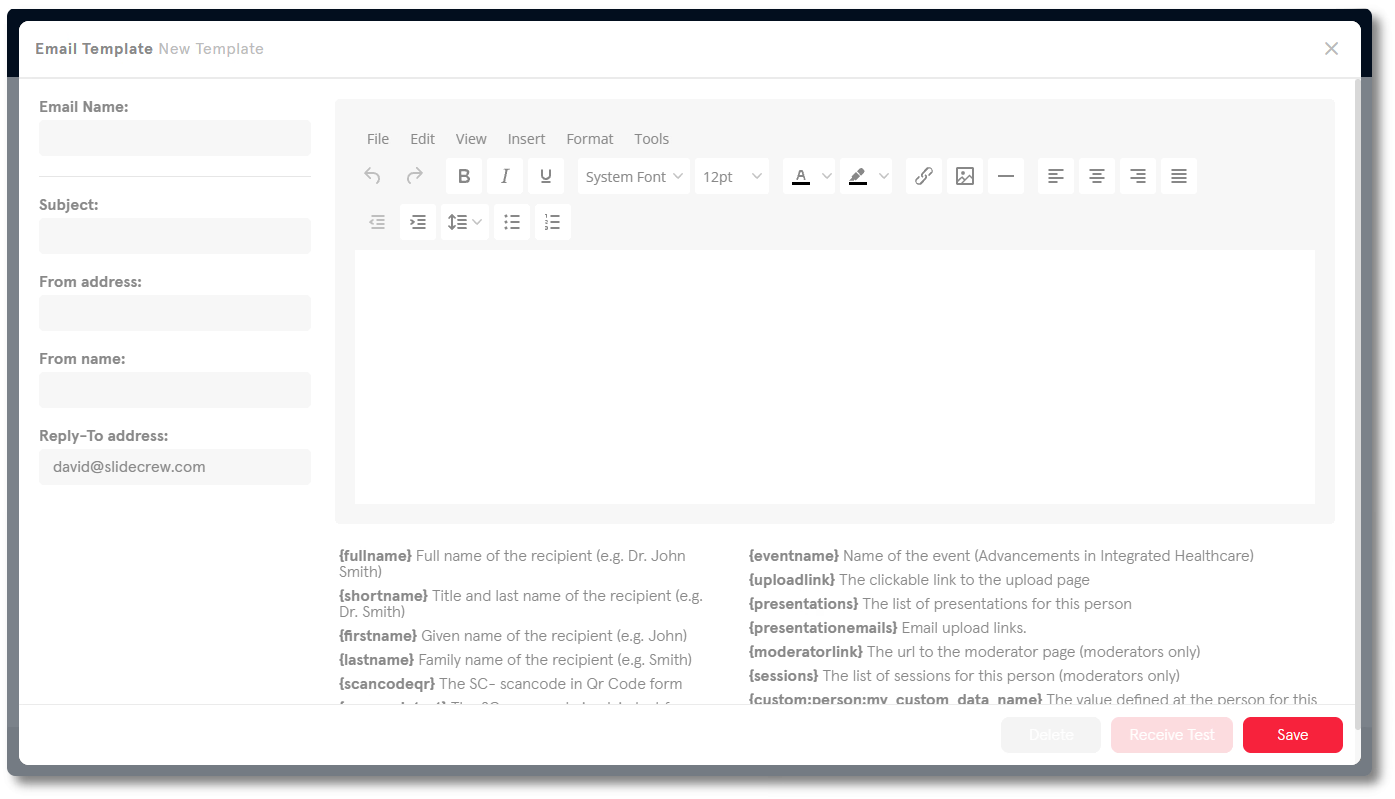
Complete the template fields, then select Save. You must enter an Email Name, Subject, From Name, Reply-To address and some body text. The Email Name is internal; recipients do not see it.
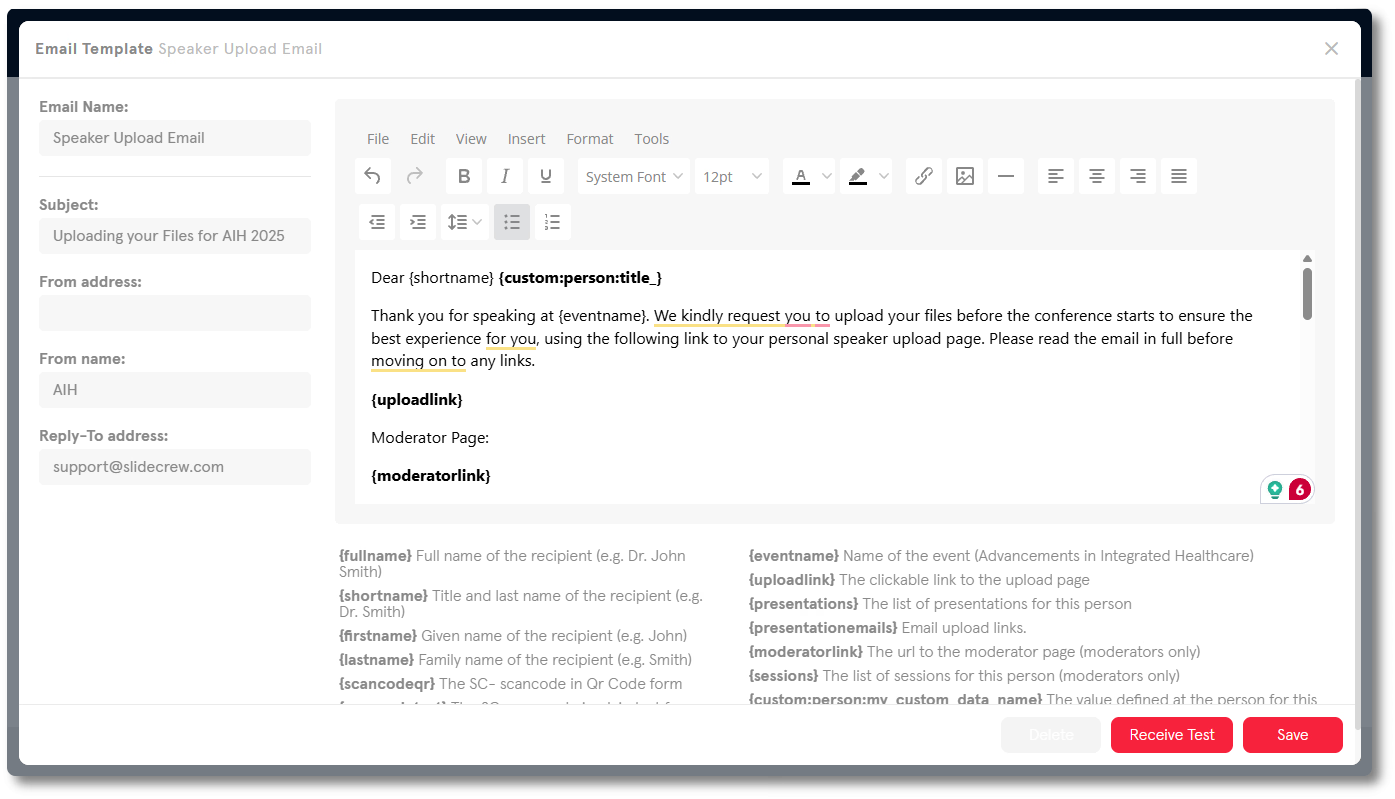
To edit a template, click its row in the table. The Email Campaign column shows which campaigns use a template. You can delete a template only when no campaign uses it.
By default, emails come from an address in the format [EventShortName]@conference[number].slidecrew.com. If your organisation has a subscription arrangement with Slidecrew, you may be able to use your own domain. Templates set the message content; campaigns set who receives it and when. You can use one template for multiple campaigns.
What does each email template field do?
| Field | Notes |
|---|---|
| Email Name | Internal template name. Recipients don’t see this. |
| Subject | The subject line shown to recipients |
| From address | The sending address. Leave blank to use the event address shown above. Subscription customers can enter their own address. |
| From Name | Required. The sender name shown to recipients |
| Reply-To address | Required. Where replies are sent |
| Email Body | Rich text editor with a full formatting toolbar |
Which tags should I use in a speaker email?
Type a tag in the email body where you want its value to appear. Slidecrew replaces it when the email is sent. Use {uploadlink} for a personal upload page link, {uploadlinks} for that link followed by a list of the recipient’s presentations, or {presentationemails} to provide email links for submitting files. Use {scancodeqr} to insert the speaker’s barcode as a QR code image.
For a moderator’s personal page, use {moderatorlink}. It is for moderators only. The table lists the available tags and what each inserts.
| Tag | What it inserts |
|---|---|
| {fullname} | The recipient’s full name, for example “Dr. John Smith” |
| {shortname} | Title and last name, for example “Dr. Smith” |
| {firstname} | First name only, for example “John” |
| {lastname} | Last name only, for example “Smith” |
| {scancodeqr} | The speaker’s barcode as a QR code image |
| {scancodetext} | The speaker’s barcode as plain text |
| {eventname} | The name of the event |
| {uploadlink} | A clickable link to the speaker’s personal upload page |
| {uploadlinks} | A clickable link to the speaker’s personal upload page, followed by a list of the recipient’s presentations |
| {presentations} | A list of the recipient’s presentations |
| {presentationemails} | Email upload links. Clicking one opens the recipient’s mail client with a pre-addressed file-submission email. If the speaker attached their file and sends the email, that file will be uploaded to the presentation. |
| {moderatorlink} | The moderator’s personal page link, for moderators only |
| {sessions} | A list of the recipient’s sessions, for moderators only |
| {custom:person:field_id} | The value of a custom Person data field. Replace field_id with the field’s ID. |
How do I check the template before using it?
With the template open in the editor, select Receive Test. Slidecrew sends the test to the email address on your logged-in account.
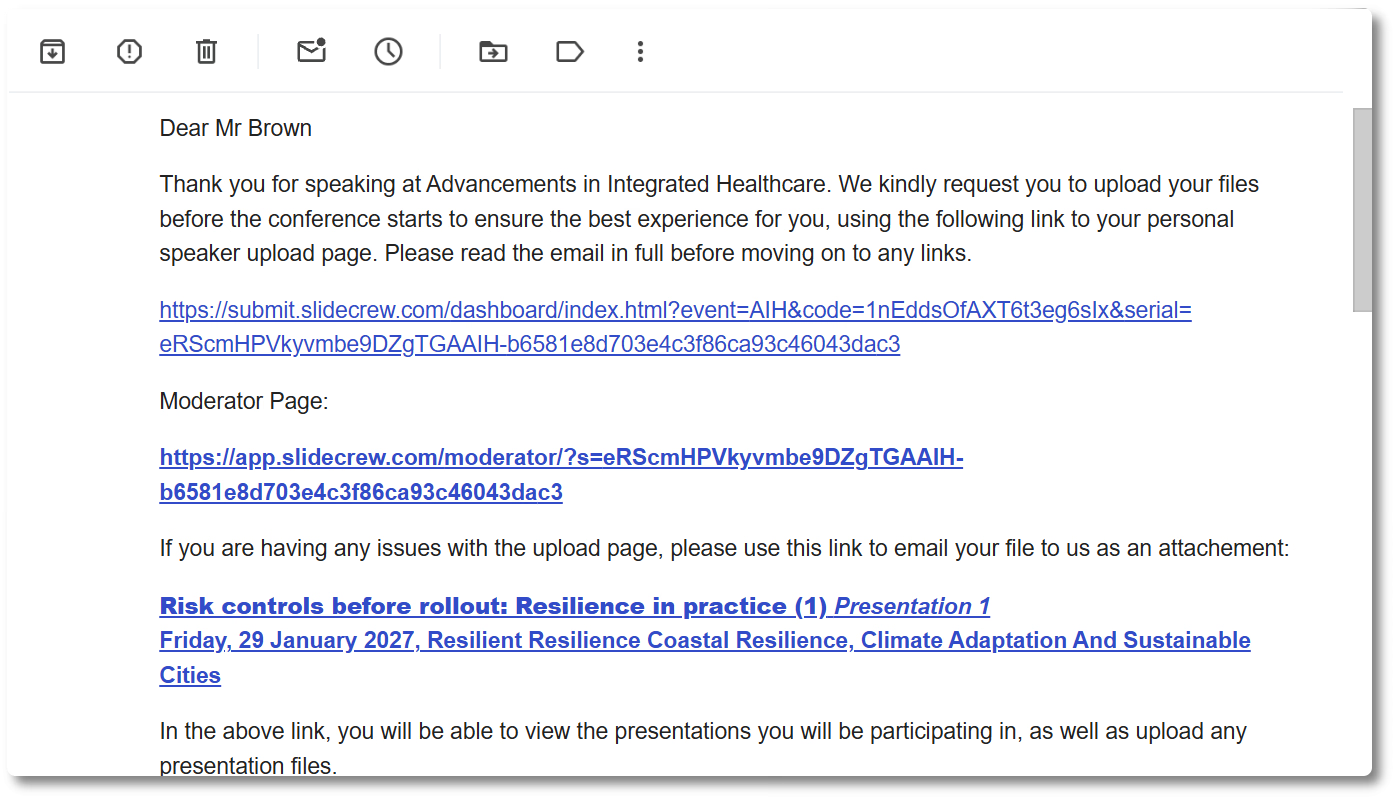
Some tags may not work in test emails. For example, the test upload page will not show presentations because staff cannot be allocated to presentations as speakers. Use the test to check the message, but keep in mind that this presentation example reflects a limitation of the test setup.
Related guides
- Email templates, campaigns, and custom data filtering → PDF walkthrough of templates, campaigns and recipient filtering
- How do I send an email campaign to speakers and moderators? → Choose recipients and set when a campaign is sent