

Create custom data fields in Event → Custom Data to store extra information on event records and include supported values in spreadsheet imports and exports.
Short answer: Choose a category, add a field with a label and input type, then save it. Room, Session, Presentation and Person fields can be mapped to spreadsheet columns during import. File, Poster and Poster File fields cannot be imported. You can include custom values in the Spreadsheet with custom data export.
How do I create a custom data field?
Open Event → Custom Data, choose a category, add a field and save it. The seven categories are Room, Session, Presentation, File, Person, Poster and Poster File. Created fields appear in the relevant sidebars across the portal.
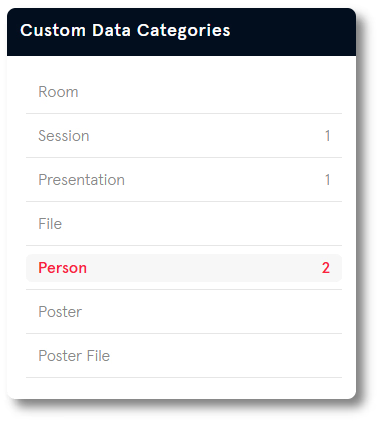
- Go to Event → Custom Data.
- Select a category from the left panel.
- Click the add button at the bottom of the table.
- Enter a label name and choose an input type. Slidecrew fills the Id field based on your label.
- Click Save.
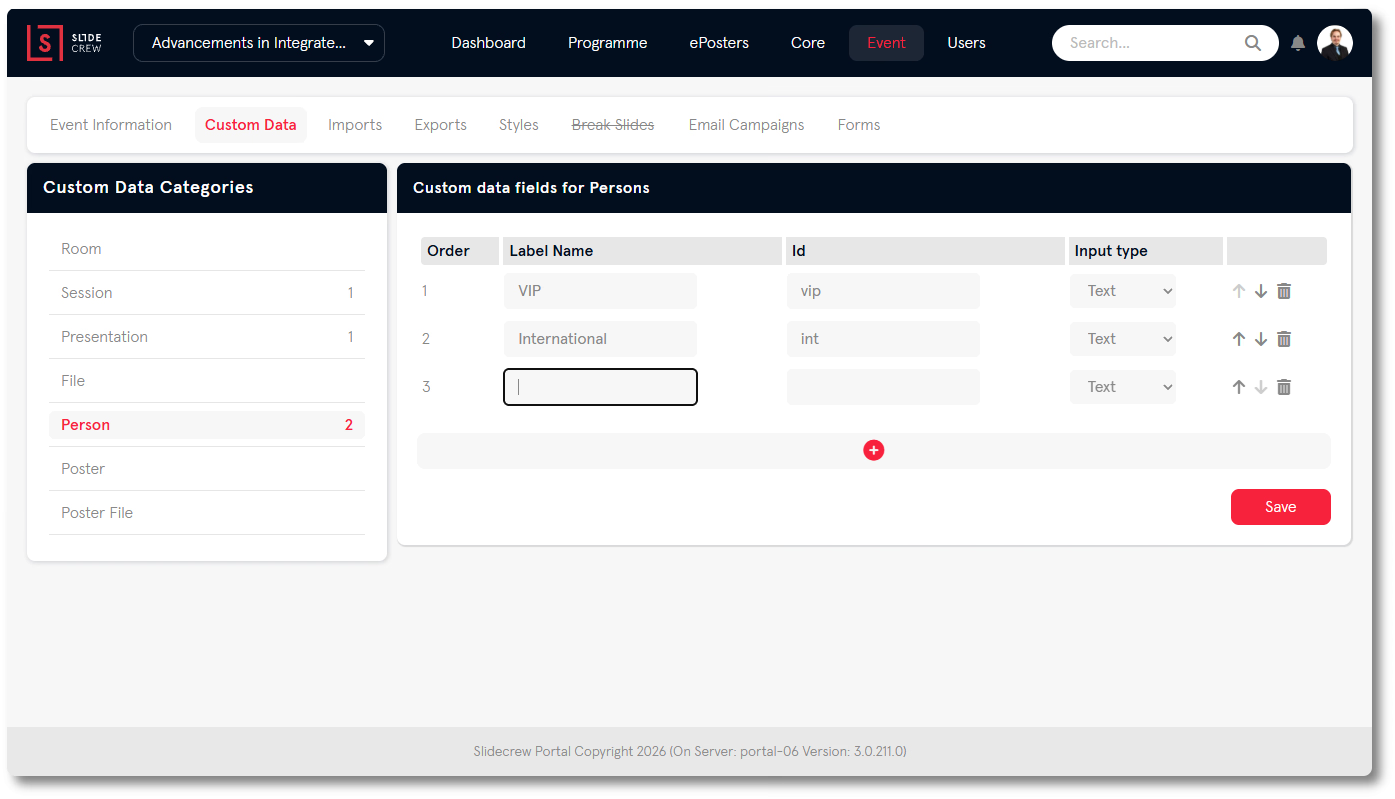
The field options are:
| Column | What it is |
|---|---|
| Order | The position of this field relative to others in the same category |
| Label Name | The name shown in the portal wherever this field appears |
| Id | The system identifier for this field. It can differ from the Label Name and is used for API and export references. |
| Input type | Text, Yes/No, or Number |
To change a field’s position, use the up and down arrow buttons beside its row. To delete a field, click the delete button beside the row.
How do I import custom data from a spreadsheet?
Before you import, create the custom data field in the matching category. Then map each spreadsheet column to its field in Event → Imports. Slidecrew does not match custom data columns automatically, even when a column heading matches the field name.
- Create the field under Event → Custom Data in the category that matches the record type.
- In Event → Imports, upload your spreadsheet and map each custom data column to its destination in the dropdown.
- For a Yes/No field, use
true,yesor1for yes, andfalse,noor0for no. Exports show these values as1and0.
You can import Room, Session, Presentation and Person fields, but not File, Poster or Poster File fields. Person fields appear in the dropdown once for each role, so the same field can be filled for speakers, submitters or chairs.
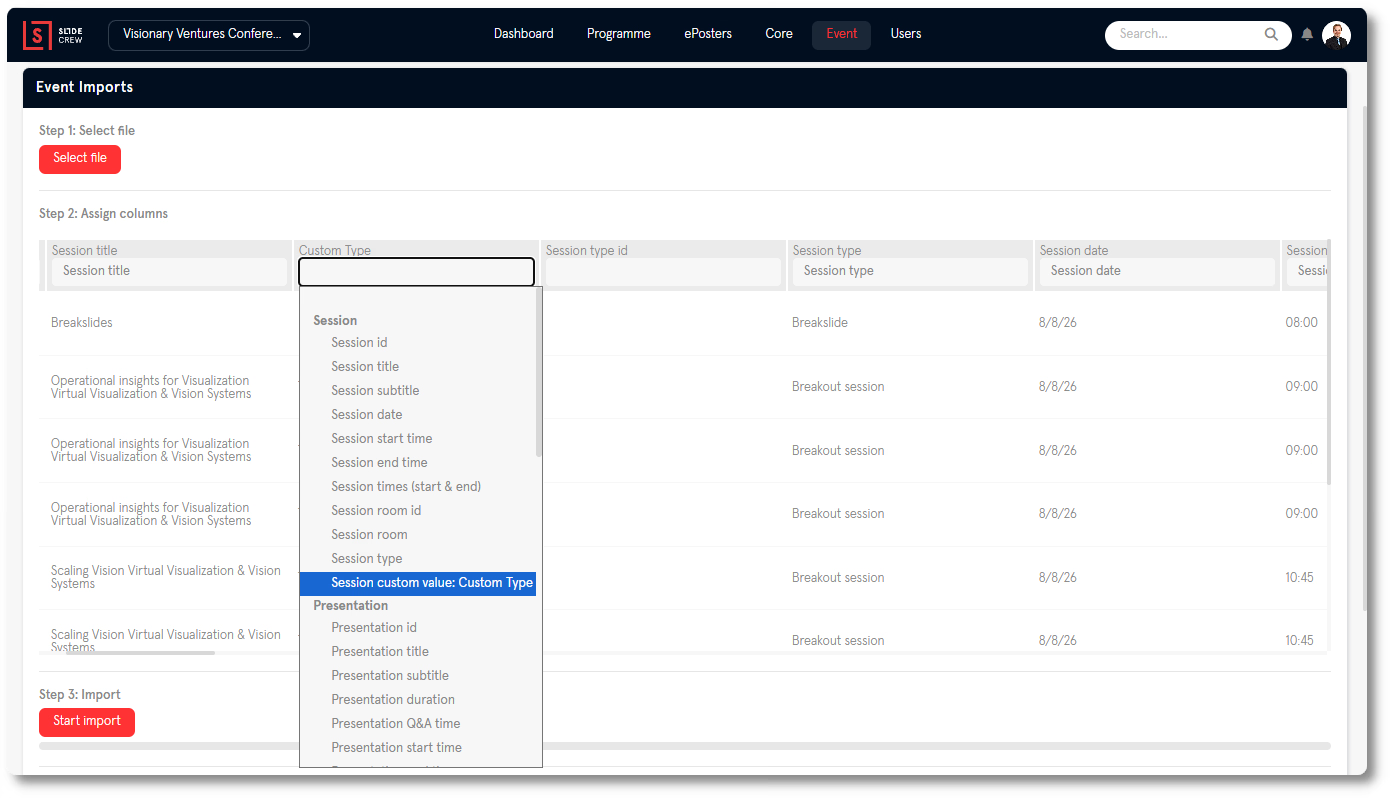
A blank custom data cell leaves a field empty on a new record and leaves an existing value unchanged. It cannot be used to clear an existing value. If a field does not appear in the mapping dropdown, check that it was created in the correct category.
For the full import workflow, see How do I import my programme into Slidecrew from a spreadsheet?.
How do I export custom data?
Use Spreadsheet with custom data to export programme records with their custom data values. Go to Event → Exports, then under Event Info → Full Export, choose the spreadsheet option:
| Export option | What it contains |
|---|---|
| Spreadsheet | Exports the current programme in the spreadsheet layout used by the import tool. |
| Spreadsheet with custom data | Exports the same programme spreadsheet, with custom data field values included. |
The export includes each record’s Slidecrew ID. Keep those IDs with their records when preparing an update for the same event.
For API custom data mapping, see How do I connect my event platform to Slidecrew by API?. For email campaign filtering by custom data, see How do I send email campaigns to speakers and moderators?.
Related guides
- Organiser Manual → Full organiser reference for custom data fields, imports and exports