

You can use your original speaker upload link to choose whether each presentation file may appear on the event’s Publication Page, and you can change your choice later.
Short answer: If publishing is enabled for your event, choose Yes or No under Publish as PDF on each file card. Only an explicit Yes allows a presentation file to appear, and it appears after its session has ended. An unset choice counts as No.
Choose Yes or No for each file
When publishing is enabled for the event, a Publish as PDF section appears on the file card for each uploaded file. A warning triangle shows while the choice is unset. Select Yes if you want the file to appear on the Publication Page after the session ends. Select No if you do not want it to appear. If you leave the choice unset, the file will not appear.
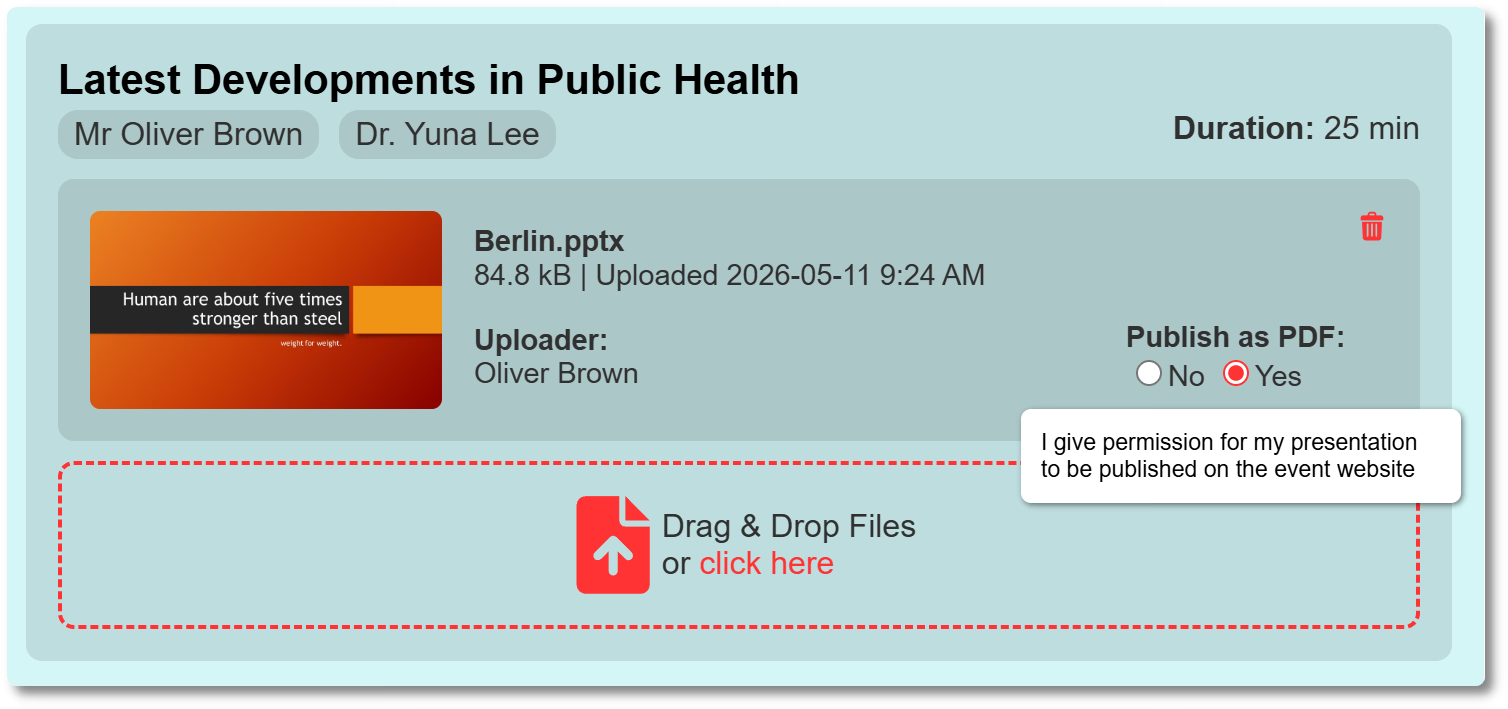
You can return to your personal upload page through the original link to change the permission, including after the event if the page is still available. If you change a file from No to Yes after the event, it appears once the session end time has passed.
When presentation files appear
A presentation file with Yes permission appears after the session containing that presentation has ended. The Publication Page has separate timing rules for other content types:
| Content type | When it appears on the Publication Page |
|---|---|
| Presentation files | Only after the session containing that presentation has ended |
| ePoster files | As soon as the file has been uploaded and processed |
| Files with No or unknown permission | Never. Only an explicit Yes makes a file visible. |
Related guides
- How do I upload my presentation file? → learn how to upload or replace a presentation file
- Why is a file not showing on the Publication Page? → troubleshoot a file that is missing from the Publication Page
- Organiser Manual → read the full Organiser Manual