

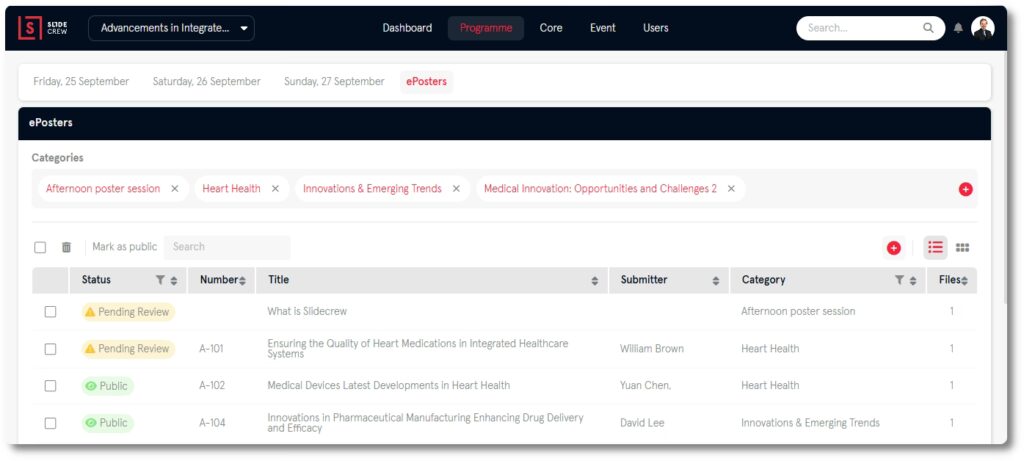
Manage ePosters from Programme → ePosters.
Each ePoster belongs to a Category, starts as Pending, and appears for attendees only after you change it to Public. Use the full ePoster App for interactive stations, and use the Web App ePoster Screen when a lighter browser-based display is enough.
If you need bulk import of ePoster data, use the programme import workflow. For the ePoster submitter upload experience, use the speaker journey guide.
How to manage ePosters in Slidecrew
ePosters use a structure similar to presentations:
| Presentation structure | ePoster structure |
|---|---|
| Session | ePoster Category |
| Presentation | ePoster |
| Presentation Subtitle | ePoster Number |
| Presentation file | ePoster file |
Each ePoster belongs to one Category. Categories appear in the ePoster App as groups that attendees can browse.
You can import ePosters or add them manually. In both cases, they start with Pending status and do not appear in the ePoster App until you change them to Public. A Category that contains only Pending or Hidden ePosters does not appear in the App.
Manage ePosters manually
Create a Category before adding ePosters manually.
Add a Category:
- Navigate to Programme → ePosters.
- Click the add button in the Categories area.
- Enter the Category title.
- Click Save.
Add an ePoster manually:
- Navigate to Programme → ePosters.
- Click the add button at the far right of the page, below the Categories area.
- Complete the ePoster fields.
- Set the Status.
- Click away to save.
Edit an ePoster:
- Navigate to Programme → ePosters.
- Click the ePoster.
- Update the fields in the ePoster editing pop-up.
- Click Save.
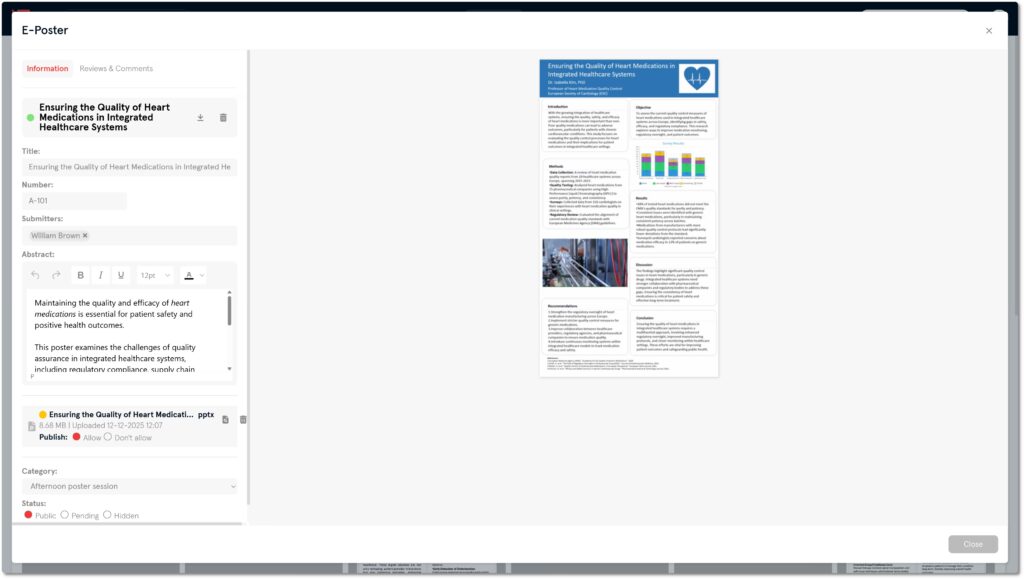
Complete the ePoster fields
| Field | What it does |
|---|---|
| Title | The ePoster title shown in the App and on the Publication Page |
| Number | The ePoster reference number. Spreadsheet imports use the presentation subtitle for this field |
| Submitters | The person or people who submitted the ePoster |
| Abstract | Rich text field for the ePoster abstract |
| Files | Files uploaded to the ePoster |
| Category | The Category this ePoster belongs to |
| Status | Controls whether the ePoster appears in the App |
The Status can be Public, Pending, or Hidden.
- Public ePosters appear in the ePoster App
- Pending ePosters stay hidden until they are ready
- Hidden ePosters stay in the portal but do not appear in the App
Add abstract text
The full ePoster App shows the Abstract field to attendees as the poster abstract. You can import it from the programme spreadsheet or edit it manually in the ePoster pop-up.
In the full ePoster App, an ePoster tile with an abstract shows an E-Poster Abstract button. Attendees can open the abstract without opening the poster fullscreen.
In fullscreen view, the speech-bubble button opens the same abstract pop-up. The pop-up shows the poster title, thumbnail preview, ePoster authors, and abstract text. Depending on the ePoster App settings, it can also show ratings, comments, Send message to the author, and Leave a Comment options.
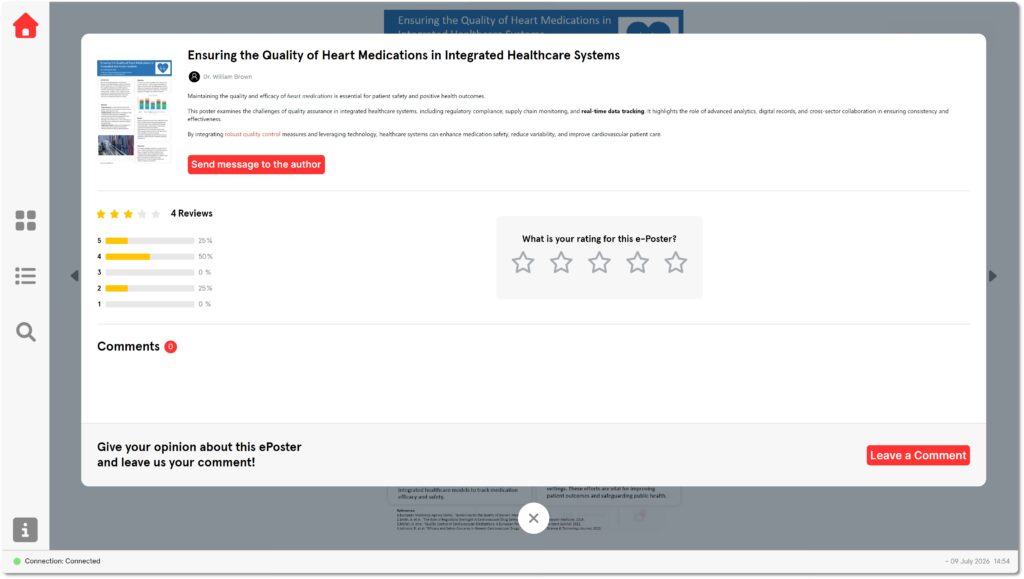
Abstracts are available in the full ePoster App through the Slidecrew App Launcher. They are not available in the Web App ePoster Screen.
Manage ePosters: visibility
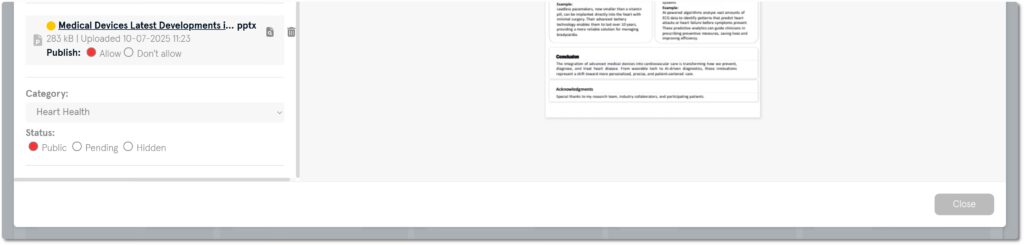
After adding or importing ePosters, set their visibility. An ePoster must be Public before it appears in the ePoster App.
Make one ePoster visible:
- Navigate to Programme → ePosters.
- Click the ePoster.
- Set Status to Public.
- Click Save.
Make several ePosters visible at once:
- Navigate to Programme → ePosters.
- Switch to List View.
- Tick the ePosters that should be shown.
- Click Mark as Public.
If a Category is missing from the ePoster App, check whether that Category has at least one Public ePoster.
Choose the ePoster display route
Slidecrew has two on-site display routes for ePosters. Before testing devices on site, choose the route that matches the event setup.
| Display route | Use when | Main limitation |
|---|---|---|
| Full ePoster App through the App Launcher | Attendees need browsing, multi-page viewing, video playback, abstracts, ratings, comments, downloads, or contact-author options | Requires the Slidecrew App Launcher on the device |
| Web App ePoster Screen | You need a simple browser-based display of Public ePosters | First page only, no video playback, no abstracts, and no attendee interaction settings |
Use the full ePoster App for interactive stations. Use the Web App ePoster Screen only when a simpler digital poster display is enough. When you manage ePosters for an event, choose the display route before testing the on-site devices.
Compare the full ePoster App and Web App ePoster Screen
| Feature | Full ePoster App | Web App ePoster Screen |
|---|---|---|
| Runs through | Slidecrew App Launcher | Chromium-based browser |
| Shows Public ePosters | ✓ | ✓ |
| Category browsing | ✓ | Limited |
| Search and sorting | ✓ | Limited |
| Multi-page ePosters | ✓ | ×, first page only |
| Video playback | ✓ | × |
| Embedded video in PowerPoint ePosters | Plays when supported by the converted poster | Shows as a static image |
| Abstracts | ✓ | × |
| Ratings | ✓, if enabled | × |
| Comments | ✓, if enabled | × |
| Downloads | ✓, if you enable downloading and the file allows publishing | ✓, by QR code when the file allows publishing |
| Contact author | ✓, if enabled | × |
| Per-device ePoster settings | ✓ | × |
However, PDF download availability depends on publishing permission for the file. It is not a difference between the full ePoster App and the Web App ePoster Screen.
The Web App ePoster Screen is deliberately lighter than the full ePoster App. For that reason, use it for devices that cannot run the App Launcher, or for devices with limited memory, storage, or processing power.
Configure full ePoster App interactions
The full ePoster App has its own settings menu inside the App. These settings are not opened from the main App Launcher settings sidebar.
- On the ePoster App device, click the small green Connection indicator in the bottom left corner.
- Open the settings menu.
- Enable Override global ePoster settings if this device needs its own settings.
- Configure the remaining settings.
After that, enable Override global ePoster settings before any per-device setting below takes effect.
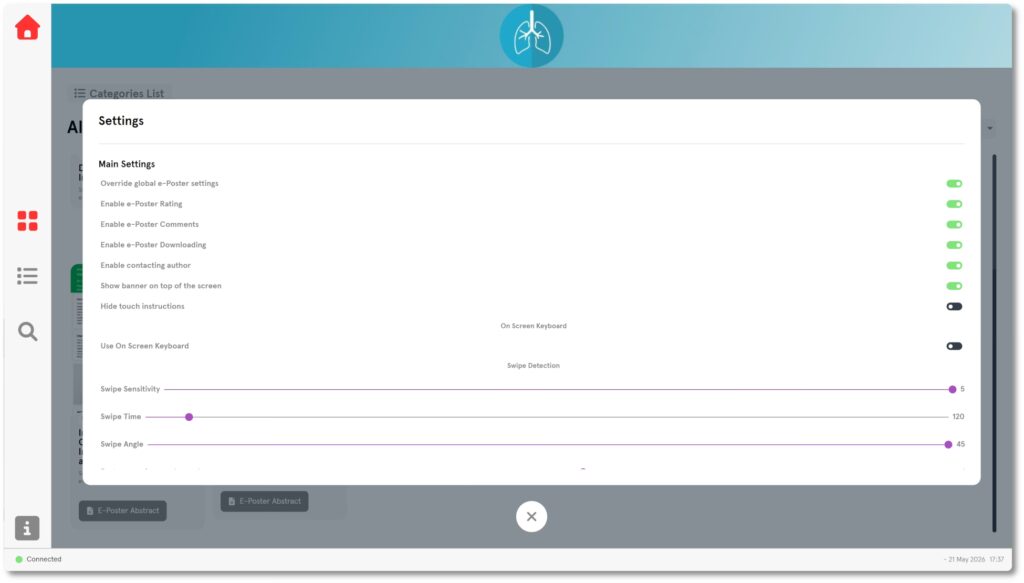
ePoster App settings reference
| Setting | What it does |
|---|---|
| Enable ePoster rating | Allows attendees to rate ePosters using a star rating |
| Enable ePoster comments | Allows attendees to leave comments on ePosters |
| Enable ePoster downloading | Allows attendees to download publish-allowed ePosters as PDFs |
| Enable contacting author | Allows attendees to send a message to the ePoster submitter |
| Show banner on top of screen | Shows a banner across the top of the ePoster App using the device Style logo |
| Hide touch instructions | Hides the on-screen touch guidance shown to attendees |
| Use On Screen Keyboard | Shows an on-screen keyboard for text input, useful on touchscreen-only devices |
| Categories Showing | Shows or hides individual Categories on that device |
Manage global ePoster settings in the portal under Event → Event Information → Other Settings. By default, they apply to all devices that do not have per-device overrides.
If you enable Show banner on top of screen, the ePoster App uses the assigned Style logo as a wide banner. If you are creating a Style specifically for ePoster stations, use a wide banner-shaped image as the Style logo.
Manage ratings, comments, and contact-author options
If you enable ratings, attendees can rate ePosters in the full ePoster App.
If you enable comments, attendees can leave comments on individual ePosters. Moderate comments from the individual ePoster in the portal.
To moderate comments:
- Navigate to Programme → ePosters.
- Click the ePoster.
- Open the Comments & Reviews tab.
- Set each comment to Pinned, Public, or Hidden.
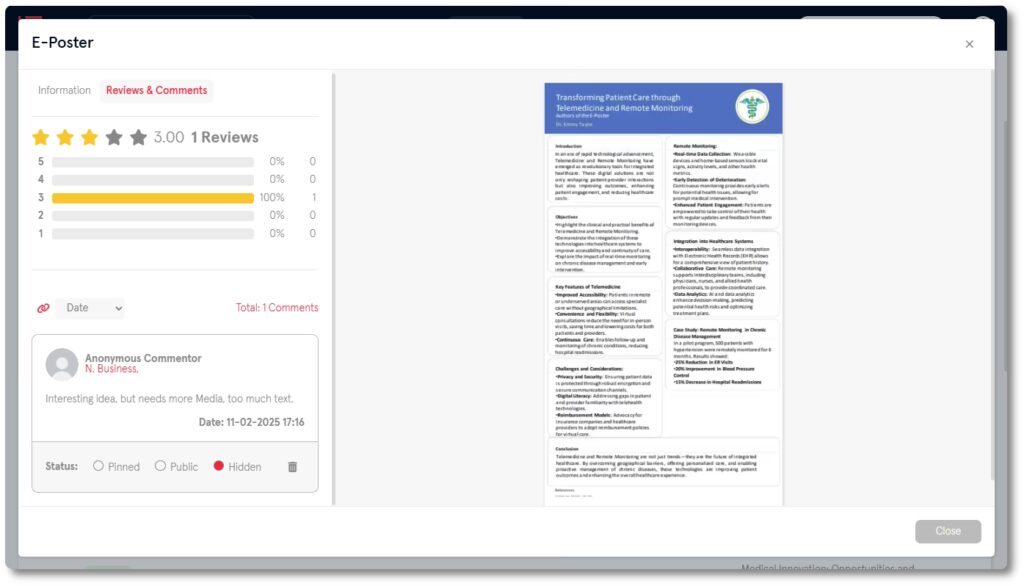
If you enable Enable contacting author, attendees can send a message to the ePoster submitter from inside the full ePoster App. Slidecrew does not show the submitter’s email address to the attendee.
Check the on-site setup
Finally, before opening the ePoster station to attendees, check that:
- the device connects and syncs
- the correct display route is running
- at least one ePoster in each required Category is Public
- a sample ePoster opens and displays correctly
- multi-page viewing works if the event includes multi-page posters
- video playback works if the event includes video
- abstracts appear in the full ePoster App
- ratings, comments, downloads, and contact author work if enabled
- the Style logo or banner appears correctly
Check the on-site setup
Before opening the ePoster station to attendees, check that:
- the device connects and syncs
- the correct display route is running
- at least one ePoster in each required Category is Public
- a sample ePoster opens and displays correctly
- multi-page viewing works if the event includes multi-page posters
- video playback works if the event includes video
- abstracts appear in the full ePoster App
- ratings, comments, downloads, and contact author work if enabled
- the Style logo or banner appears correctly
Related
- Set up the Slidecrew App Launcher for an event
- Set up the Slidecrew Web App
- Troubleshoot ePosters not showing
- Share presentation and ePoster files after the event