

Set up the Speaker Ready Room queue screen with the Slidecrew App Launcher, then manage speakers and station assignments from the portal’s Queue tab.
Short answer: Pair a device to your event, open Speaker Service Center and select SSC Queue. In Settings → Queue, turn on Queue Sign in if speakers should scan a QR code to join. Staff can manage the queue from Core → Queue in the portal, including assigning speakers to stations.
Set up the queue screen
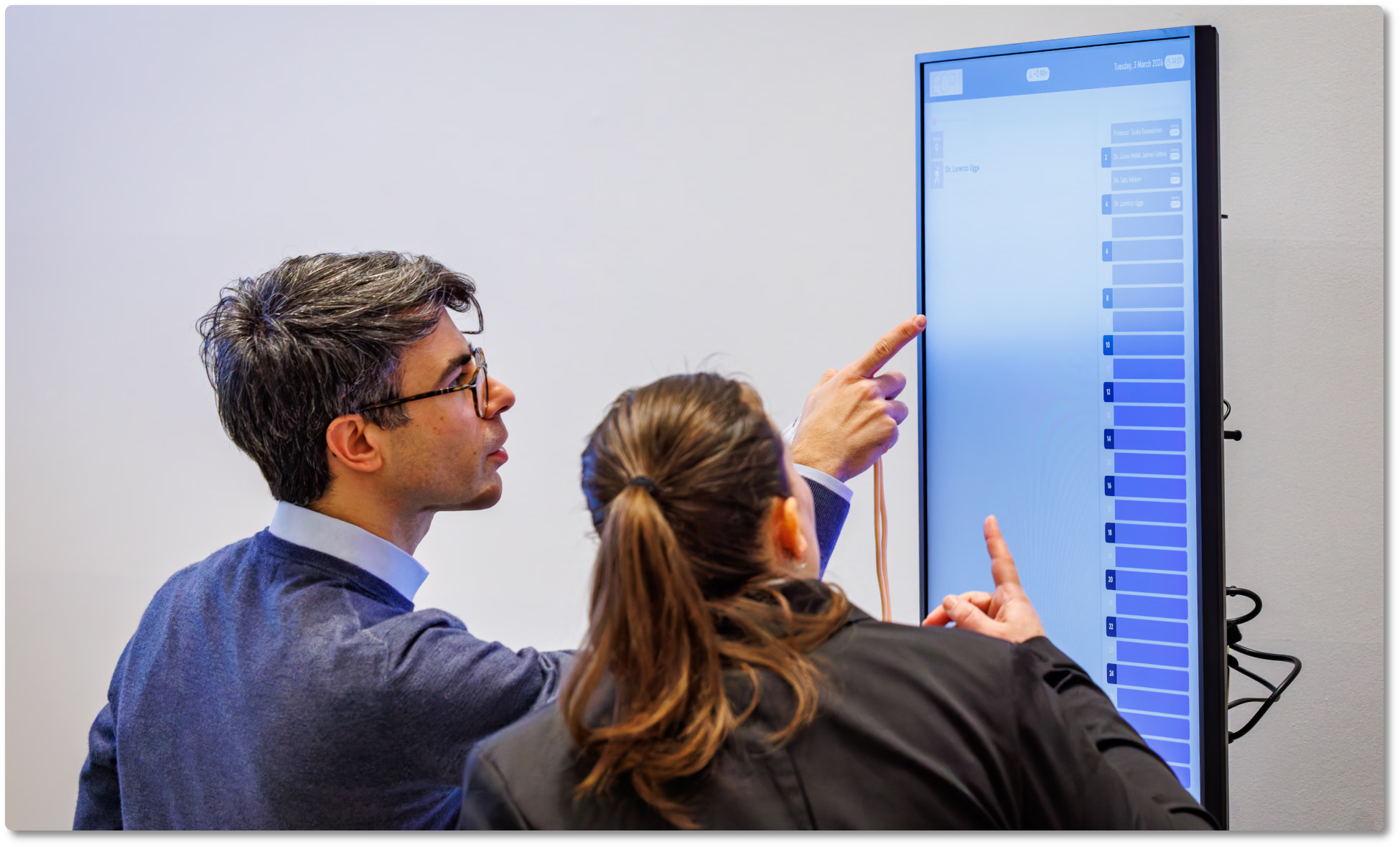
Pair a device to your event and open the App Launcher. Select Speaker Service Center, then click SSC Queue.
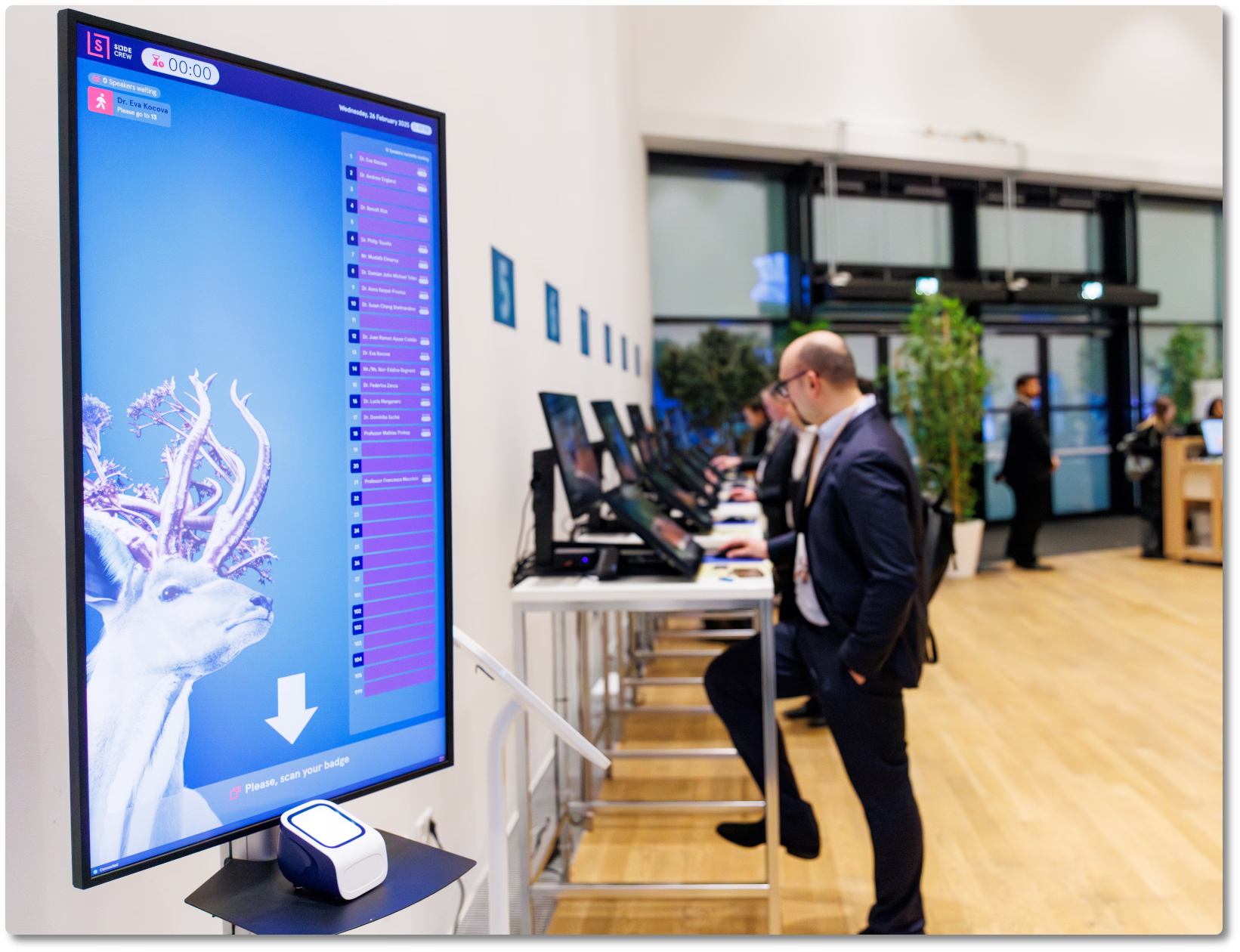
Open the Settings pop-up and select Queue. Turn on Queue Sign in if speakers should be able to scan their QR code at the screen and join the queue. For device pairing steps, see How do I install the Slidecrew App Launcher and pair a device?.
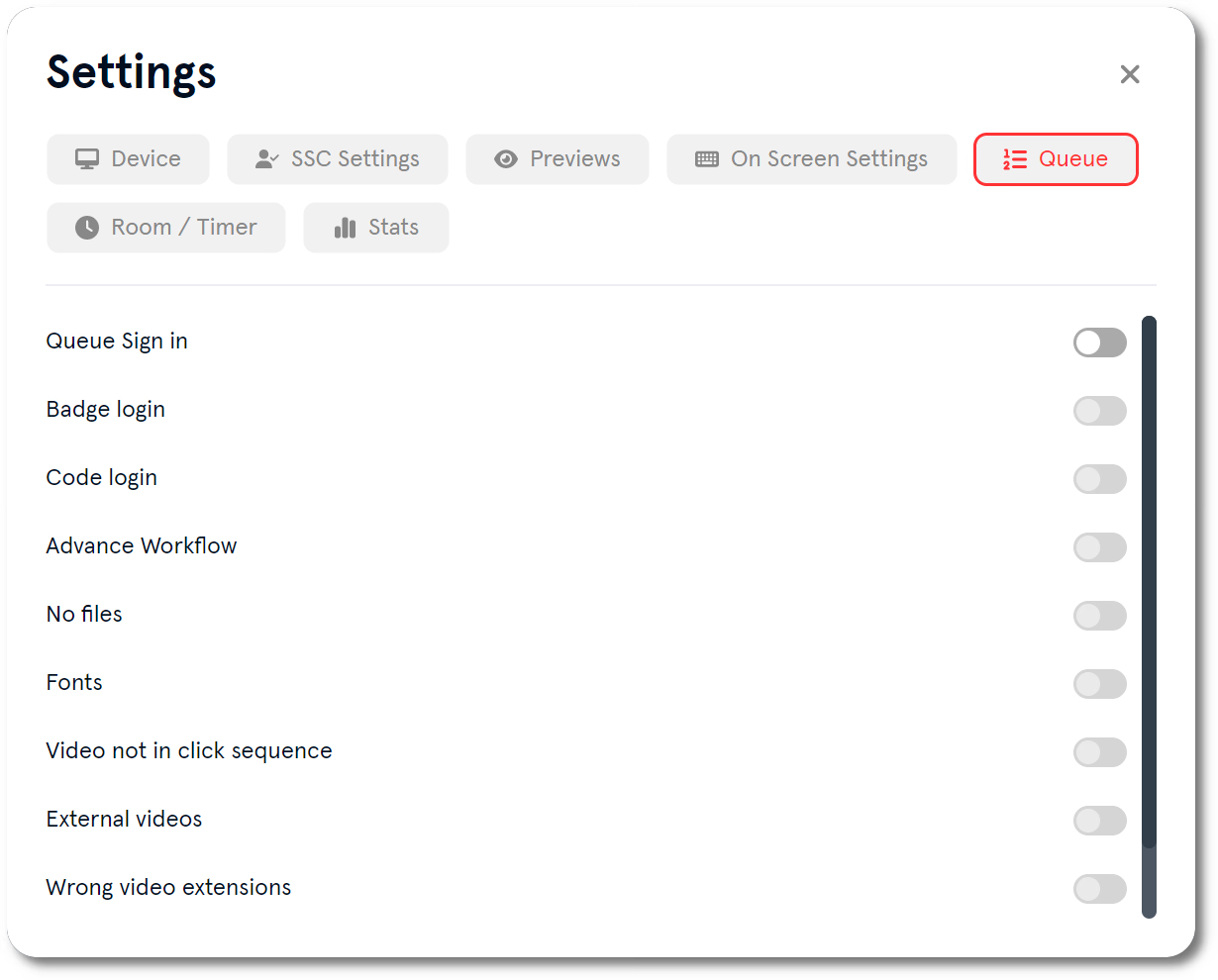
Find the queue redirect checks
To configure redirects, open Settings → Queue on the Queue screen device. When Advance Workflow is enabled, selected checks can redirect a speaker to the welcome or information desk instead of adding them to the queue. The available checks are No files, Fonts, Video not in click sequence, External videos, Wrong video extensions, and Slido integration.
Enable the checks that matter for your event. If a check is disabled, that issue does not prevent the speaker from joining the queue. For example, disable Slido integration if your event does not use Slido.
Manage the queue in the portal
Use Core → Queue in the portal to add or remove speakers, assign them to stations, and monitor their status.
Speakers can join in three ways: a staff member adds them at the welcome desk, they scan their personal QR code at the Queue screen, or a staff member assigns them directly to an available station. To add a speaker from the portal, use Add to Queue in the attendee sidebar or on the Speaker Overview Page. Uploading a file does not add a presentation submitter to the queue.
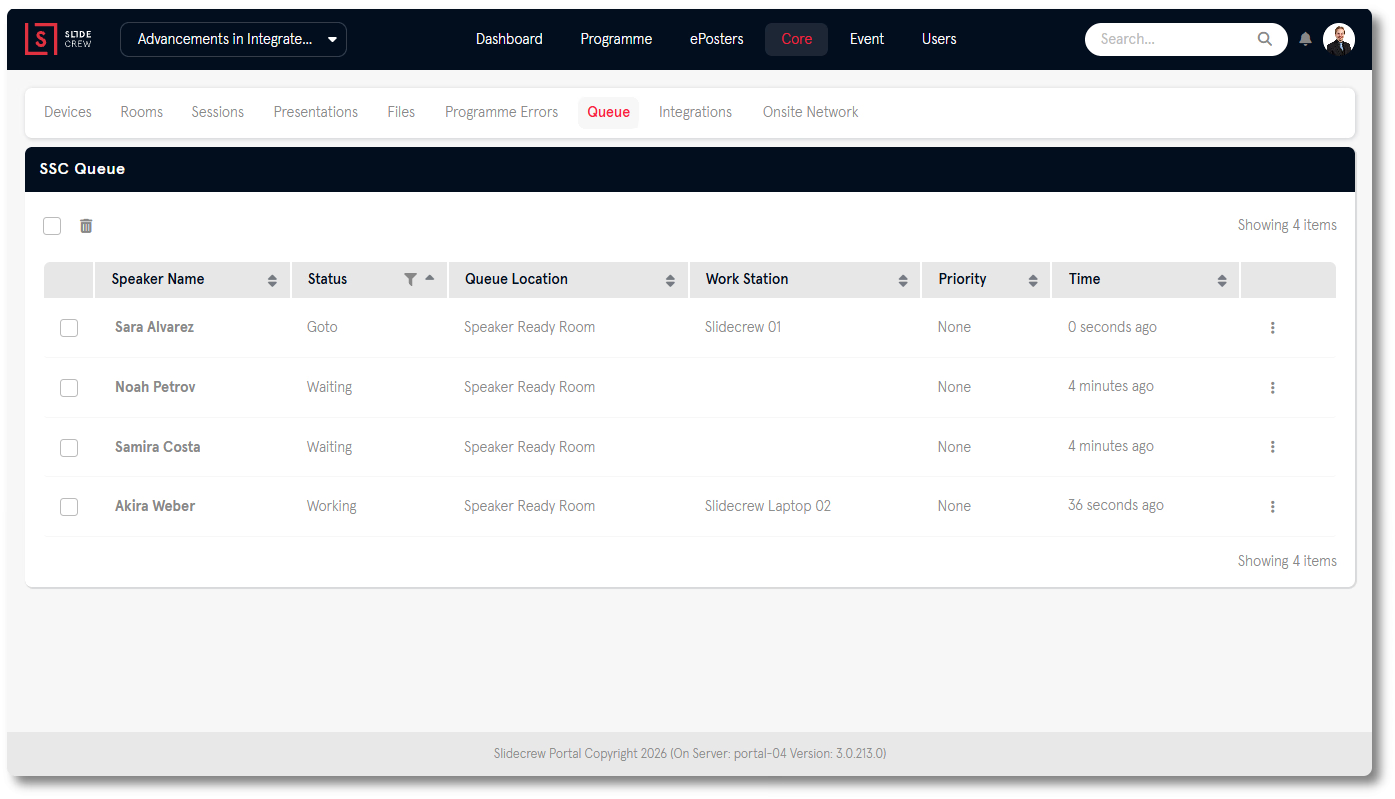
Speakers move through three statuses:
| Status | What it means |
|---|---|
| Waiting | The speaker is in the queue and waiting for a station |
| Go to | A station has been assigned, and the Queue screen shows which one |
| Working | The speaker is at a station |
The Queue tab shows these details:
| Column | What it shows |
|---|---|
| Speaker Name | The speaker’s name |
| Status | Waiting, Go to, or Working |
| Queue Location | The speaker’s current place in the queue |
| Work Station | The assigned station, if any |
| Priority | The speaker’s queue priority, affected by upcoming presentation times |
| Time | How long the speaker has been in the queue |
If Prioritise Queue on Presentation Start is enabled under Event Information → Other Settings, speakers whose presentations are starting soon move up the queue automatically.
Once a speaker has a station assignment, you cannot move them back to the waiting queue.
Related guides
- Speaker Ready Room on-site workflow → PDF guide to the queue, stations and other on-site workflows
- How do I set up a Speaker Ready Room check-in station and speaker login? → Set up a check-in station and speaker login
- Speaker Ready Room check-in problems: what do I do? → Troubleshoot queue redirects and other check-in problems
- Organiser Manual → Full Slidecrew organiser reference