

Choose between the Slidecrew Web App and App Launcher based on which Slidecrew app each device needs.
Short answer: The Web App runs in Chrome or Edge, but not Firefox or Safari, and needs no installation. It includes Room Signage, Room Timer, Queue, Name Screen, ePoster Screen and Airport Screen. Use the App Launcher for the apps that are not available in the Web App, including the full ePoster App and Screen Matrix.
How the Web App and App Launcher differ
The Web App runs selected display apps in a browser, while the App Launcher runs the wider selection of Slidecrew apps. The table shows which apps are available on each route.
| App | Web App | App Launcher |
|---|---|---|
| Room Signage | ✓ | ✓ |
| Room Timer | ✓ | ✓ |
| Queue | ✓ | ✓ (as SSC Queue) |
| Name Screen | ✓ | × |
| ePoster Screen | ✓ (limited) | × |
| Airport Screen | ✓ | × |
| Technician App | × | ✓ |
| Kiosk App | × | ✓ |
| Moderator App | × | ✓ |
| Timer Controller | × | ✓ |
| Speaker Service Centre App | × | ✓ |
| ePoster App (full) | × | ✓ |
| Screen Matrix | × | ✓ |
What each Web App does
The Web App includes six apps. Room Signage, Room Timer and Queue work the same way as their App Launcher versions; Name Screen, ePoster Screen and Airport Screen are available only through Web Apps.
| App | Notes |
|---|---|
| Room Signage | Works the same way as the App Launcher version. See Setting Up Conference Rooms. |
| Room Timer | Works the same way as the App Launcher version. See Setting Up Conference Rooms. |
| Queue | Works the same way as the SSC Queue screen. See Setting Up the Speaker Ready Room. |
| Name Screen | Only available in the Web App. Displays presenter’s or moderator’s name and presentation title, depending on configuration. |
| ePoster Screen | A limited version of the ePoster App. Only shows the first page of each ePoster and does not support video. |
| Airport Screen | Only available in the Web App. Displays all sessions across all rooms in a departure-board layout. |
Open and pair a Web App
Open the Web App in Chrome or Edge. Firefox and Safari are not supported. Choose the app for the device, then pair it to your event through the portal.
- Open Google Chrome or Microsoft Edge on the device.
- Go to
https://app.slidecrew.com/webapp/.
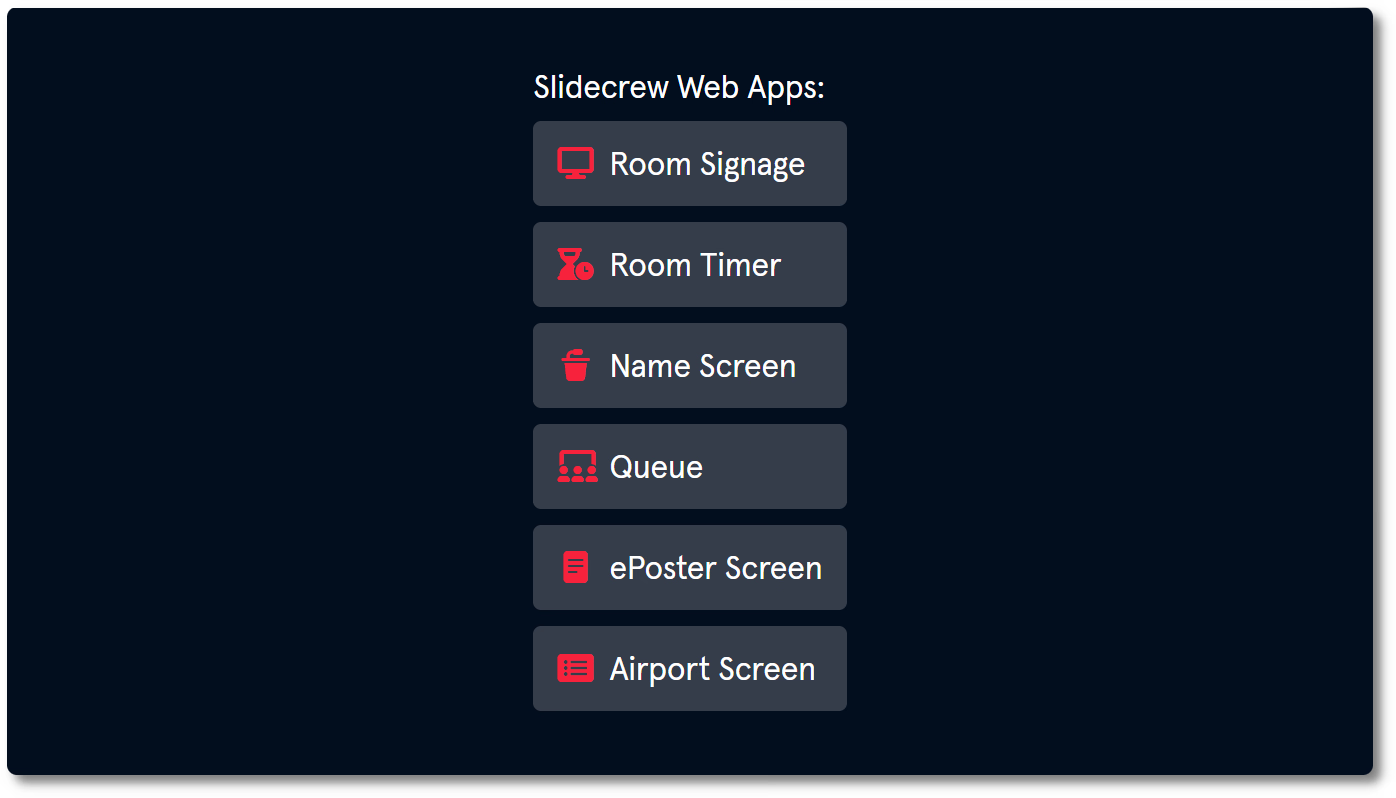
- Click the app you want to run.
- On the selected app’s pairing screen, use its six-digit code or QR code to pair the screen through the event portal.
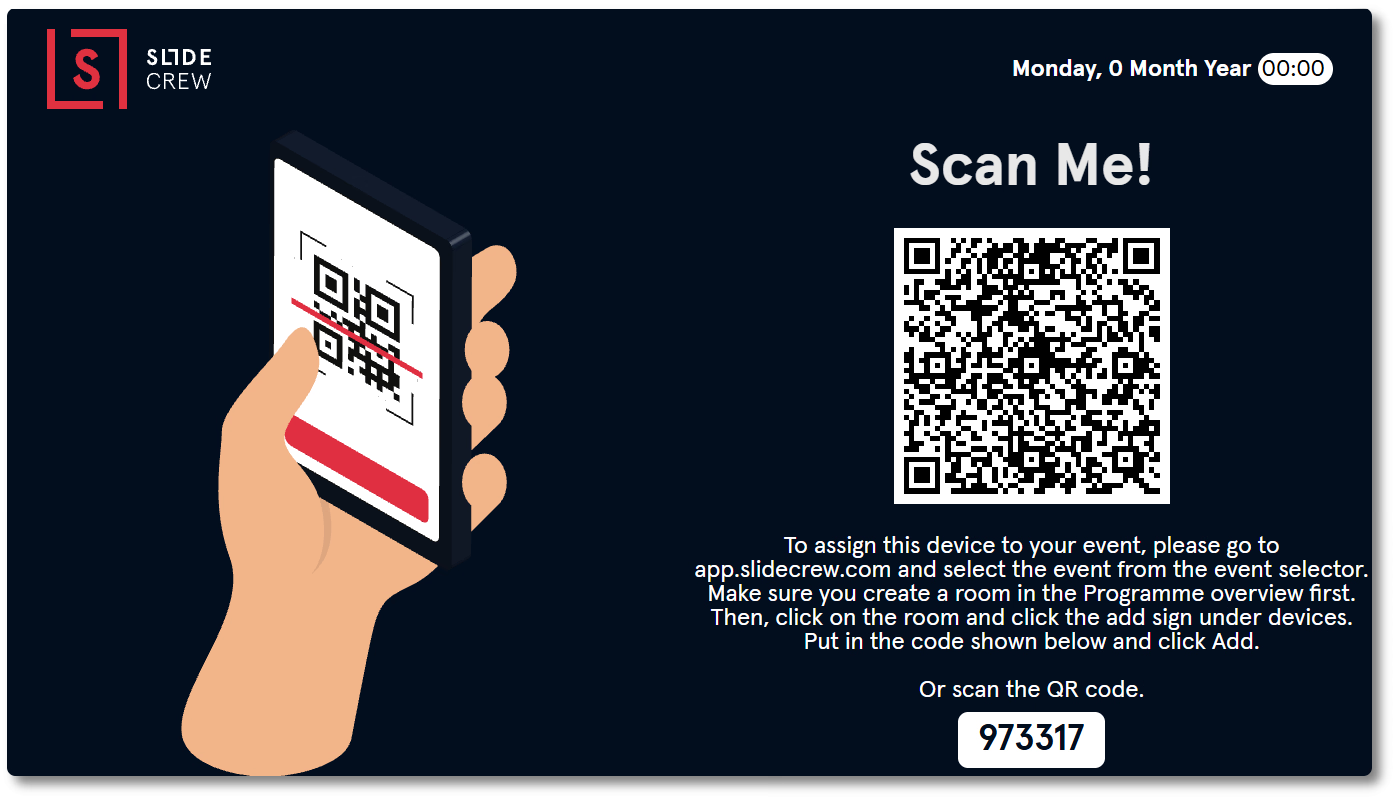
Once pairing is complete, the selected app opens for the assigned room. The device’s assigned Style controls the screen’s appearance, as it does in the App Launcher.
What the Web App ePoster Screen can show
The Web App ePoster Screen is a browser-based option for displaying Public ePosters, with four limits compared with the full ePoster App.
| Limitation | Detail |
|---|---|
| First page only | Only the first page of each ePoster is shown. Multi-page ePosters cannot be scrolled. |
| No video playback | Video-only ePosters show as a still image |
| No embedded video | PowerPoint ePosters with embedded video show the video as a static image |
| Abstracts | Not supported |
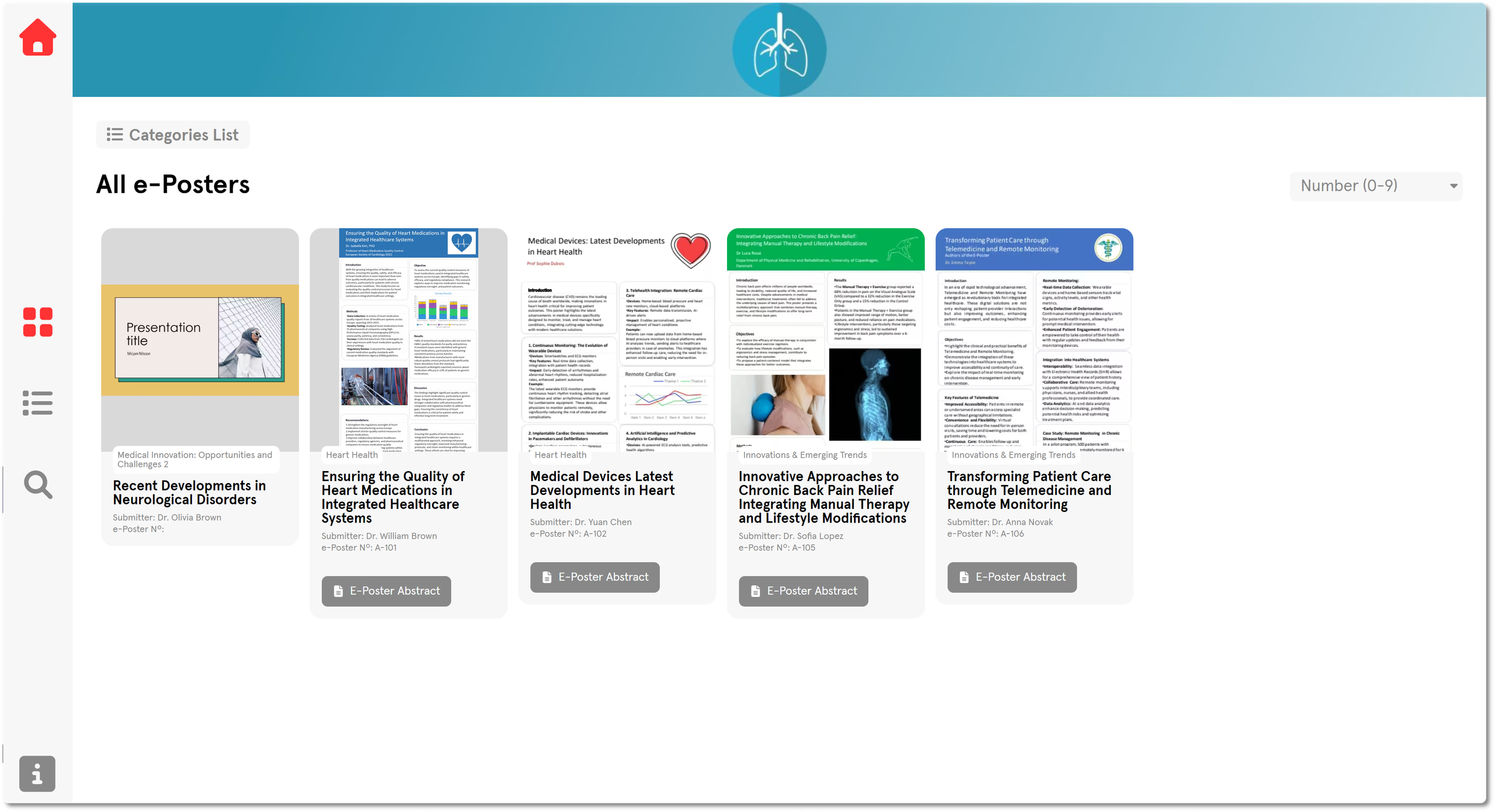
Use the Web App ePoster Screen for a simple display of Public ePosters. Choose the full ePoster App through the App Launcher when attendees need multi-page viewing, video playback, ratings, comments, downloads, contact author or per-device ePoster settings.
Related guides
- How do I set up the Slidecrew Web App? → Set up the Slidecrew Web App
- How do I install the Slidecrew App Launcher and pair a device? → Install and pair the Slidecrew App Launcher
- How do I set up and manage ePosters in the portal? → Set up and manage ePosters