

The Slidecrew Publication Page gives attendees a public place to browse and download files after your event.
Short answer: In the event portal, turn on Use publishing, choose the Publication page style, and save. Speakers must set publish permission to Yes for each file. Copy the page URL from View Publications and share it with attendees. Presentation files appear after their sessions end; ePosters appear after upload and processing.
Turn on the Publication Page
Enable publishing in your event settings to create the page.
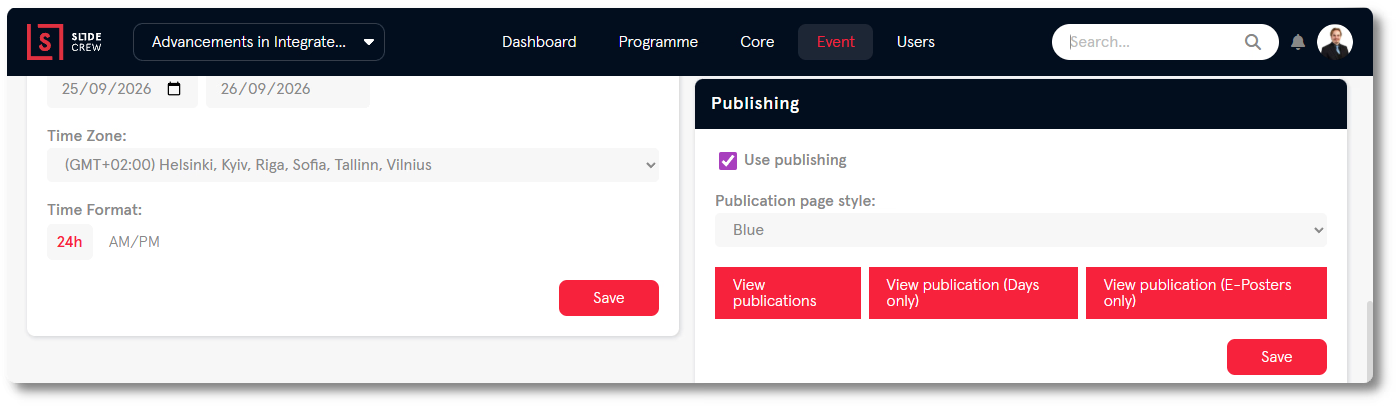
- Go to Event → Event Information → Publishing.
- Tick Use publishing.
- Choose a style from Publication page style:. If you leave it unchanged, the Default Style is used.
- Click Save.
| Setting | Notes |
|---|---|
| Use publishing | Enables the Publication Page and activates the publish permission option on the Speaker Upload Page |
| Publication page style: | The Style applied to the Publication Page. Defaults to the Default Style if not changed. |
Choose which files appear on the Publication Page
Only files with publish permission set to Yes appear, and presentation files become visible after their session ends.
| Content type | When it appears on the Publication Page |
|---|---|
| Presentation files | Only after the session containing that presentation has ended |
| ePoster files | As soon as the file has been uploaded and processed |
| Files with No or unknown permission | Never. Only an explicit Yes makes a file visible. |
Find and share the Publication Page URL
Open the Publishing section and use View Publications to get the public URL.
- Go to Event → Event Information → Publishing.
- Click View Publications.
- Copy the URL from your browser’s address bar.
The URL follows this format: https://slidecrew.com/publish/[EventShortName]-evt-[uniqueID]/. It stays the same when you edit event details.
The Publishing section offers three views:
| Button | What it shows | URL |
|---|---|---|
| View Publications | Presentations and ePosters | Base URL |
| View Publications (Days only) | Presentations only | Base URL + ?show=days |
| View Publications (ePosters only) | ePosters only | Base URL + ?show=e-posters |
Embed the Publication Page on your event website
You can embed the page on your event website using a standard iFrame and the normal Publication Page URL.
What attendees see on the Publication Page
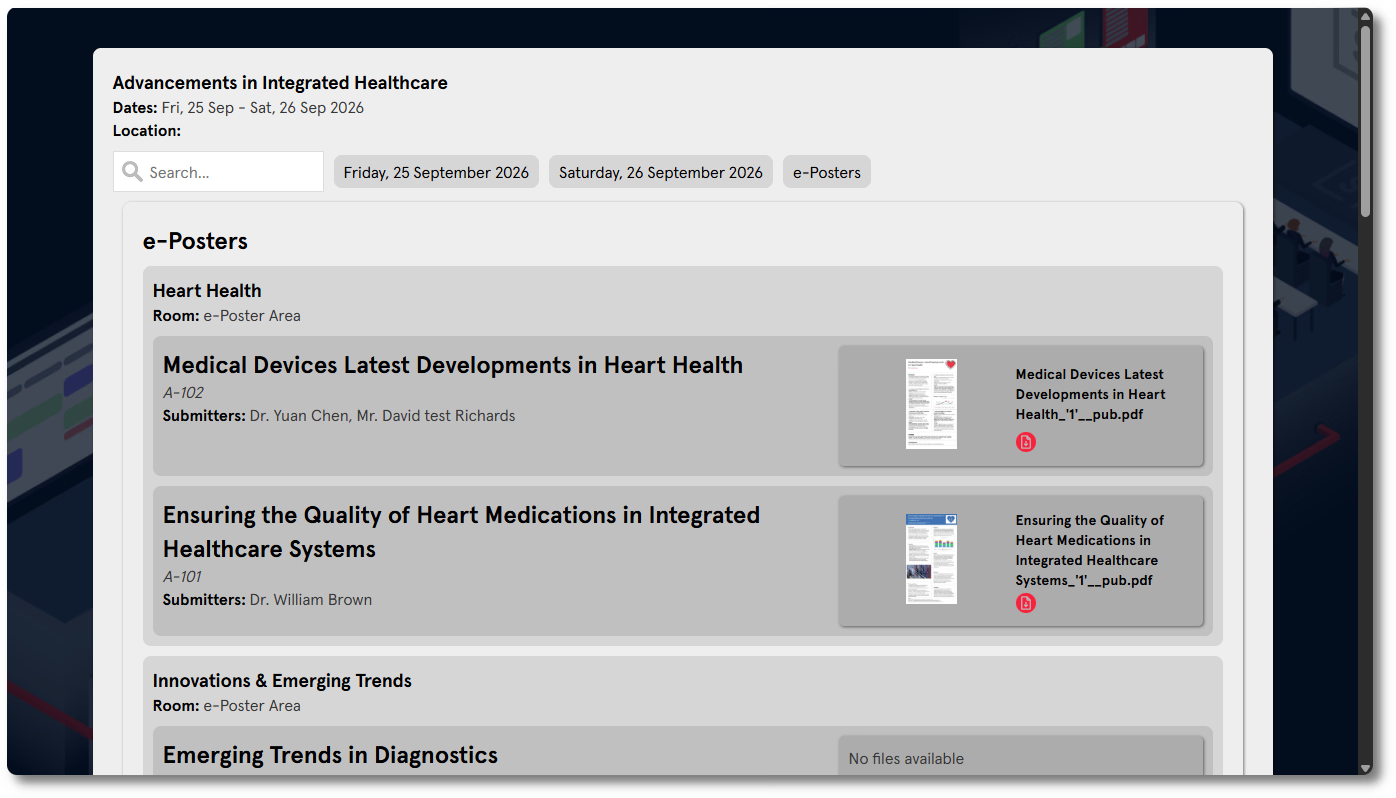
The page header shows the event name, dates, location, a search bar and a tab for each event day, plus an ePosters tab. On a day tab, sessions contain their presentations. A file card appears beside a presentation when its speaker has set permission to Yes and the session has ended; it shows a thumbnail and filename. The ePosters tab groups files by category. Clicking a file card opens it in a new browser tab.
Download published files and post-event statistics
You can download a ZIP of published files and export event, ePoster or form statistics from the After event section.
To download the files:
- Go to Event in the top menu.
- Click Exports.
- Under After event, find Published files:.
- Click Zip archive.
The ZIP contains PDF versions of files for which the speaker has set publish permission to Yes.
To export statistics, go to Event → Exports, then click the relevant button under After event.
| Export | What it contains |
|---|---|
| Event statistics: | Key event metrics, including session counts, presentation counts, file counts, upload origin data, and Speaker Ready Room averages |
| ePoster statistics: | Per-ePoster view counts, ratings, and download data |
| Form statistics: | One sheet per form, with one row per submission |
Related guides
- Why is a file not showing on the Publication Page? → Check why a file is not appearing on the Publication Page
- How do I give permission to publish my presentation files? → See how a speaker sets publish permission
- Organiser Manual → Organiser Manual