

If files are not showing on the Publication Page, start by checking the event’s publishing setting and which Publication Page view is open.
Short answer: Confirm Use publishing is ticked and open the base View Publications page. Presentation files appear after their sessions end; ePosters appear after they are uploaded and processed. Files with No or unknown permission do not appear. If the URL itself seems to have changed, contact support@slidecrew.com.
How do I check publishing and the page view?
Publishing must be enabled, and the base view shows presentations and ePosters together. Confirm Use publishing is ticked under Event → Event Information → Publishing. For the steps to enable it, see How do I share presentation files publicly after my event?.
With Use publishing ticked, open the base View Publications URL to show presentations and ePosters together. The filtered views show one content type each.
| Button | What it shows | URL |
|---|---|---|
| View Publications | Presentations and ePosters | Base URL |
| View Publications (Days only) | Presentations only | Base URL + ?show=days |
| View Publications (ePosters only) | ePosters only | Base URL + ?show=e-posters |
When does each file appear?
Presentation files appear only after the session containing that presentation has ended. ePoster files appear as soon as the file has been uploaded and processed. Files with No or unknown permission never appear.
| Content type | When it appears on the Publication Page |
|---|---|
| Presentation files | Only after the session containing that presentation has ended |
| ePoster files | As soon as the file has been uploaded and processed |
| Files with No or unknown permission | Never. Only an explicit Yes makes a file visible. |
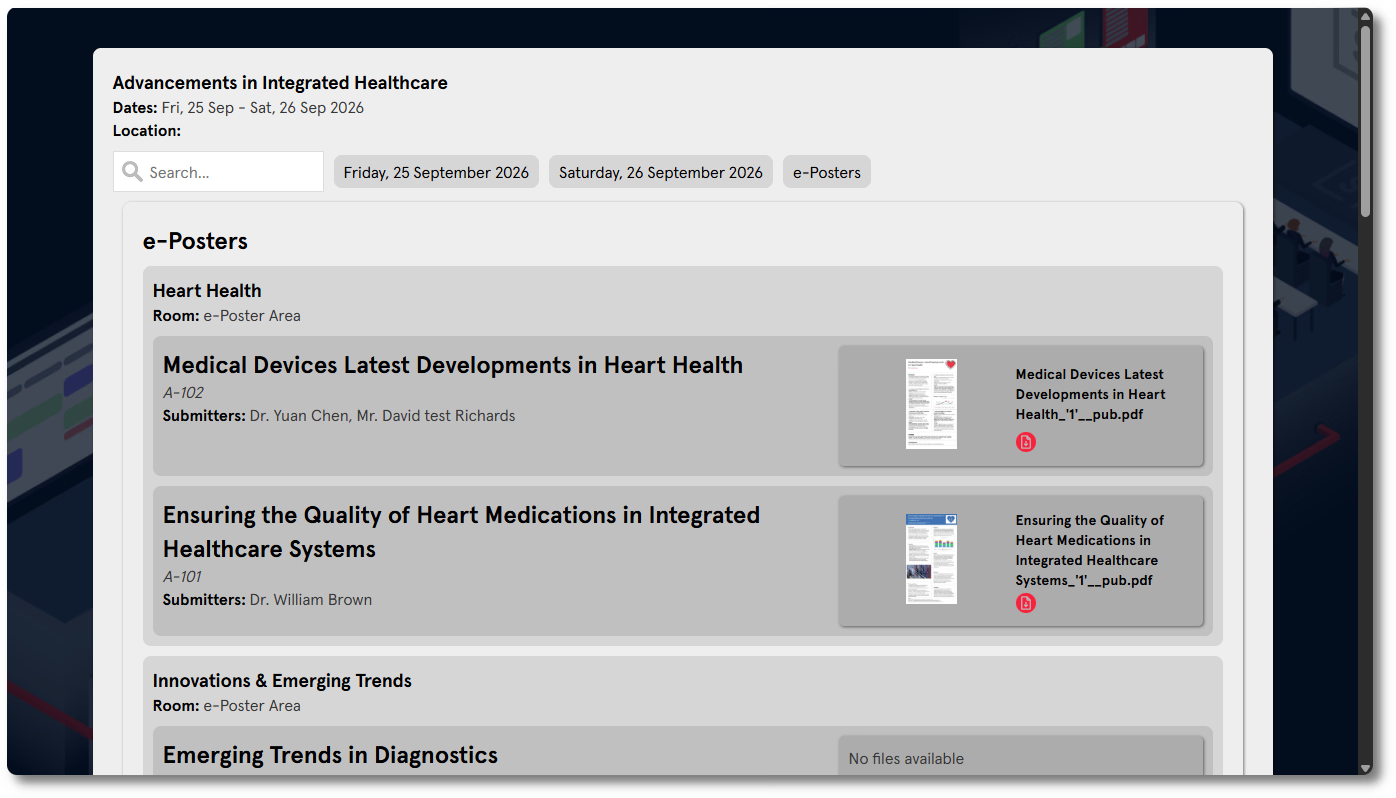
If no file is available for a presentation, No files available appears next to it.
How can a speaker check and change permission?
Only files with an explicit Yes permission appear on the Publication Page. No or an unset permission keeps a file off the page.
On each file card in the Speaker Upload Page, Publish as PDF has Yes and No radio buttons. A warning triangle means no permission has been set. Leaving it unset has the same result as choosing No.
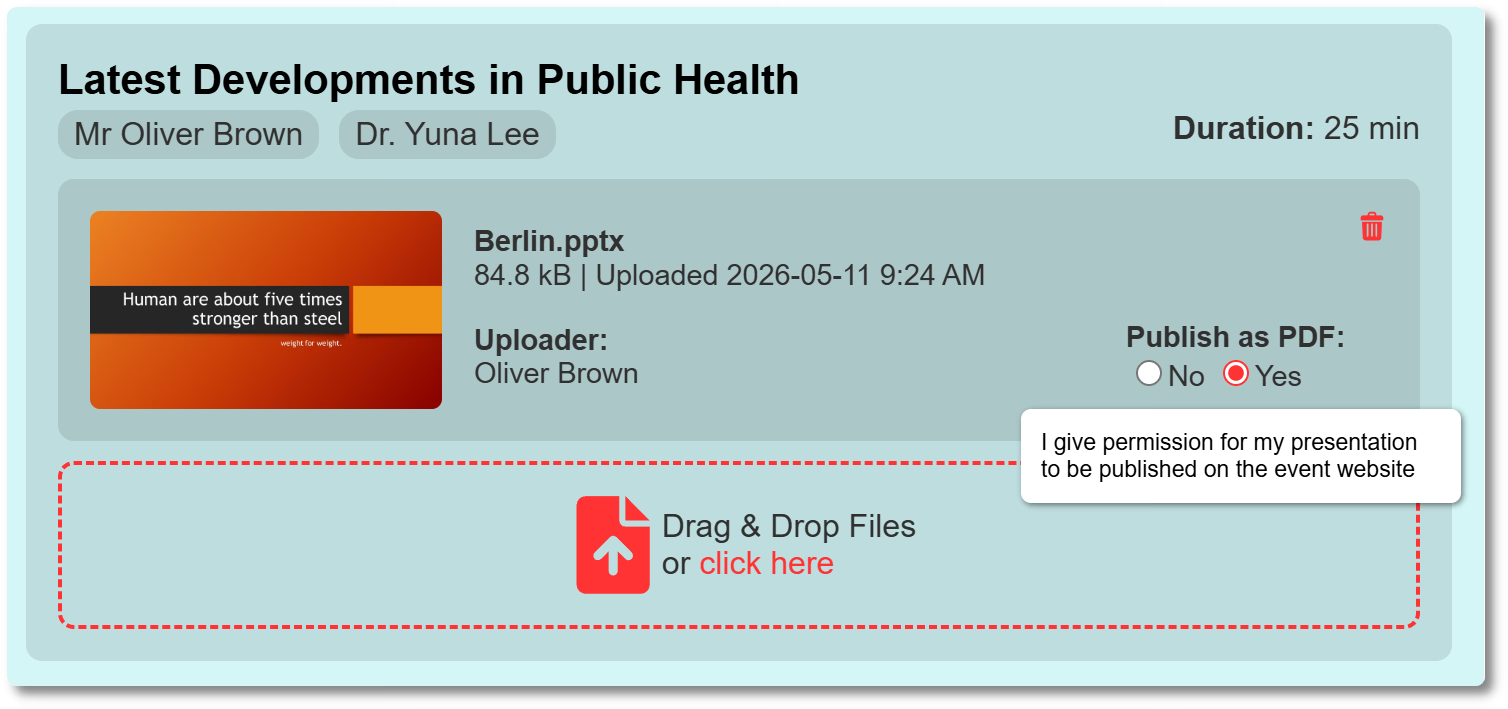
If you are the speaker, open your original upload link, find the file, and choose Yes under Publish as PDF. The link can stay active after the event, so you can change the permission later if the upload page is still available.
For presentation files, changing No to Yes after the event has the same effect. The file appears as soon as its session end time has passed.
To remind speakers who have not set a permission, an organiser can send an email campaign using the Publish Unknown speaker send filter. See How do I send email campaigns to speakers and moderators? for the campaign steps.
How do I find files with an unset permission?
In Core → Programme Errors → Files, Unknown Publication Status lists files where the speaker has not set a publish permission.
| Subtab | What it flags |
|---|---|
| All | Every file error |
| No Presentation | Files not linked to a presentation |
| Unknown Publication Status | Files where the speaker has not set a publish permission |
| Not Scanned | Files that have not been scanned by the file check process |
| External References Not Embedded | Files containing links to external files rather than embedded content |
| No Disclosure | Files with no disclosure slide detected |
What should I do if the Publication Page URL seems to have changed?
If the Publication Page URL appears to have changed, contact support@slidecrew.com. It stays the same when event details change.
Related guides
- How do I share presentation files publicly after my event? → How to enable and find the Publication Page
- How do I give permission to publish my presentation files? → How speakers set permission for their files
- Organiser Manual → Full Publication Page rules and setup