

Use the Slidecrew file check report to review what the system found in a presentation, then mark files as checked after a speaker has reviewed and confirmed them.
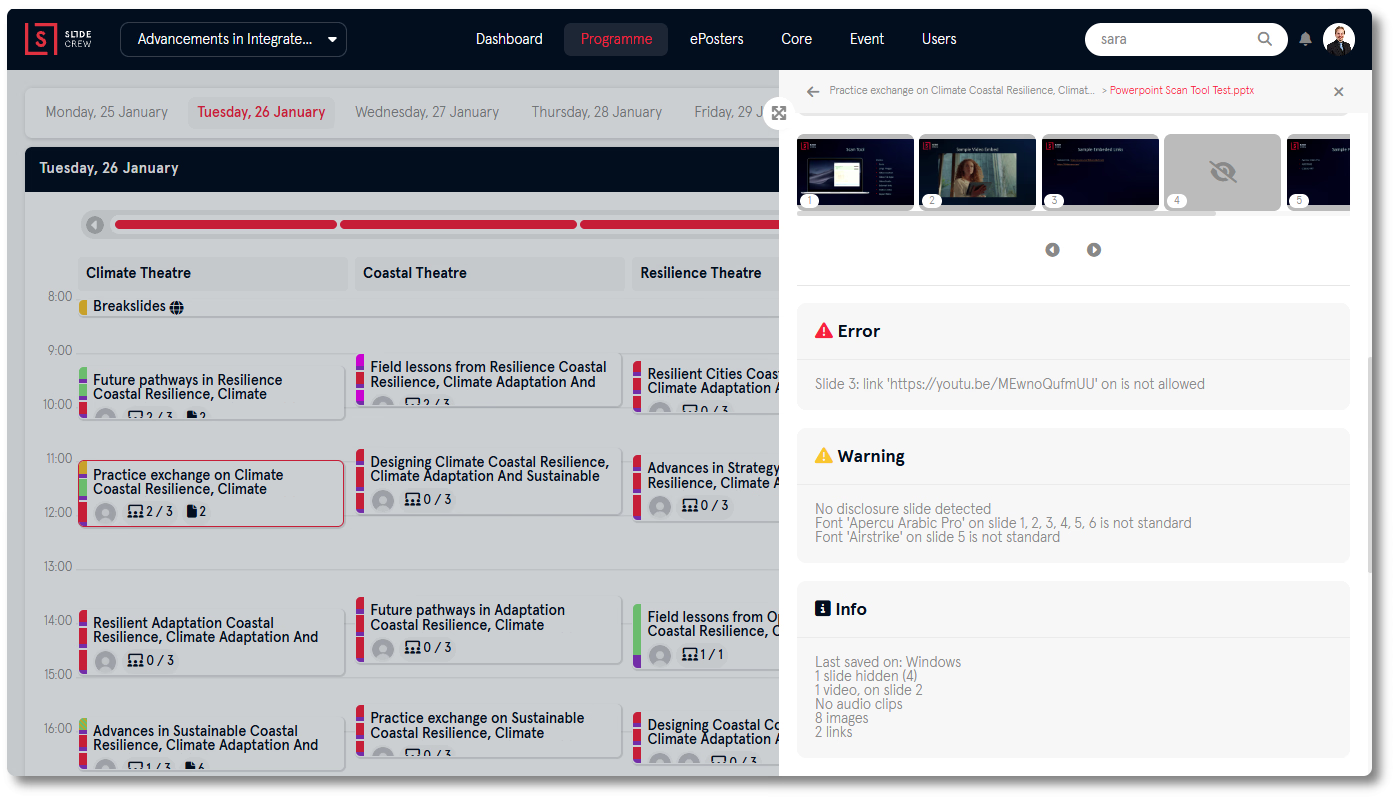
Short answer: It lists slide count, hidden slides, aspect ratio, fonts, video details, image size and external links. Open it from View info or the Speaker Overview eye icon. Staff mark files checked in Core → Files or enable Set file checked on close for automatic checking when a speaker logs out of their station.
Where can I open the file check report?
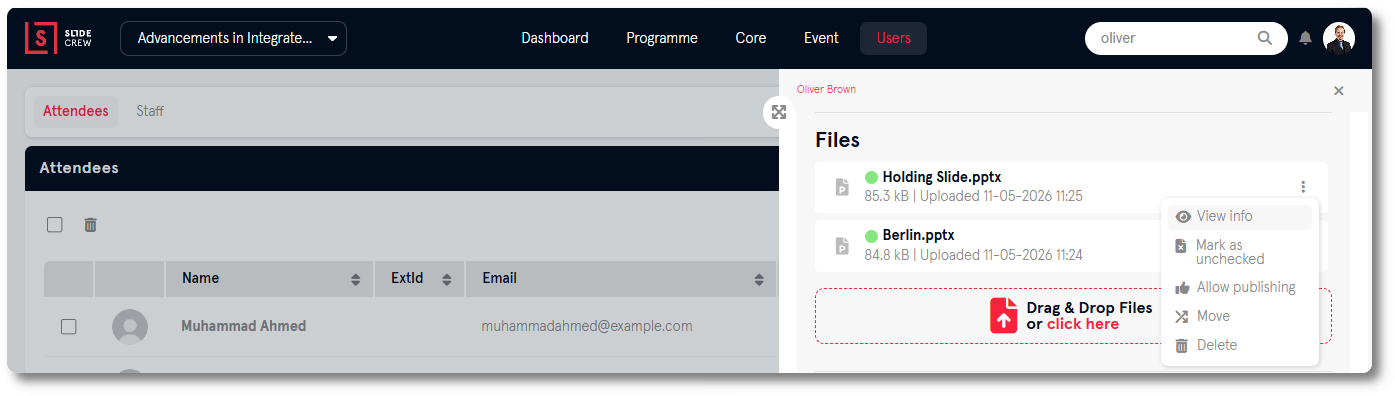
Open View info from the file card’s three-dot menu in a user or session sidebar.
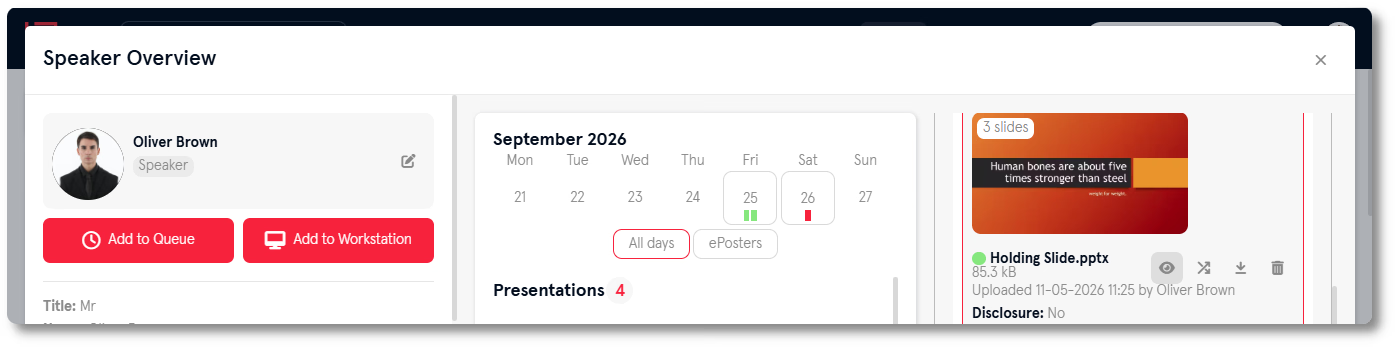
On the Speaker Overview page, select the file card’s eye icon.
What does each check report?
The report lists the following checks:
| Check | What it reports |
|---|---|
| Number of slides | Total slide count |
| Hidden slides | Slides marked as hidden in the presentation |
| Aspect ratio | The slide dimensions, flagged if they are non-standard |
| Font compatibility | Fonts that may not render correctly on event devices |
| Video details | Information about embedded videos, including format |
| Image file size | Large images that may affect performance |
| External file links | Links to files stored outside the presentation. These will not work when the file is presented. |
Slidecrew converts video to MP4 format.
How do I mark a file as checked?
Checked status means that a speaker has reviewed and confirmed their file. In the portal, open a file card’s ⋮ menu and select Mark as checked. If it is already checked, the option changes to Mark as unchecked.
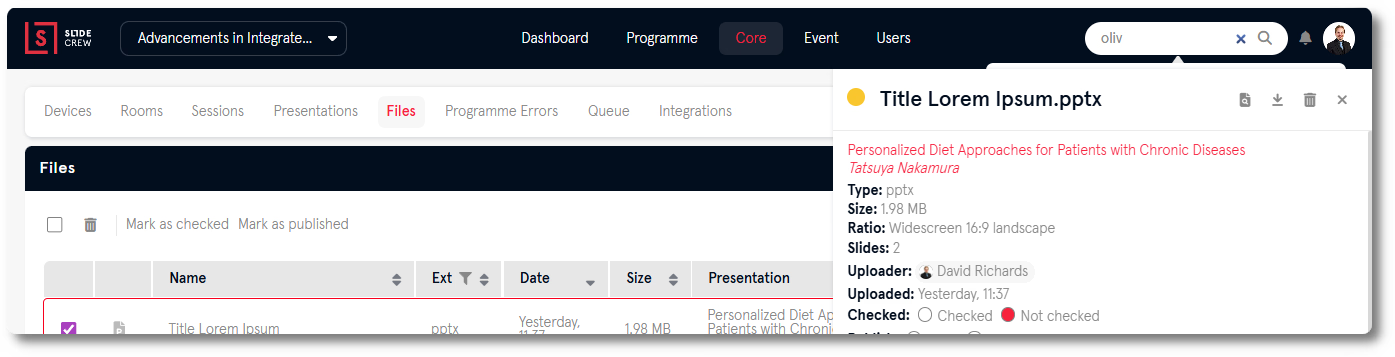
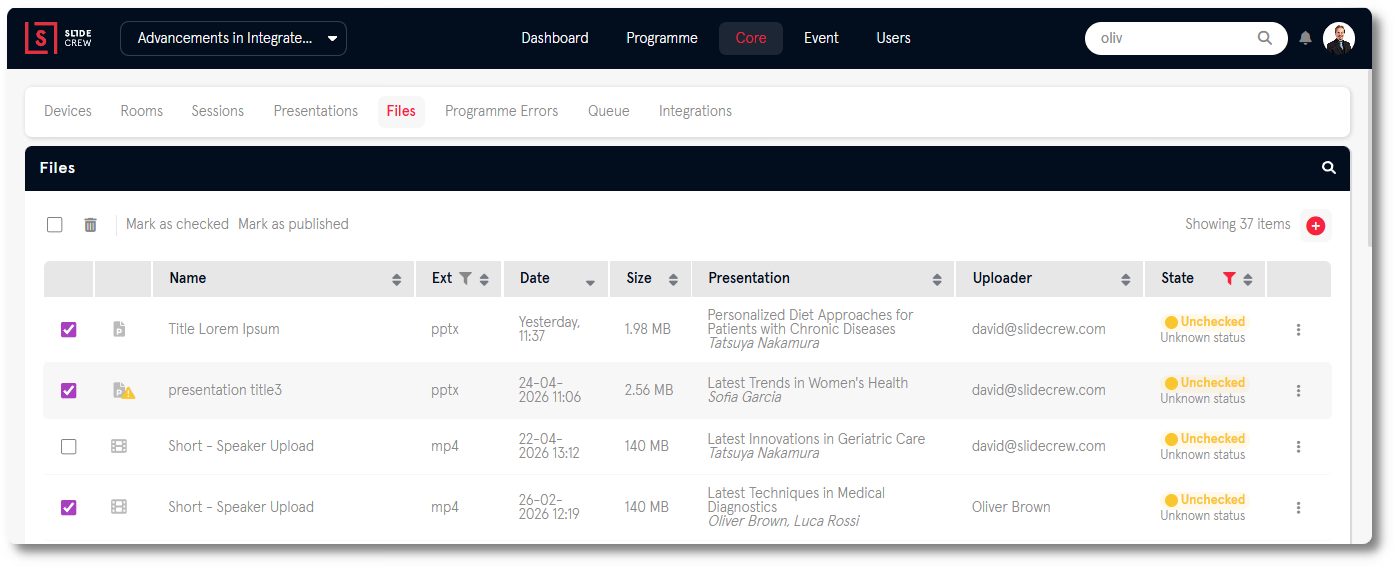
To mark several files at once, go to Core → Files, tick the relevant rows, then select Mark as checked.
You can also enable Set file checked on close in the global Speaker Ready Room settings. When enabled, all of a speaker’s files are marked as checked when they log out of their station.
Related guides
- How do I upload or replace a presentation file for a speaker in the portal? → Upload or replace a speaker’s file
- What file formats can I upload for presentations and ePosters? → Check supported presentation and ePoster file formats
- Organiser Manual → Organiser Manual