

Use the ePoster App settings to control attendee features and the display on each device.
Short answer: Set the event-wide defaults in Event Information → Other Settings. On the ePoster display, open the App settings from the green Connection indicator and enable Override global ePoster settings before changing any device-specific option. You can then choose attendee actions, show or hide Categories, adjust touch behaviour and set a banner using the device’s Style logo.
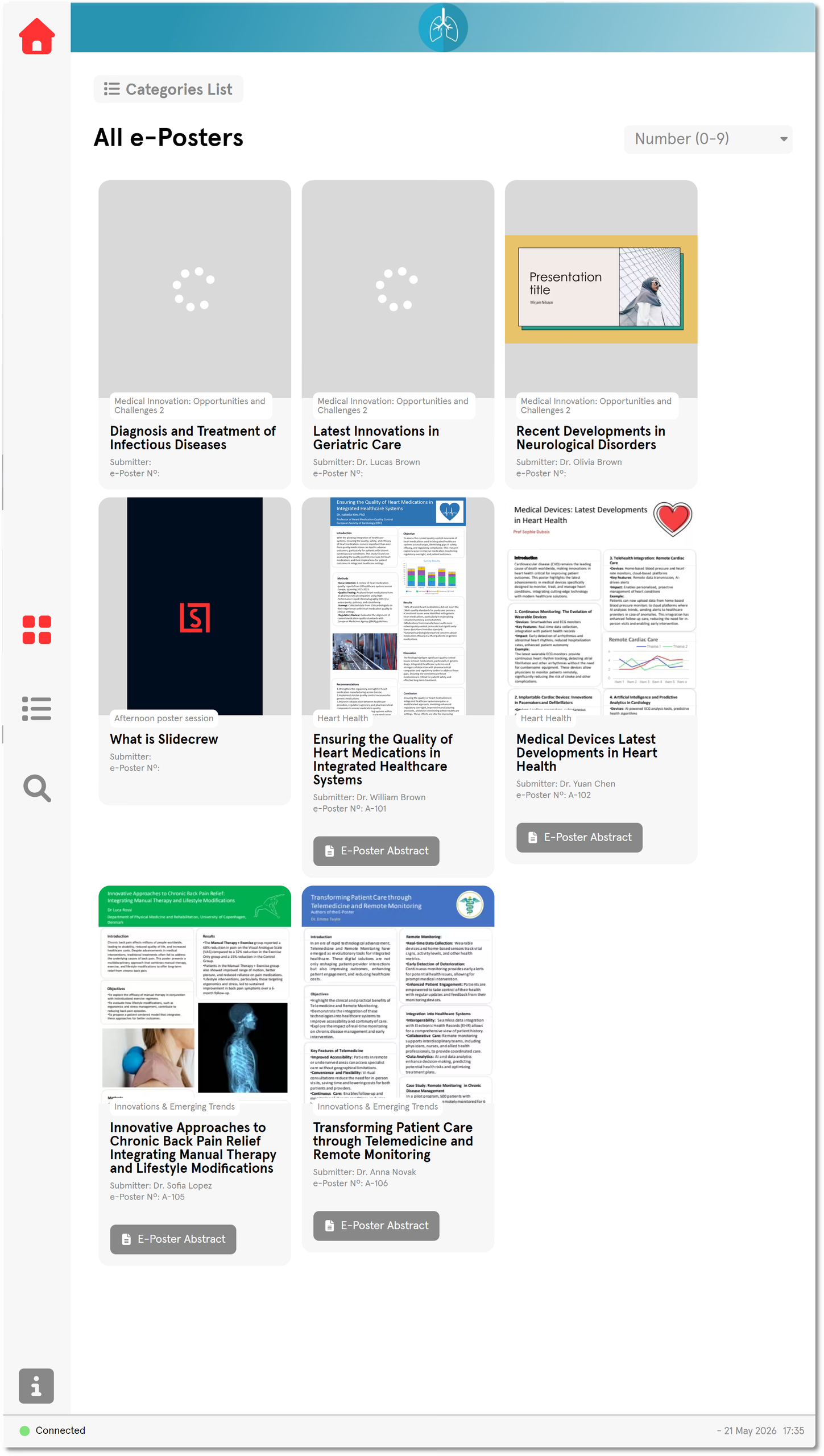
Set the global ePoster defaults
Global ePoster settings apply as event defaults to devices without per-device overrides. In the portal, open Event Information → Other Settings and set the attendee options you want to allow.
| Setting | What it does |
|---|---|
| Prioritise Queue on Presentation Start | When enabled, speakers whose presentation is starting soon move to the top of the Speaker Ready Room queue automatically |
| Allow ePoster downloading | When enabled, attendees can download ePosters from the ePoster App |
| Allow ePoster ratings | When enabled, attendees can rate ePosters in the ePoster App |
| Allow ePoster comments | When enabled, attendees can leave comments on ePosters in the ePoster App |
| Allow contacting ePoster author | When enabled, attendees can send a message to the ePoster submitter from within the ePoster App |
Change settings on one ePoster display
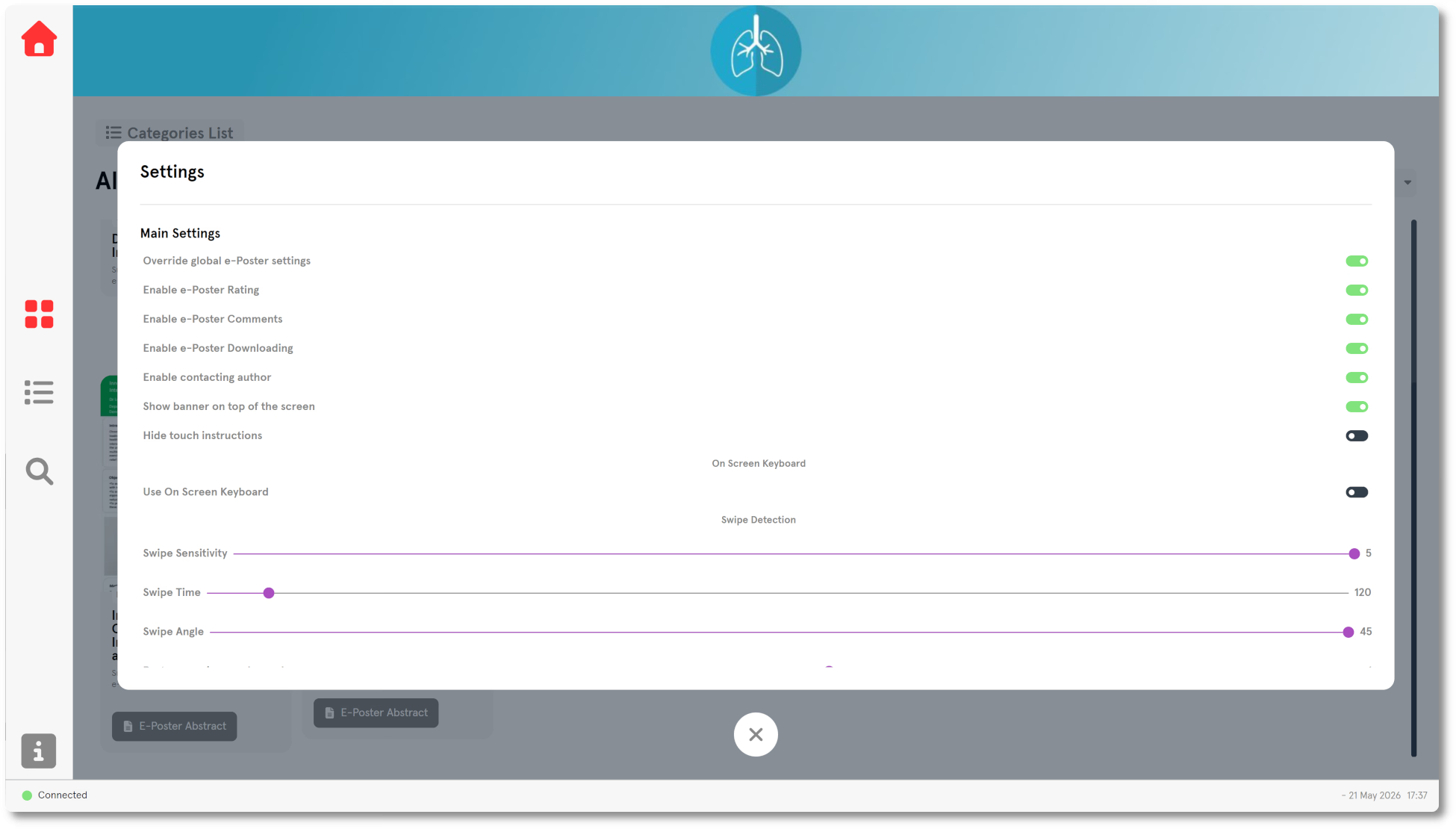
Per-device settings override the global defaults for that display. In the ePoster App, click the small green Connection indicator at the bottom left to open the settings menu. Turn on Override global ePoster settings before changing any of the settings below.
| Setting | Notes |
|---|---|
| Override global ePoster settings | Must be enabled before any per-device setting below takes effect |
| Enable ePoster rating | Allows attendees to rate ePosters using a star-rating |
| Enable ePoster comments | Allows attendees to leave comments on ePosters |
| Enable ePoster downloading | Allows attendees to download publish-allowed ePosters as PDFs |
| Enable contacting author | Allows attendees to send a message to the ePoster submitter |
| Show banner on top of screen | Displays a banner across the top of the App taken from the logo of the device Style |
| Hide touch instructions | Hides the on-screen touch guidance shown to attendees |
| Use On Screen Keyboard | Shows an on-screen keyboard for text input. Useful on touchscreen-only devices. |
| Swipe Sensitivity | Adjusts how sensitive the App is to swipe gestures |
| Swipe Time | Adjusts the timing window used to recognise swipe gestures |
| Swipe Angle | Adjusts the gesture angle used to recognise swipes |
| Poster overview render scale | Adjusts the scale used when rendering poster previews in the gallery/overview display |
| Categories Showing | Shows or hides individual Categories within the App |
What attendees can do in the ePoster App
Attendees can browse poster tiles by Category, search and change the sort order. They can tap a tile to open a poster full screen, zoom in, and play or pause embedded video. If an abstract is available, the tile has an E-Poster Abstract button; the full-screen view also has a speech-bubble button that opens the abstract.
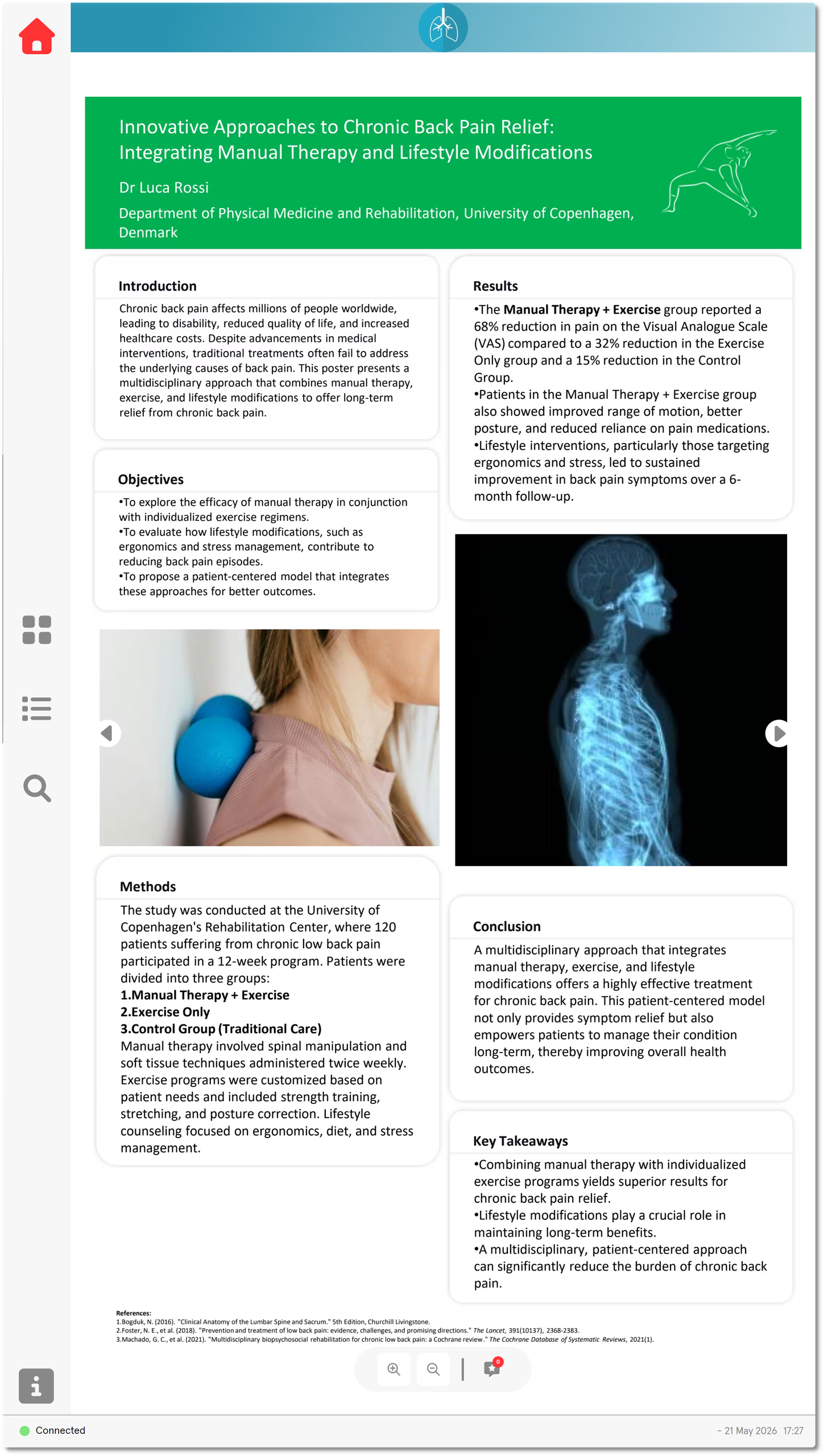
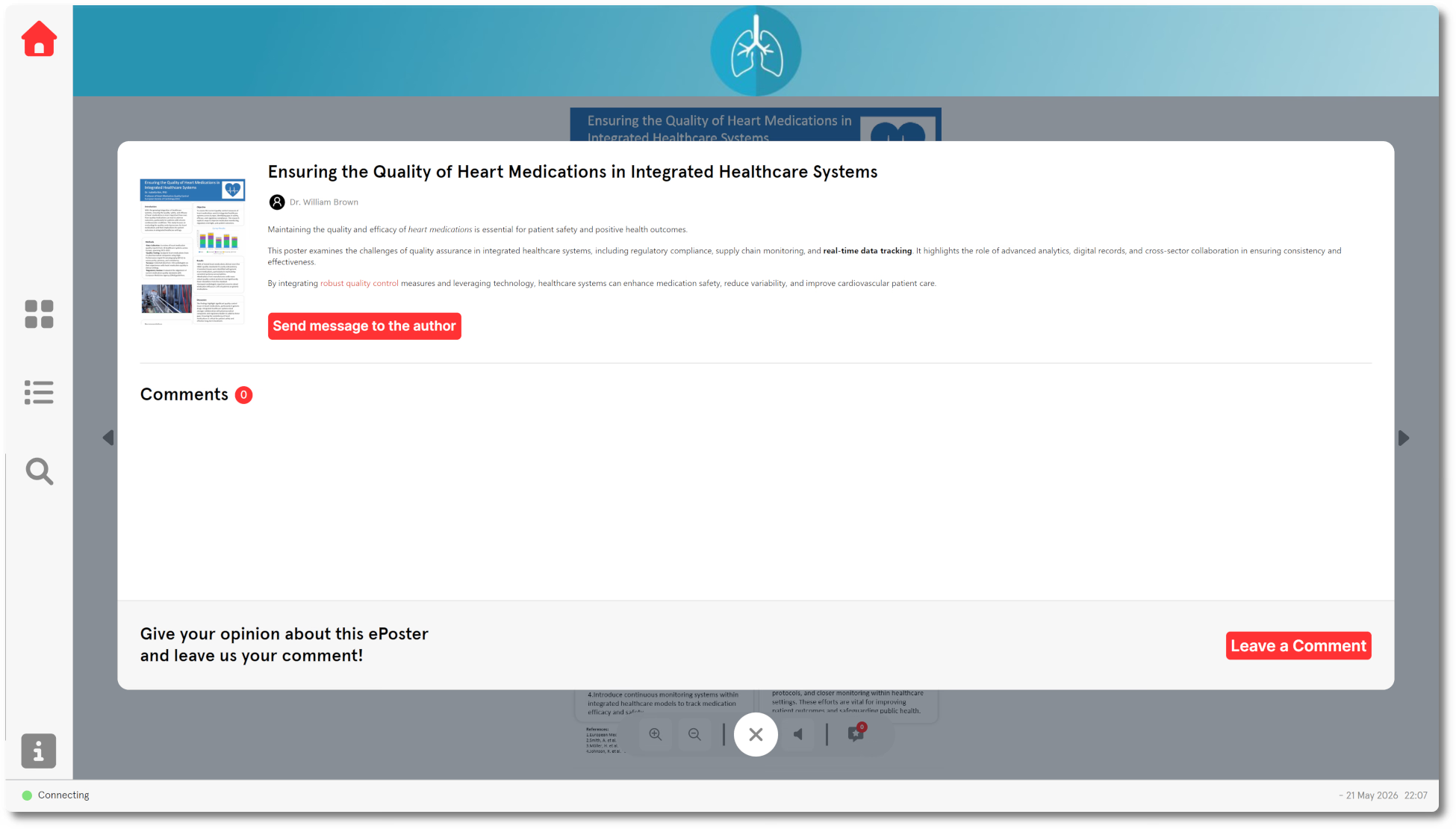
Depending on the settings, the abstract pop-up can show rating and comment controls, Send message to the author, and Leave a Comment. The submitter’s email address is not shown to attendees when they send a message. A QR code in the full-screen view lets attendees download a PDF version when downloading is available.
Choose a banner for the display
When Show banner on top of screen is enabled, the App uses the logo from the device’s assigned Style as a wide banner across the top. For an ePoster display, use a banner-shaped Style logo at least 8:1 wide, with 10:1 or wider preferred. Use a .png, .jpg or .gif logo.
Related guides
- How do I set up and manage ePosters in the portal? → Set up Categories and manage ePosters in the portal
- Why are my ePosters not showing in the ePoster App? → Check why ePosters are missing from the App
- Organiser Manual → Read the full Organiser Manual