

Use the Technician, Kiosk or Moderator App to manage presentation playback or preview files in a conference room.
Short answer: Open the App Launcher, choose Rooms, then open the app for that device. The Technician App lets staff launch presentations, the Kiosk App lets speakers select and launch their own files, and the Moderator App provides a private preview. On a Mac with multiple displays, turn on Displays have separate Spaces before using Technician or Kiosk.
Open an app for the room
On the device, open the App Launcher, select Rooms, then choose Technician, Kiosk or Moderator. The device must already be paired and synced with the event. The app then loads the session and presentation information for its assigned room.
Launch a presentation from the Technician App
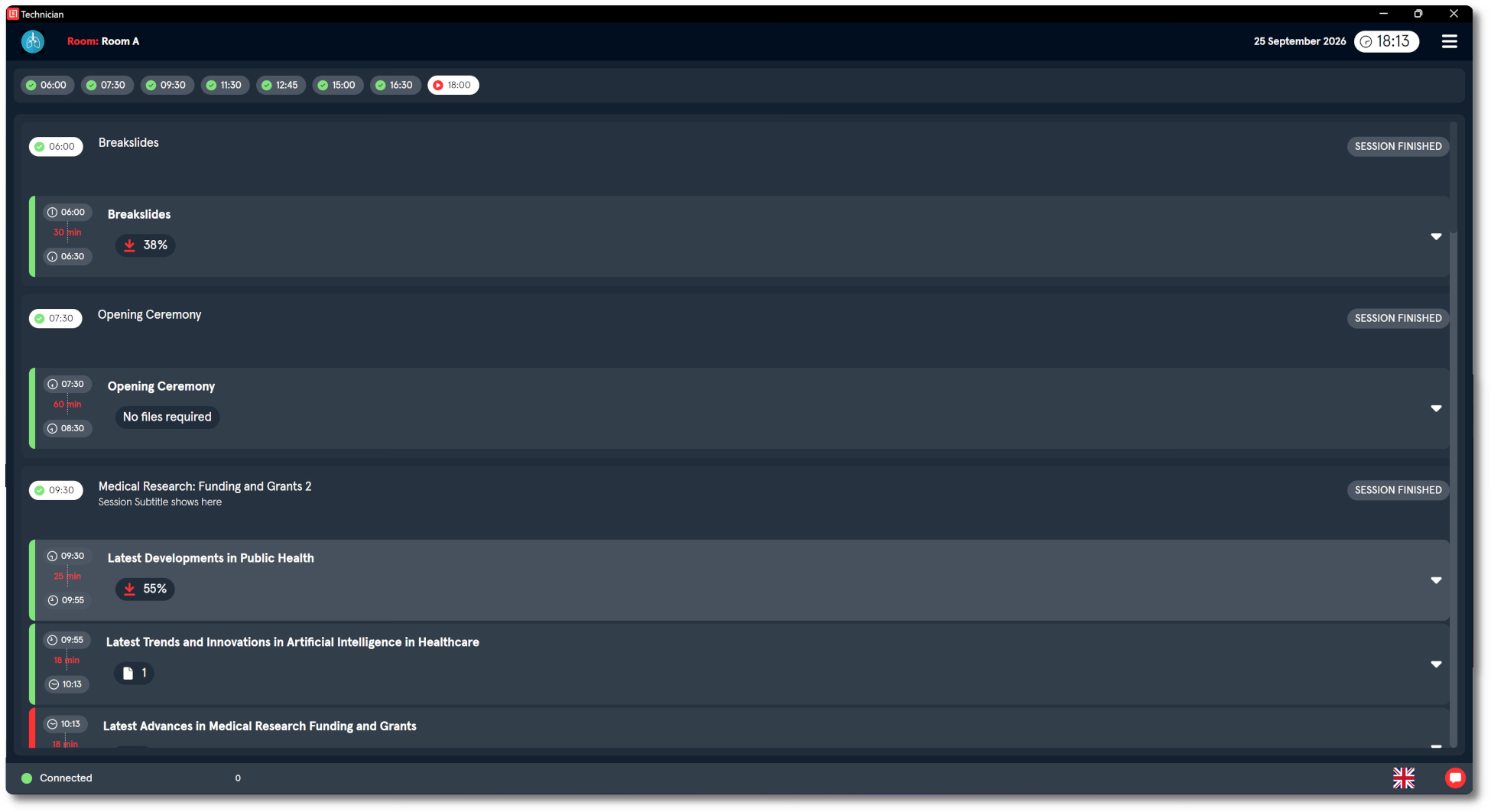
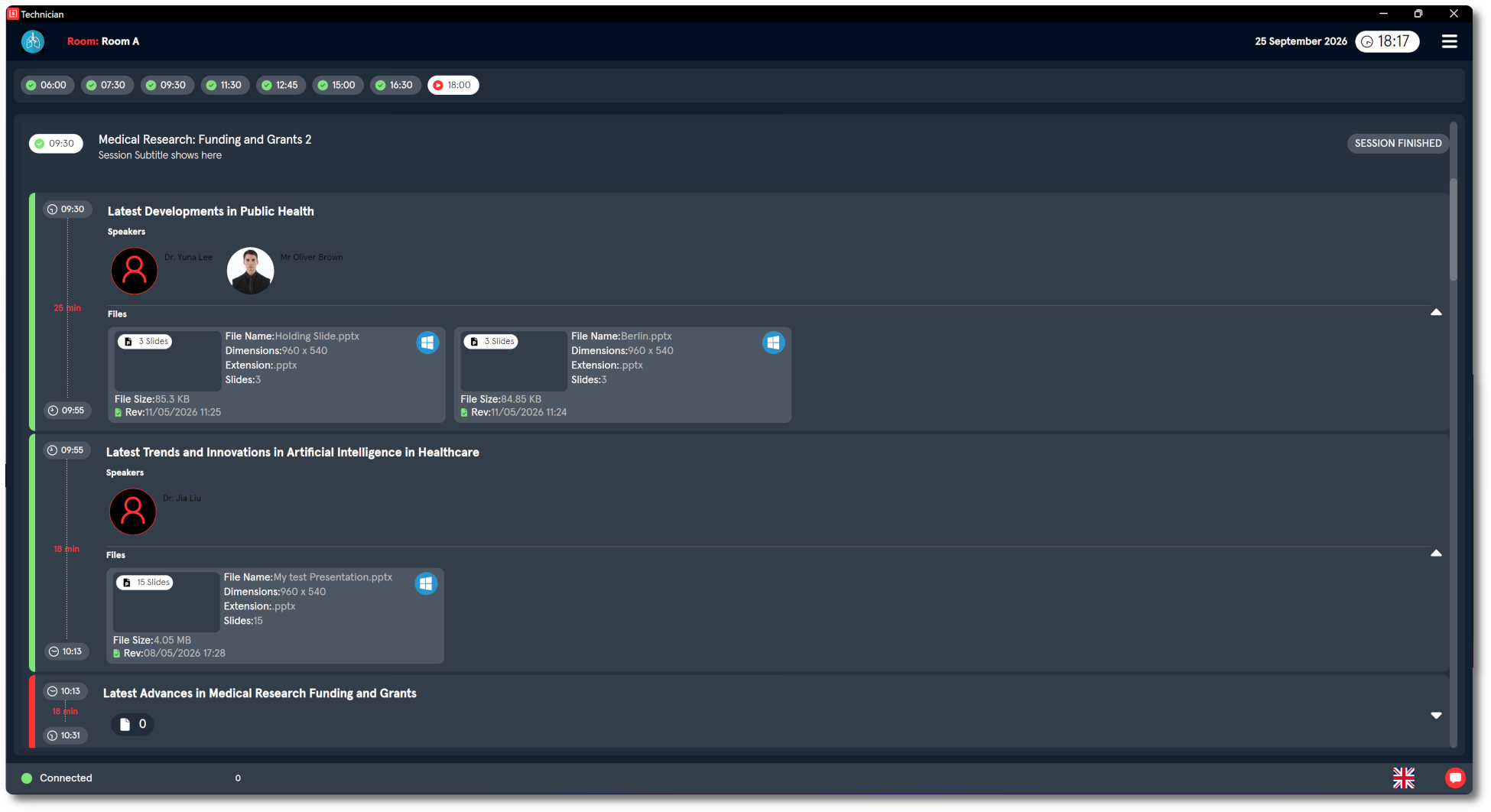
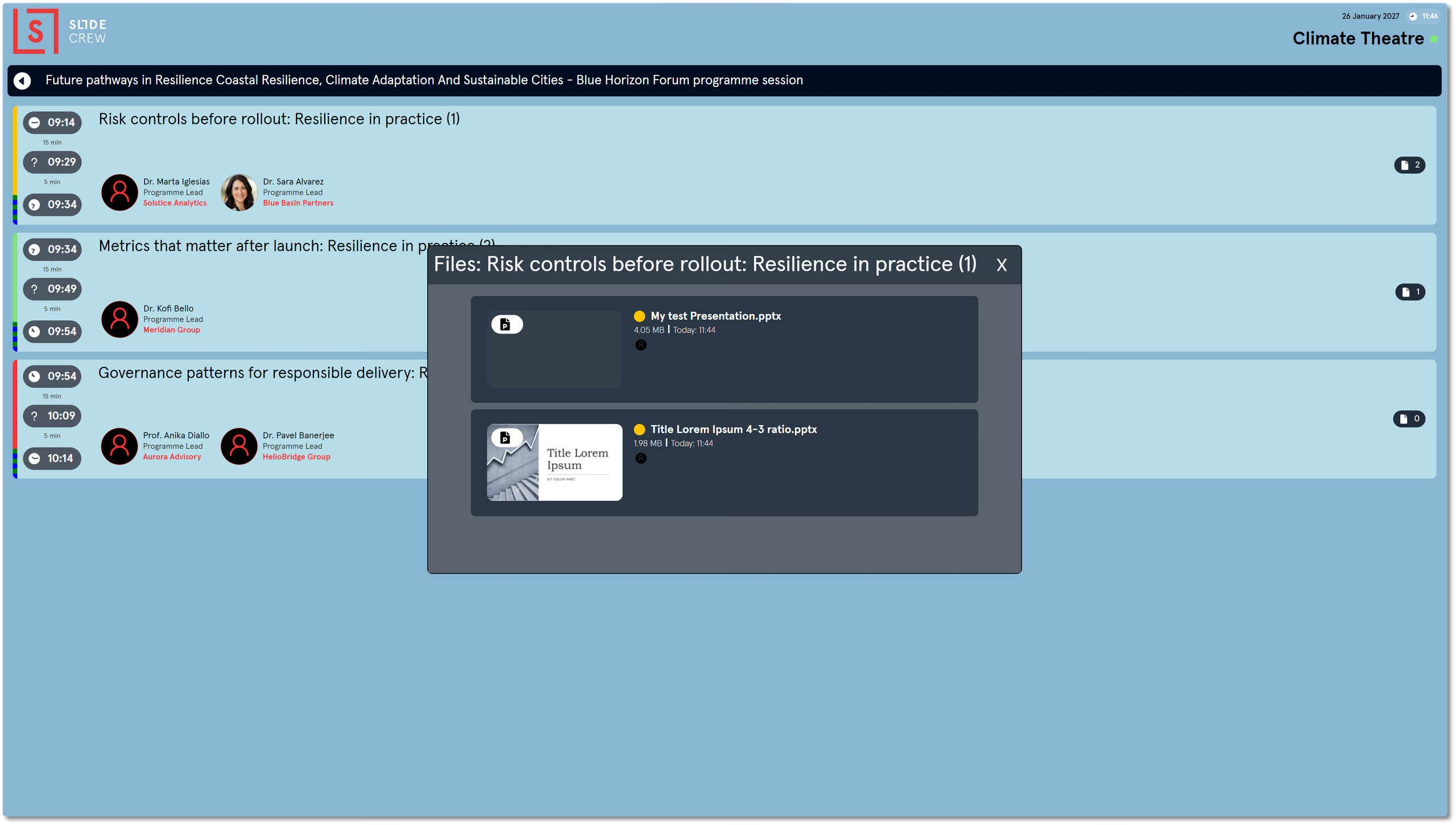
The Technician App shows sessions and presentations for the assigned room. Expand a presentation to see its speaker details and file cards, then click a card to launch the file full-screen on the primary display. The app stays open behind it. PowerPoint files open as a slideshow in the operating system’s presentation software; PDFs open in the Slidecrew PDF viewer.
A presentation row has a colour strip showing file status: green means checked, yellow means unchecked and red means there are no files. An unchecked file name appears in red.
Technician App settings
When Timer Master is enabled, launching a file on this device starts the room timer automatically. Automatic countdown also requires AUTO mode in the Timer Controller. Timer Controller → Show opens the controller full-screen. Event Day overrides the current event day, or can remain set to Automatic.
| Setting | Notes |
|---|---|
| Timer Master | When enabled, launching a file on this device starts the room timer automatically. For automatic countdown, this must be enabled together with AUTO mode in the Timer Controller. |
| Timer Controller | Click Show to open the Timer Controller full-screen |
| Event Day | Override the current event day, or leave it on Automatic |
Technician App reference
Session row
| Element | What it shows |
|---|---|
| Start time pill | The session start time. It turns green when the session is finished. |
| SESSION FINISHED | Shown to the right after the session end time has passed |
Presentation row
| Element | What it shows |
|---|---|
| Times | Start time, duration, and end time |
| Title | Presentation title |
| File count | Number of uploaded files |
| Colour strip | File status for this presentation: green for checked, yellow for unchecked, red for no files |
File card
| Element | What it shows |
|---|---|
| Slide count badge | Number of slides or pages |
| OS icon | Windows icon for PowerPoint files, Mac icon for Keynote files |
| File name | Shown in red if the file is unchecked |
| Dimensions | Slide dimensions |
| Extension | File type, for example pptx or pdf |
| Size | File size |
| Rev date | The date and time the file was last uploaded |
Let a speaker launch files with the Kiosk App
The Kiosk App starts at the session list.
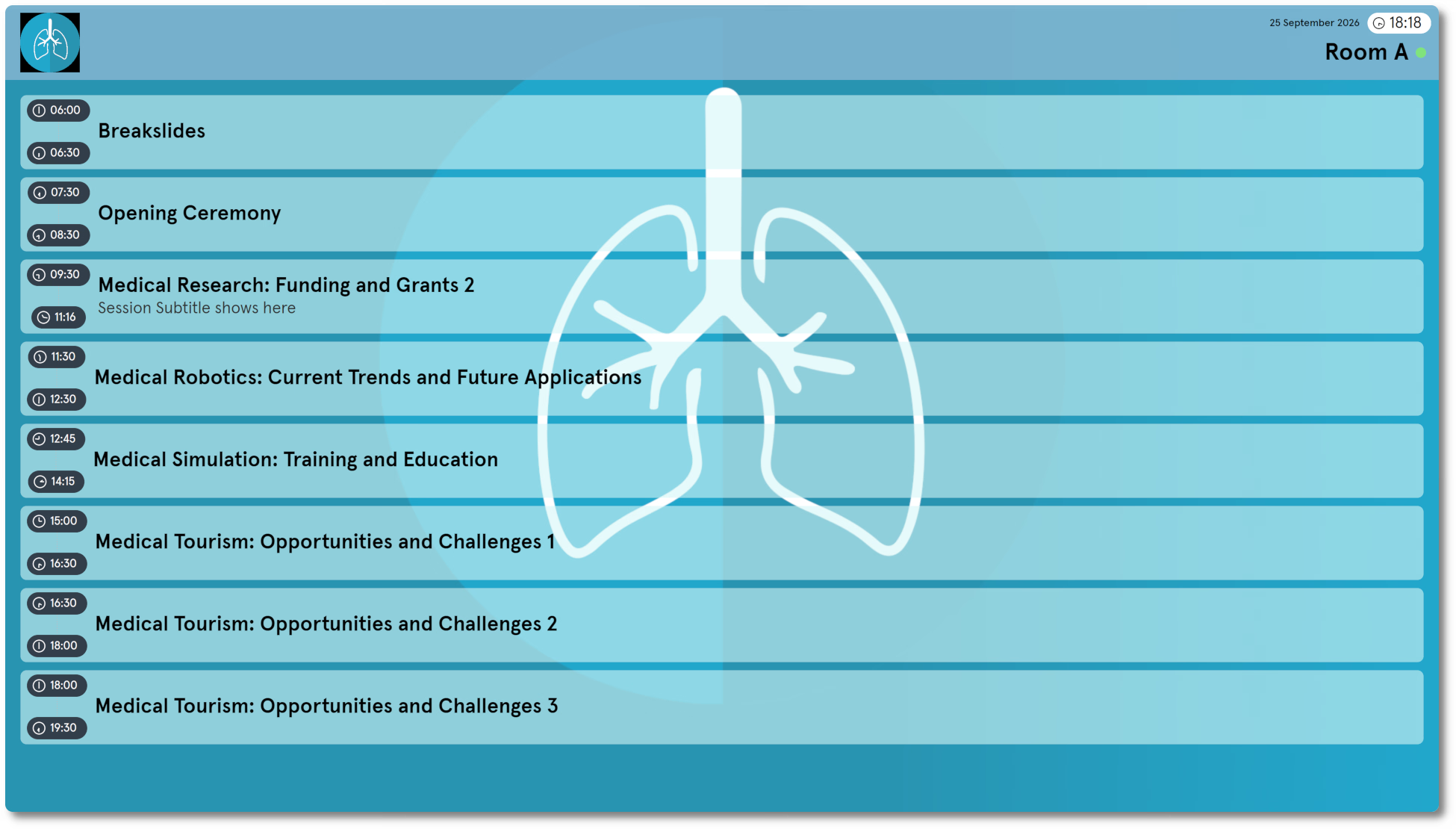
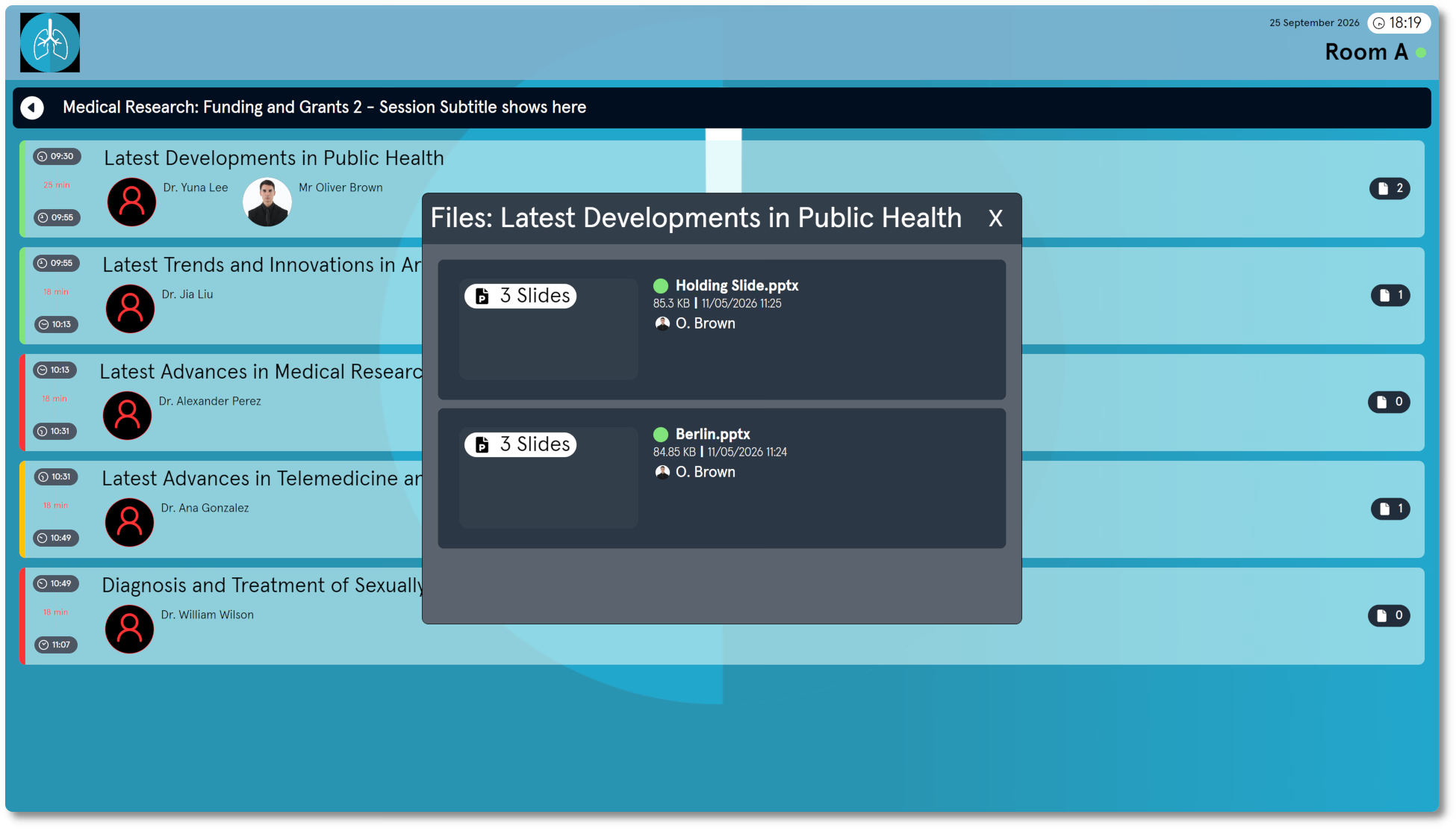
Select a session to open its presentation list. When a presentation has one file, tap it to launch the file. When it has multiple files, tap it to open a file selector. If a file is still downloading, its presentation row shows a percentage, and you cannot open the file until the download finishes.
Kiosk App settings
Open the shared Settings pop-up while the Kiosk App is open. Use the green connection indicator at the top right. Operational settings are in the Device and Room / Timer tabs. Timer Master is set on the device record in Core → Devices. Auto Next Session changes the Kiosk App Style to the next session’s Style at its scheduled start time; if disabled, the Style changes only when someone manually selects the next session.
| Setting | Notes |
|---|---|
| Timer Master | Set in Core → Devices. When enabled, launching a file on this device starts the room timer automatically |
| Timer Controller | Click Show to open the Timer Controller full-screen |
| Event Day | Override the current event day |
| Auto Next Session | When enabled, the Kiosk App Style changes automatically to the next session Style at the scheduled start time. When disabled, the Style only changes when the next session is selected manually. |
Kiosk file selector reference
Each file appears as a card in the selector. Tap a card to launch that file.
| Element | What it shows |
|---|---|
| Slide count badge | Number of slides or pages |
| Checked state dot | Green when checked, grey when unchecked |
| File name | Shows the name of the file |
| File size | Displays just below the file name |
| Revision date | When the file was last uploaded |
| Uploader name | Who uploaded the file |
Preview files with the Moderator App
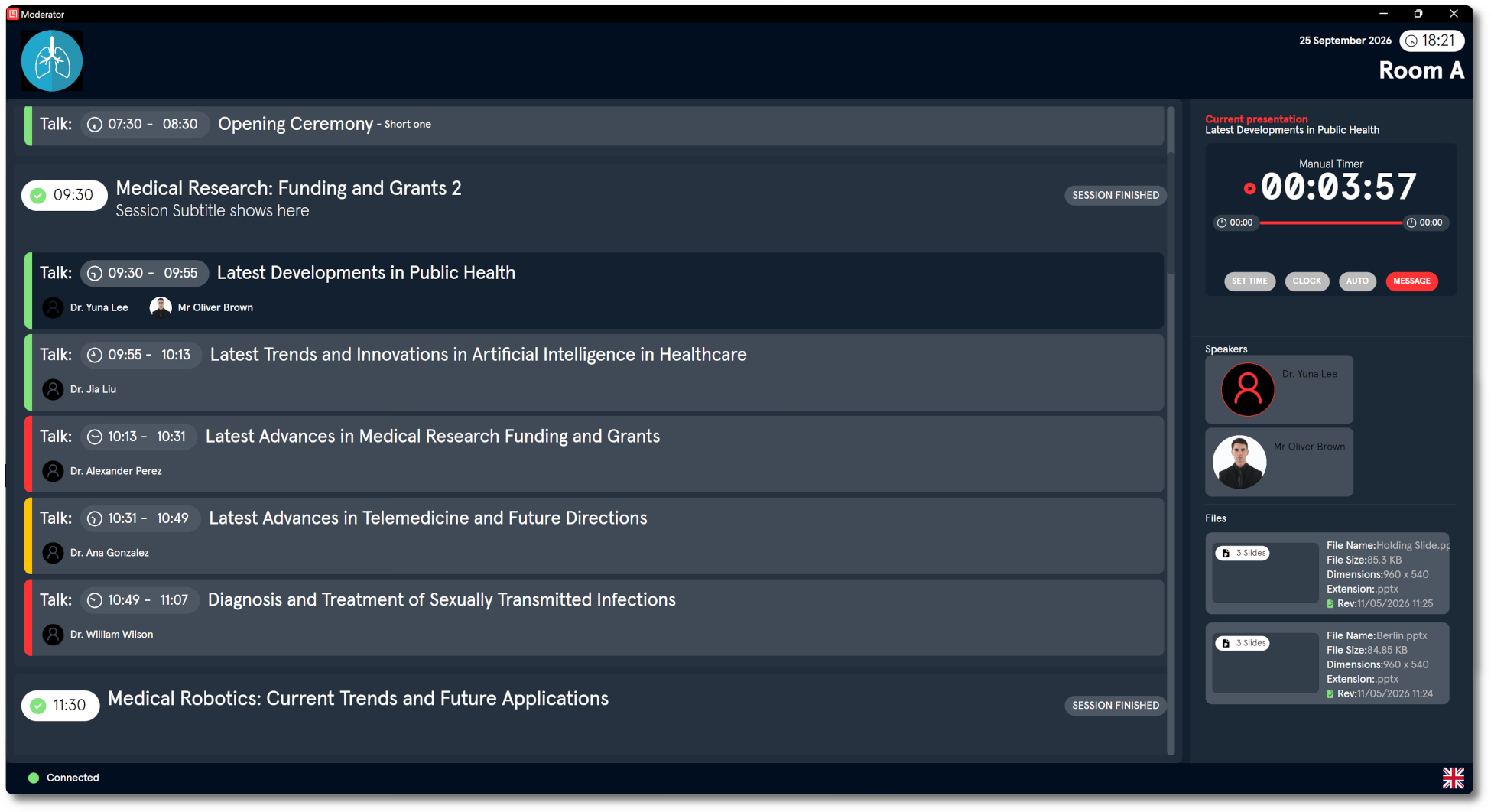
The Moderator App shows the room’s sessions and presentations in one scrollable list. Select a presentation to load its details in the right sidebar. Opening a file from the sidebar opens it for the moderator’s own preview only. It does not start the room timer or show the file to the audience.
Moderator App settings
Open the shared Settings pop-up while the Moderator App is open. Use the green connection indicator at the bottom left. Settings are in the Device and Previews tabs. The Moderator App does not have a Timer Master toggle.
| Setting | Notes |
|---|---|
| Event Day | Override the current event day |
| No PresenterView | When enabled, files open in full-screen mode without a separate speaker notes view |
| Can’t open files | When enabled, the moderator cannot open files from the sidebar. The Files section becomes view-only. |
| Timer Messages | When enabled, messages sent from the Timer Controller appear on this device |
Moderator sidebar reference
| Element | What it shows |
|---|---|
| Automatic Timer | The timer display. Shows the countdown when active, or the current time when idle. |
| Timer Controller buttons | SET TIME, CLOCK, AUTO, MESSAGE. These match the standalone How do I use the Timer Controller and Room Timer, and why is the timer not starting? |
| Current presentation | Label shown in red. Fills with the presentation title when one is selected. |
| Speakers | Profile picture cards for the assigned speakers |
| Files | File cards for the presentation. Clicking a card opens the file for moderator preview only. |
Set up multiple displays on a Mac
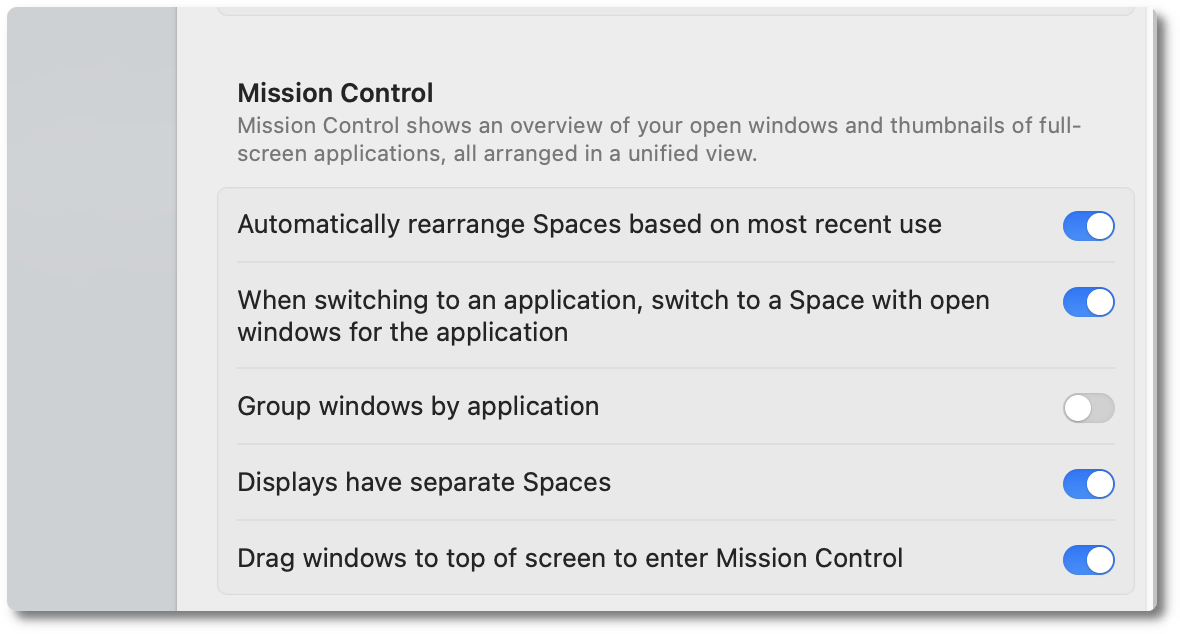
When using Technician or Kiosk on a Mac with more than one display, open System Settings → Desktop & Dock. Under Mission Control, turn on Displays have separate Spaces. macOS may require you to log out and back in. Restart the Slidecrew App Launcher, reopen Technician or Kiosk, then check that the app interface, Presenter View and presentation output appear on the correct displays.
Related guides
- Which conference room app should each device run? → Compare the conference room apps and choose one for each device
- How do I use the Timer Controller and Room Timer, and why is the timer not starting? → Set countdowns and control the room timer
- How do I manage, reset or update devices and use the Screen Matrix? → Manage paired devices and App Launcher settings