

Use the Slidecrew Name Screen to display speaker names, moderator names and the presentation title for a conference room.
Short answer: Select Name Screen in the Web App, pair it to your room, and open the top-right hamburger menu to adjust its display. Names appear when a file launches from a Technician or Kiosk App device with Timer Master enabled in the same room. Changes to the display settings apply immediately.
Open the Name Screen for your room
Choose Name Screen on the Web App selection screen and pair it to the room where presentations will run. If you haven’t connected the screen yet, follow How do I set up the Slidecrew Web App?.
The screen initially shows the Style background and room name. A Style supplies the display background used by the screen.
What makes the speaker names appear?
Launching a file from a Technician or Kiosk App device with Timer Master enabled in the same room triggers the Name Screen. Depending on your settings, it shows the presentation title, speakers, moderators or a combination of these.
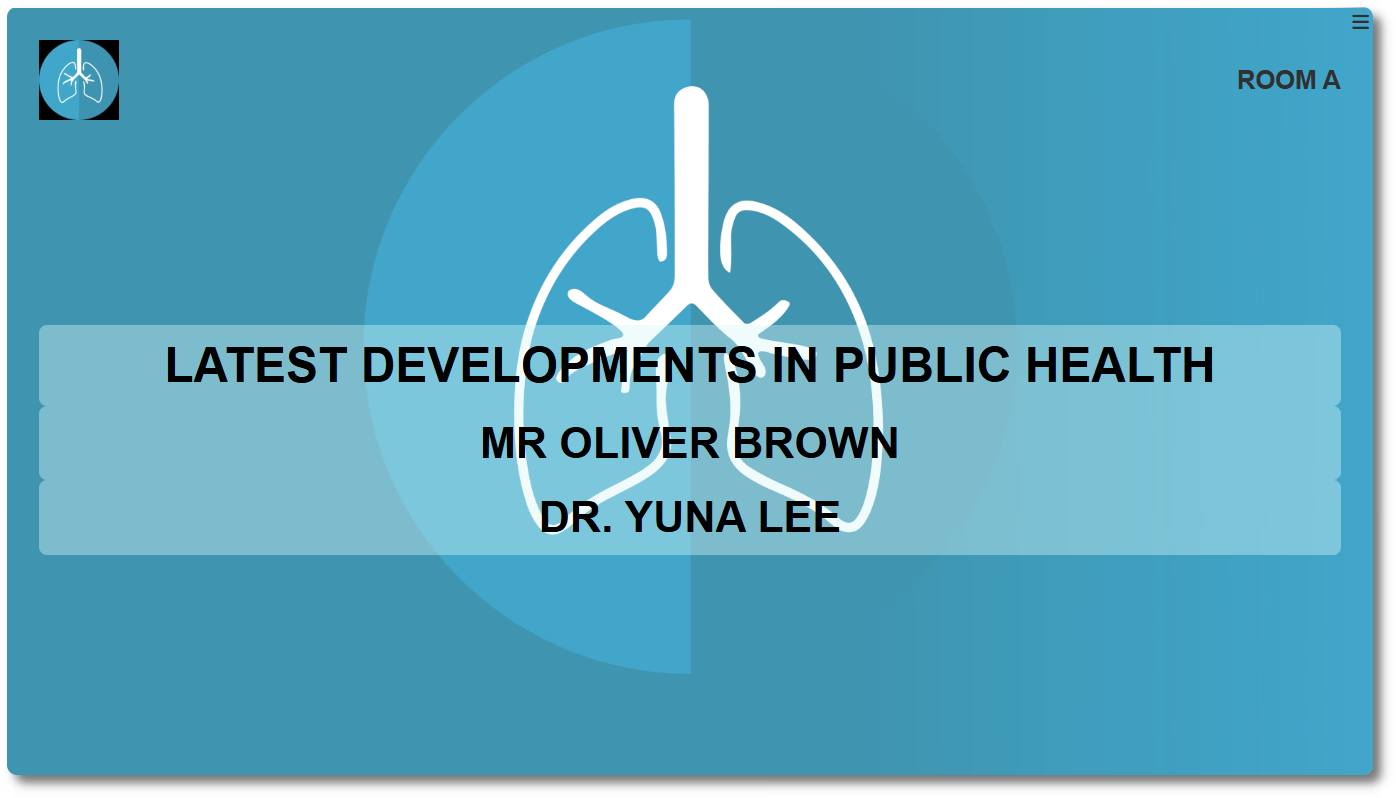
Adjust what the Name Screen shows
Open the hamburger menu in the top right to change the display; each change takes effect immediately.
Use Header to choose the logo and room-name arrangement, When no presentation is active to choose the idle content, and Show multiple people to choose whose names appear. The layout and text settings control alignment, text size, capital letters and whether the presentation title is shown. Name inside a box and Split info are also available as checkboxes.
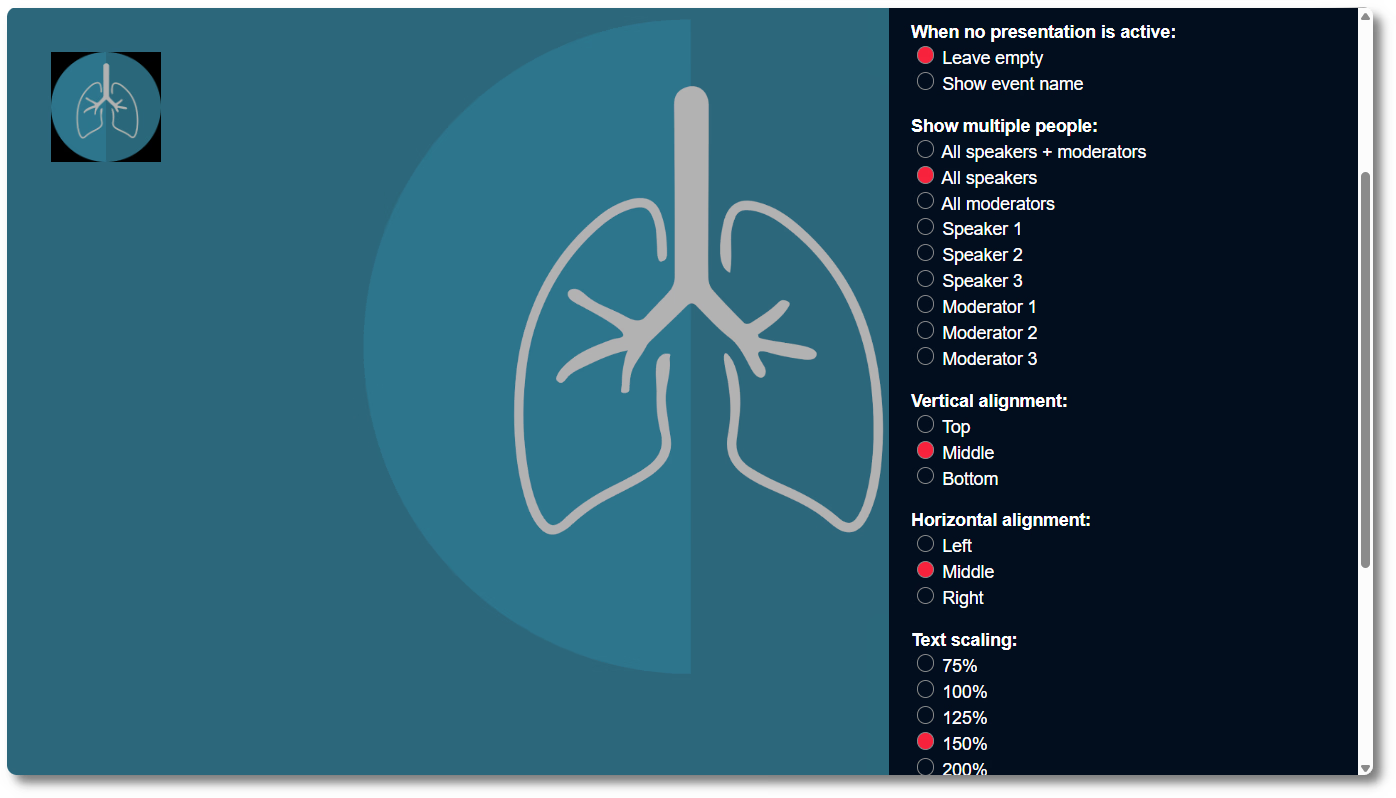
Header options reference
| Option | What it shows in the header area |
|---|---|
| Hide | No header |
| Logo left | Event logo on the left |
| Logo left, room name right | Event logo on the left, room name on the right |
| Logo middle | Event logo centred |
| Logo right | Event logo on the right |
| Logo right, room name left | Room name on the left, event logo on the right |
| Room name left | Room name on the left, no logo |
| Room name middle | Room name centred, no logo |
| Room name right | Room name on the right, no logo |
Idle content reference
Choose what to show when no presentation is active.
| Option | What it shows |
|---|---|
| Leave empty | Blank screen with the Style background |
| Show event name | The event name |
People shown reference
Choose all assigned people, only speakers or moderators, or a particular person by assignment order.
| Option | Who is shown |
|---|---|
| All speakers + moderators | Every speaker and moderator assigned to the presentation and session |
| All speakers | Speakers only |
| All moderators | Moderators only |
| Speaker 1 / 2 / 3 | A specific speaker by assignment order |
| Moderator 1 / 2 / 3 | A specific moderator by assignment order |
Layout and text reference
| Setting | Options |
|---|---|
| Vertical alignment | Top, Middle, Bottom |
| Horizontal alignment | Left, Middle, Right |
| Text scaling | 75%, 100%, 125%, 150%, 200%, 300%, 400%, 500% |
| Text in all caps | Checkbox |
| Show presentation title | Checkbox |
| Name inside a box | Checkbox |
| Split info | Checkbox |
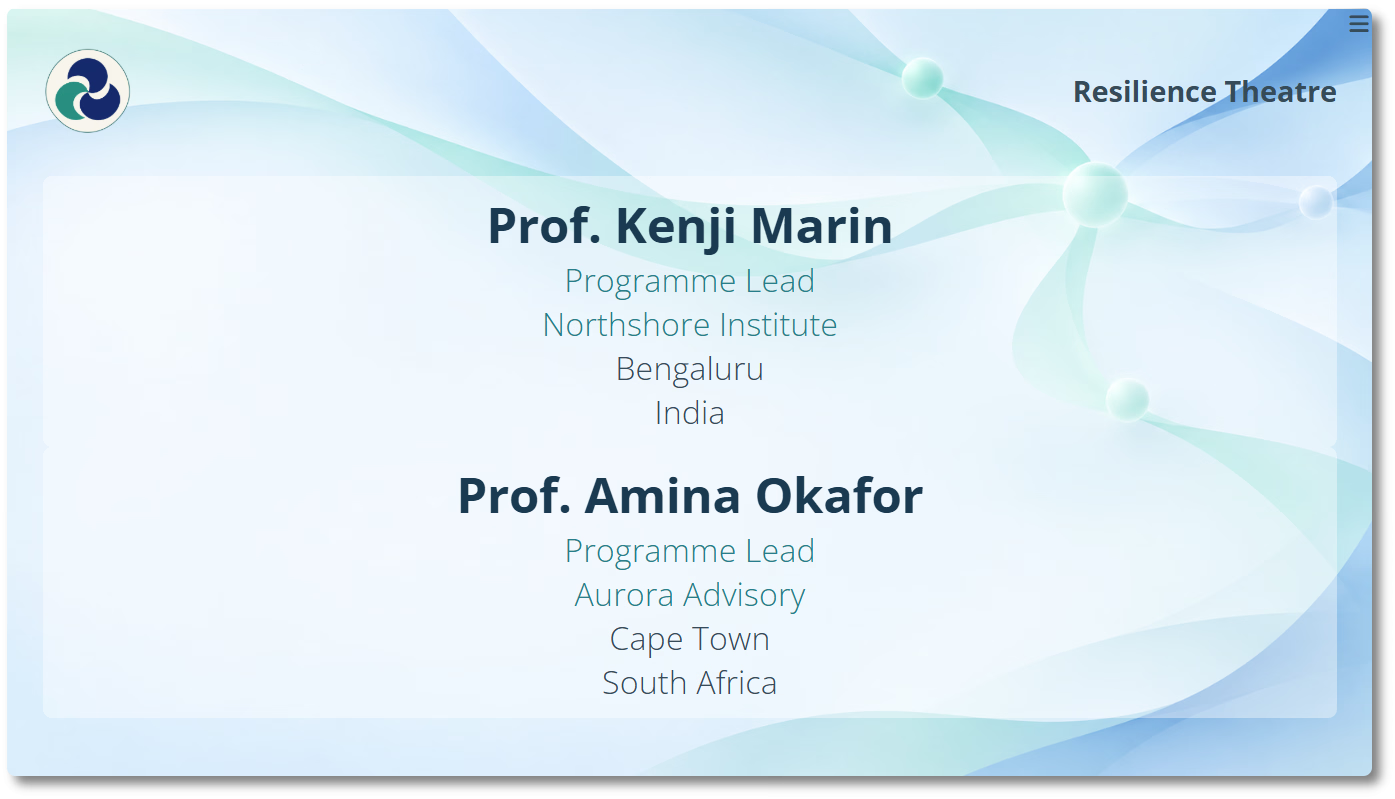
Reuse the settings on another device
Copy the URL from Copy these settings and open it on another device to apply the same configuration automatically.
Related guides
For screen pairing and the associated room timer, see: