

You can manage rooms and sessions in Slidecrew: add, edit, move and delete rooms, sessions and presentations from the Programme view or the Core lists.
Short answer: Programme data follows a hierarchy: rooms contain sessions, and sessions contain presentations. Add or edit records in the Programme view or the matching Core list. Move sessions by dragging them in the Programme view, unless they are locked. Before deleting a room or session, review the confirmation because it can remove the records inside it.
For field-by-field details, see the Reference section at the end.
How to add or edit a room
Add a room from Core → Rooms by clicking the add button, or use the same button in the Programme view. Once you reach your room allocation, the add-room button in the Programme view appears grey.
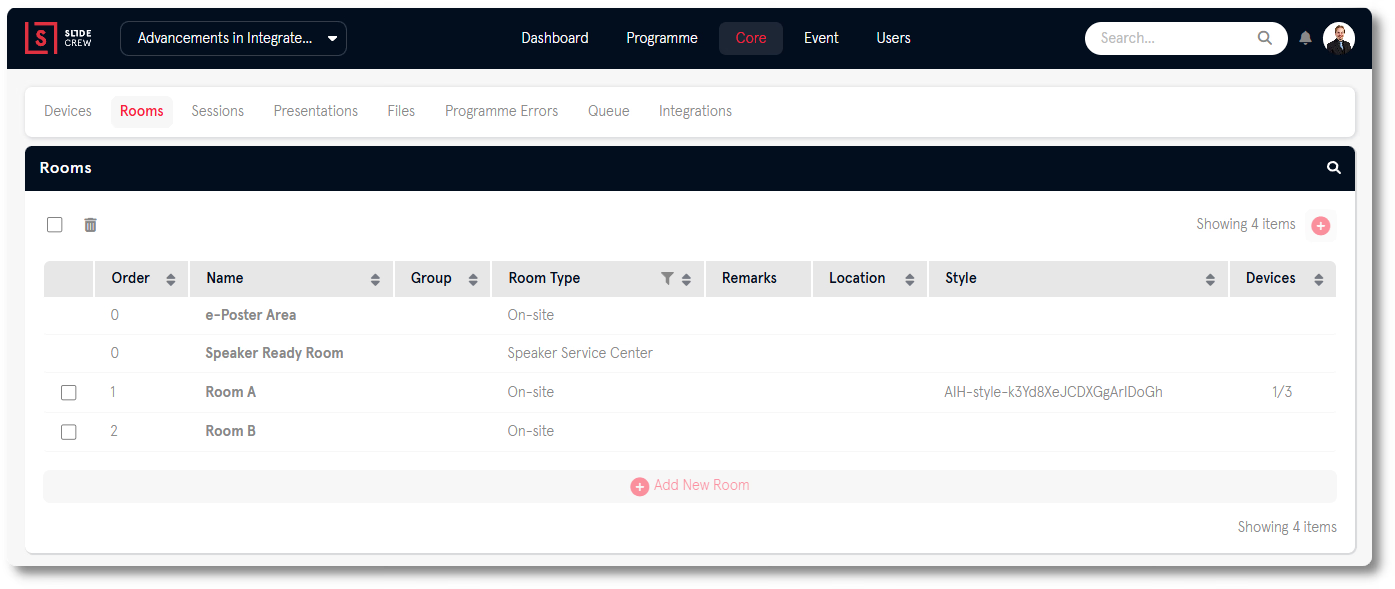
To edit a room, click its name in the Programme view column heading or click its row in Core → Rooms. The room sidebar opens.
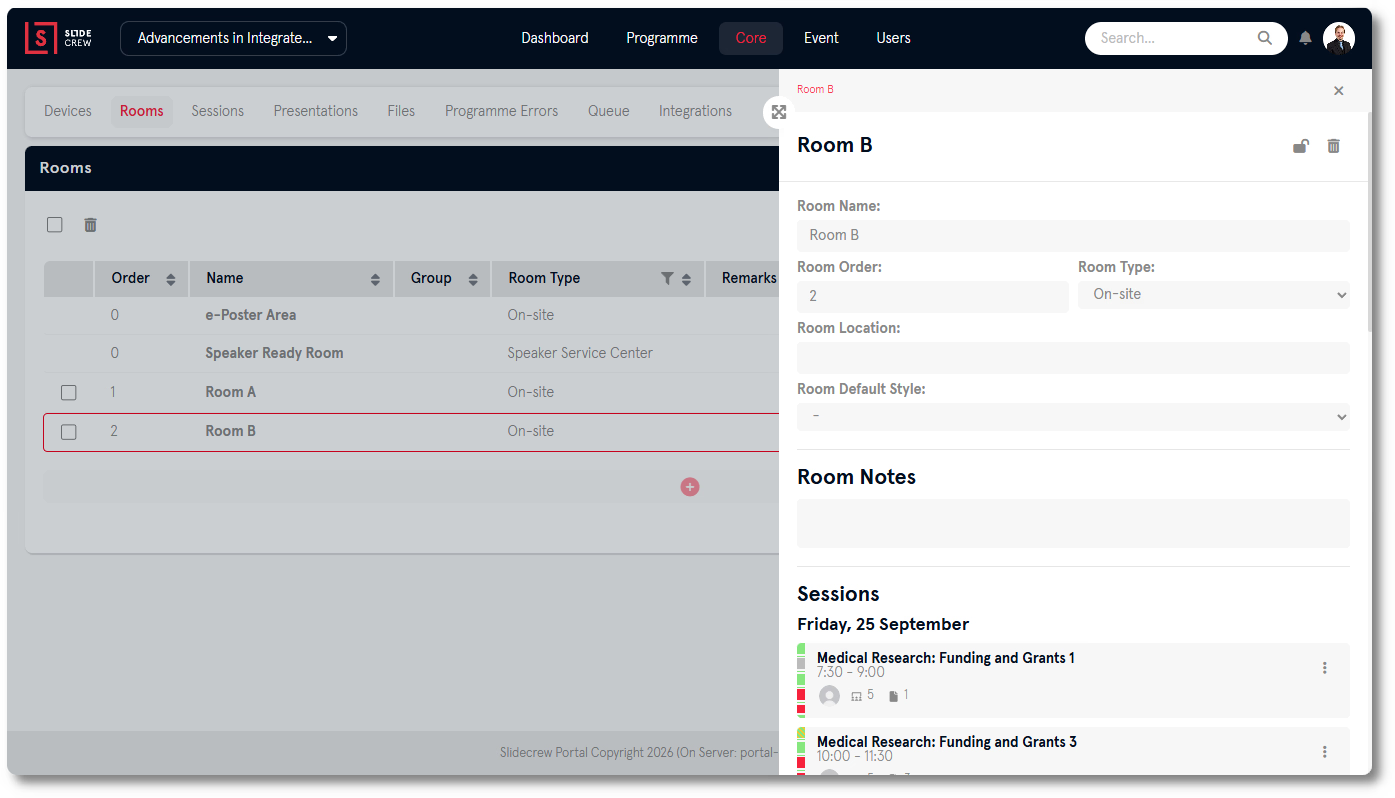
The room sidebar includes its name, order, type, location, default style and notes. Devices in that room use the Room Default Style when no device-level style is set. Room Notes is a timestamped log linked to the staff user who wrote each entry. See the full field and list definitions in Reference.
How to organise rooms into groups
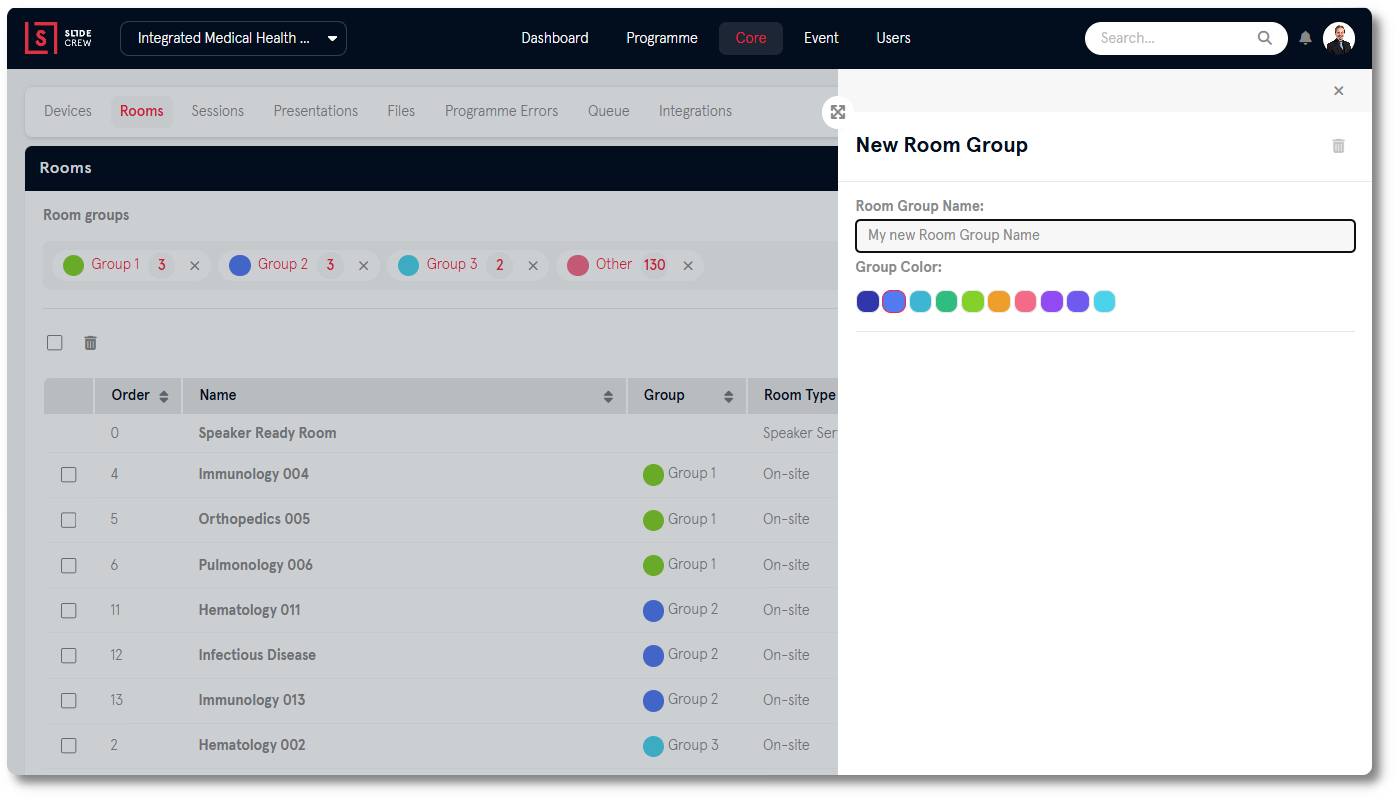
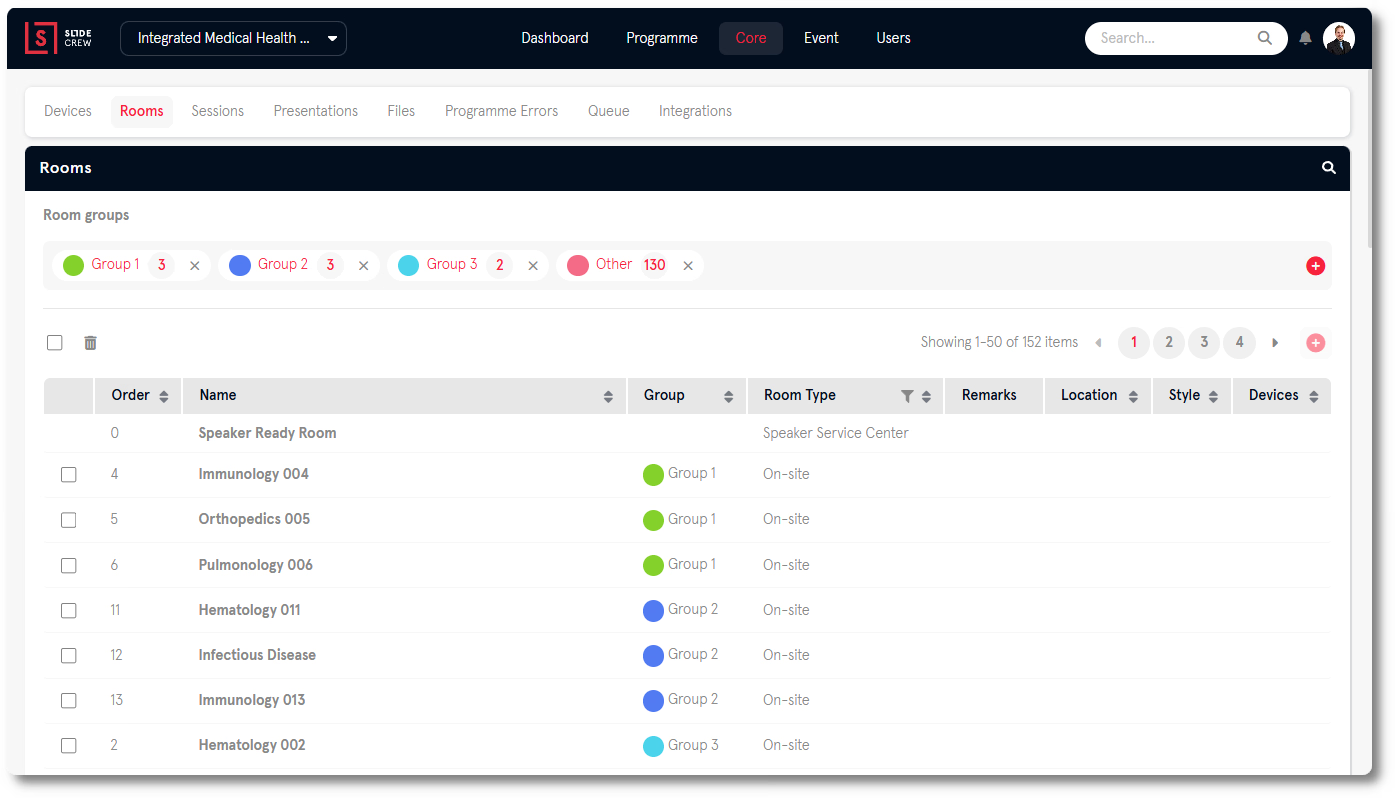
Room groups are available when an event has 10 or more rooms. In Core → Rooms, click the add button in the Room groups strip, enter a group name, choose a colour, then click away to save it.
Once the group exists, click its pill and tick the rooms in the checklist. Click away to save.
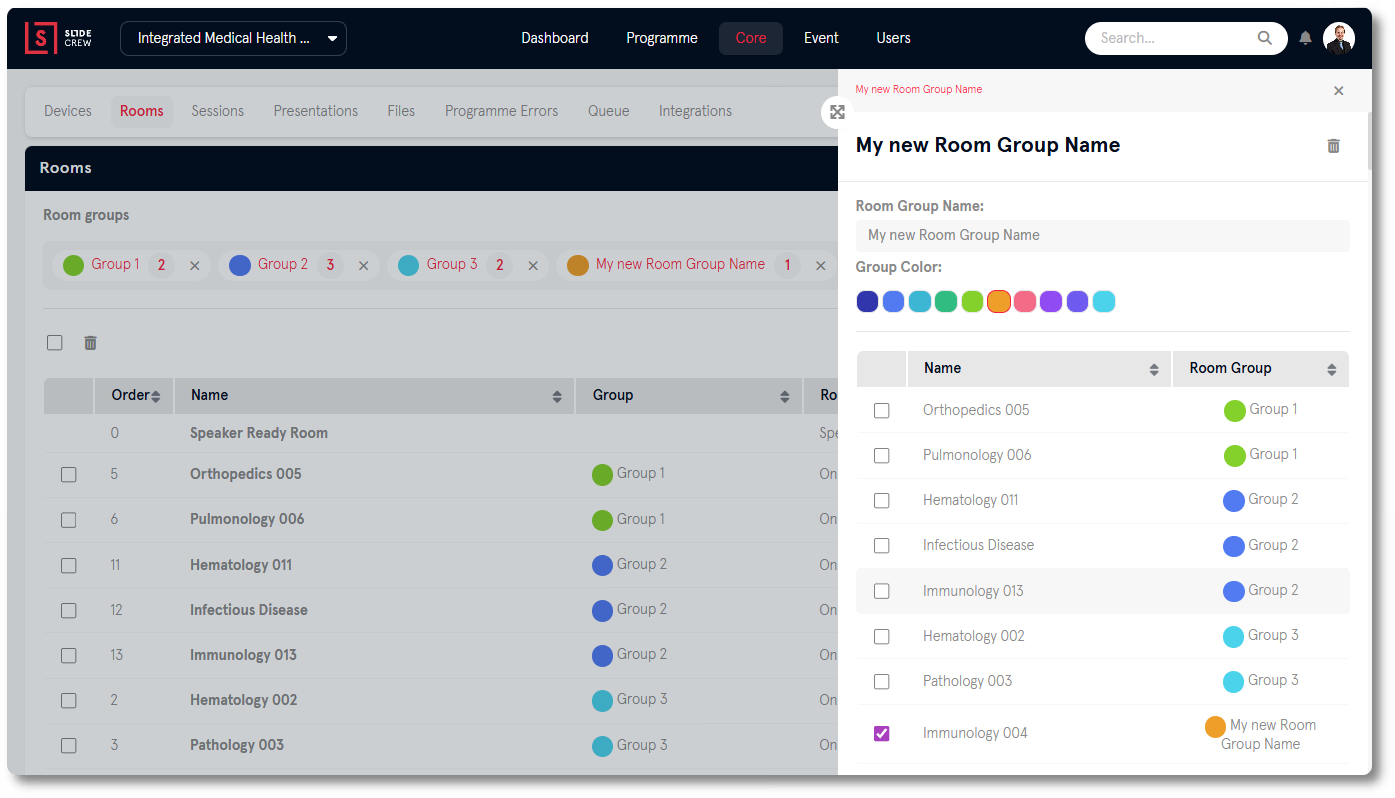
A room can belong to only one group, while a group can contain several rooms.
How to lock or move a session
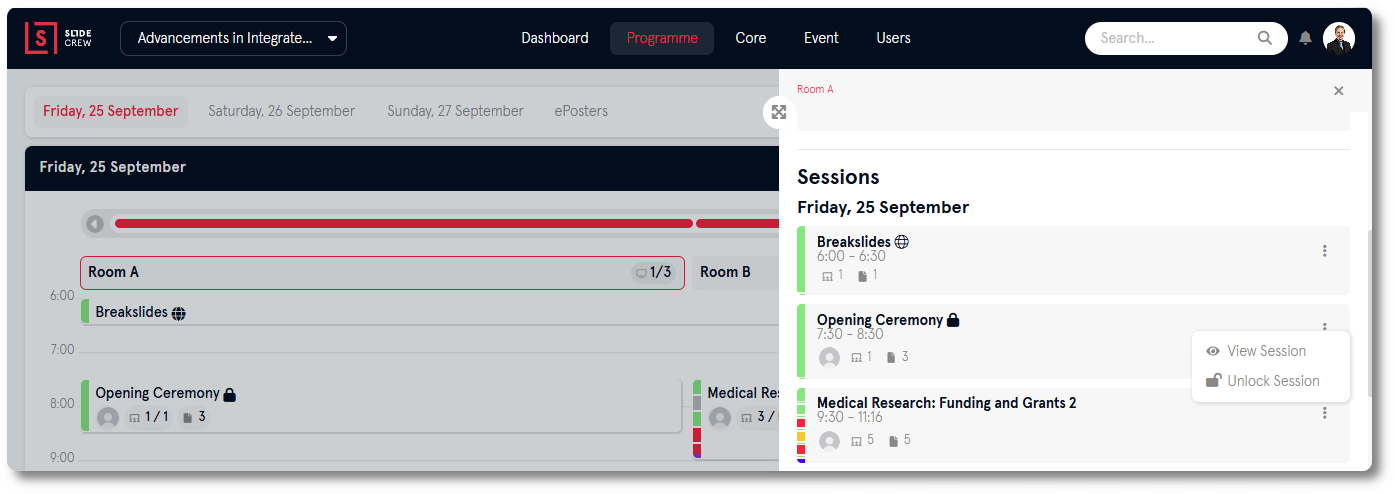
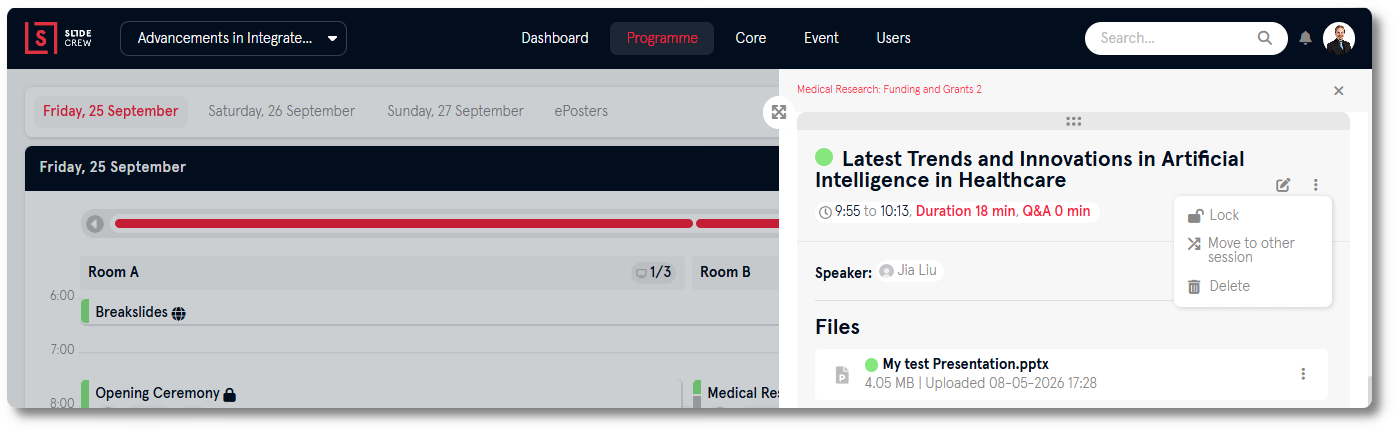
Lock a session to stop it being moved or resized by dragging in the Programme view. Open the session’s three-dot menu in the room sidebar and select Lock session.
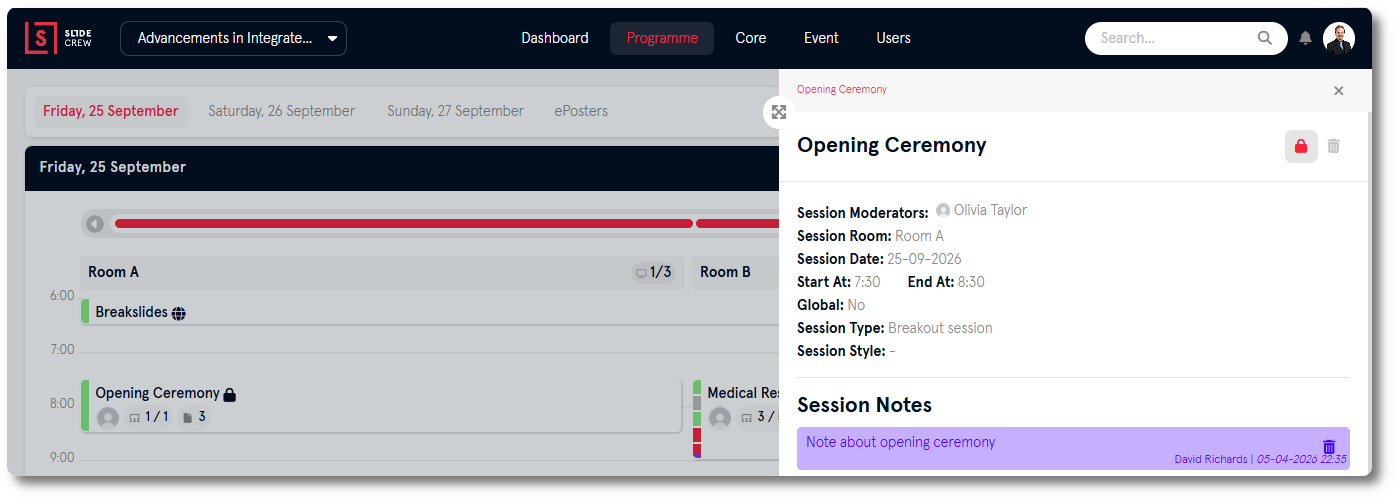
Or open the session sidebar and click the lock icon at the top right. An open lock means the session can be moved; a closed lock means it is locked.
To move an unlocked session, click and hold its block in the Programme view, drag it to the new time slot or room column, then release it.
How to add or edit a session
Add a session by clicking the add button at the bottom of a room column in the Programme view, or at the top left of Core → Sessions.

To edit a session, click its block in the Programme view or its row in Core → Sessions. Once the sidebar opens, you can set the session title and subtitle, assign moderators, choose its room and date, set start and end times, and enter a free-text session type. You can also mark it as an ePoster session and set its style and notes.
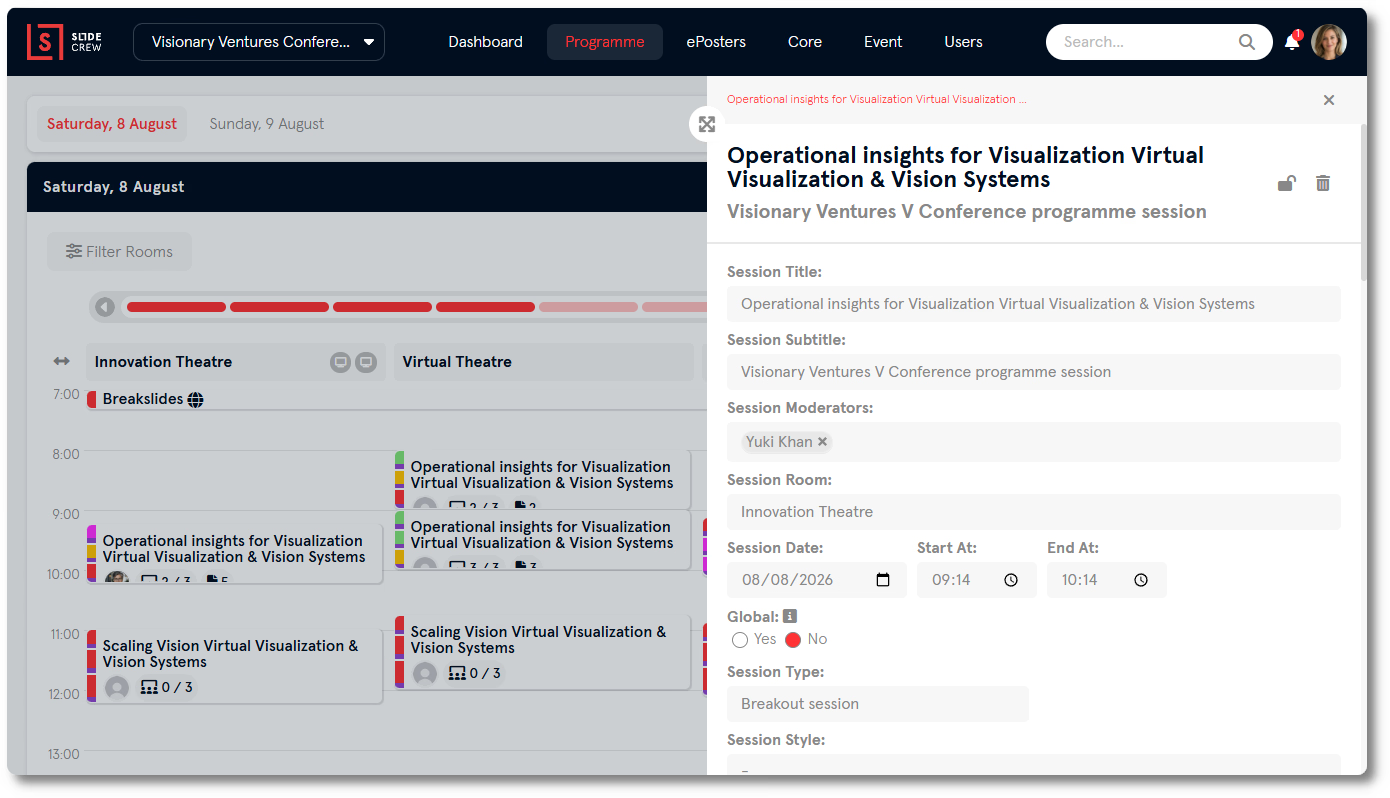
Session Notes appear under the session title in the Technician App during the event.
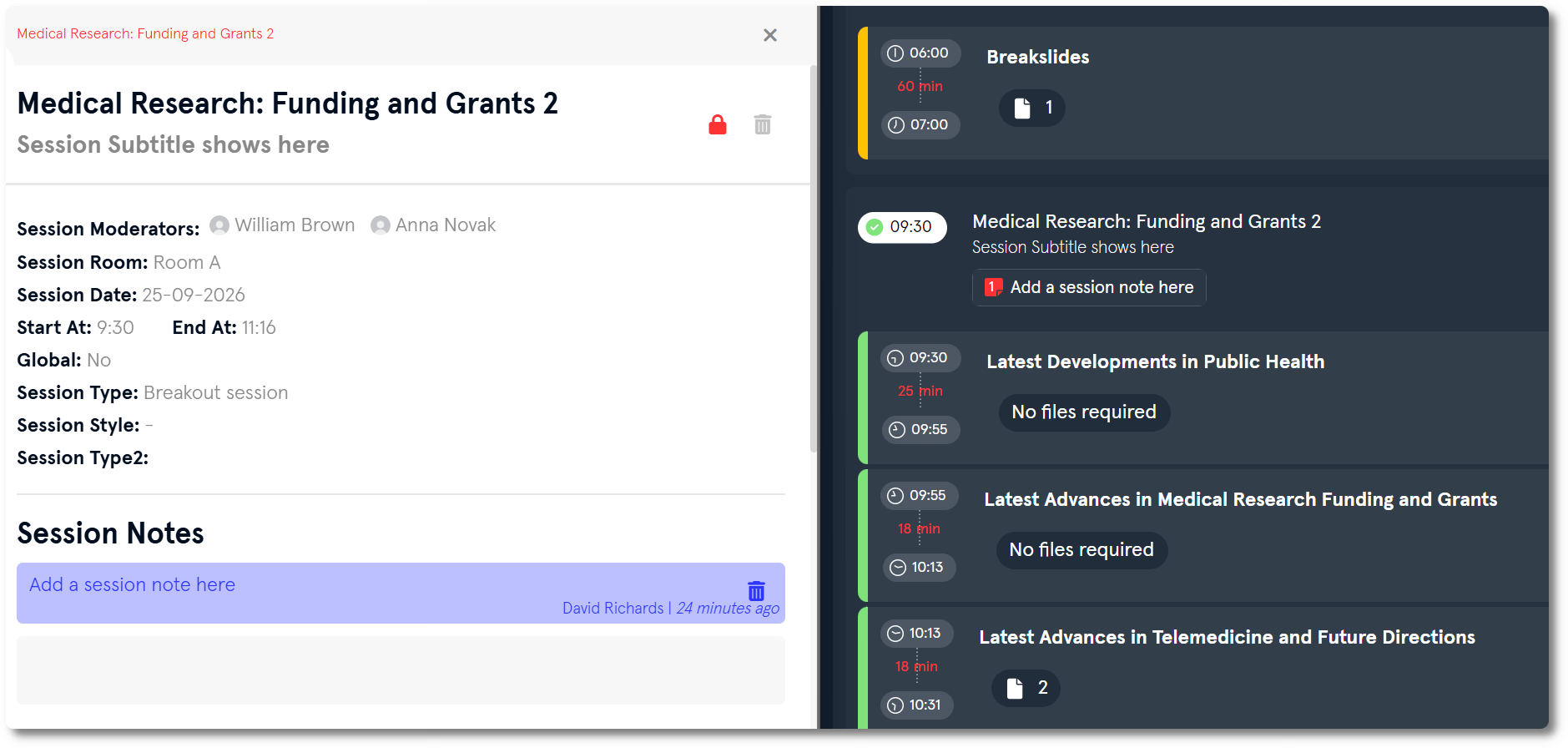
See Reference for all session sidebar fields.
How to delete a room or session
In Core → Rooms, tick the room’s checkbox and click Delete Selected. Review the confirmation pop-up, which lists everything that will be deleted, including sessions and presentations in that room. A room that contains sessions can still be deleted.
To delete a session from the Programme view or its sidebar, click the bin icon on the session sidebar, select Delete Session, then confirm. From Core → Sessions, tick one or more rows and click Delete Selected. The confirmation lists the presentations that will be deleted with the session.
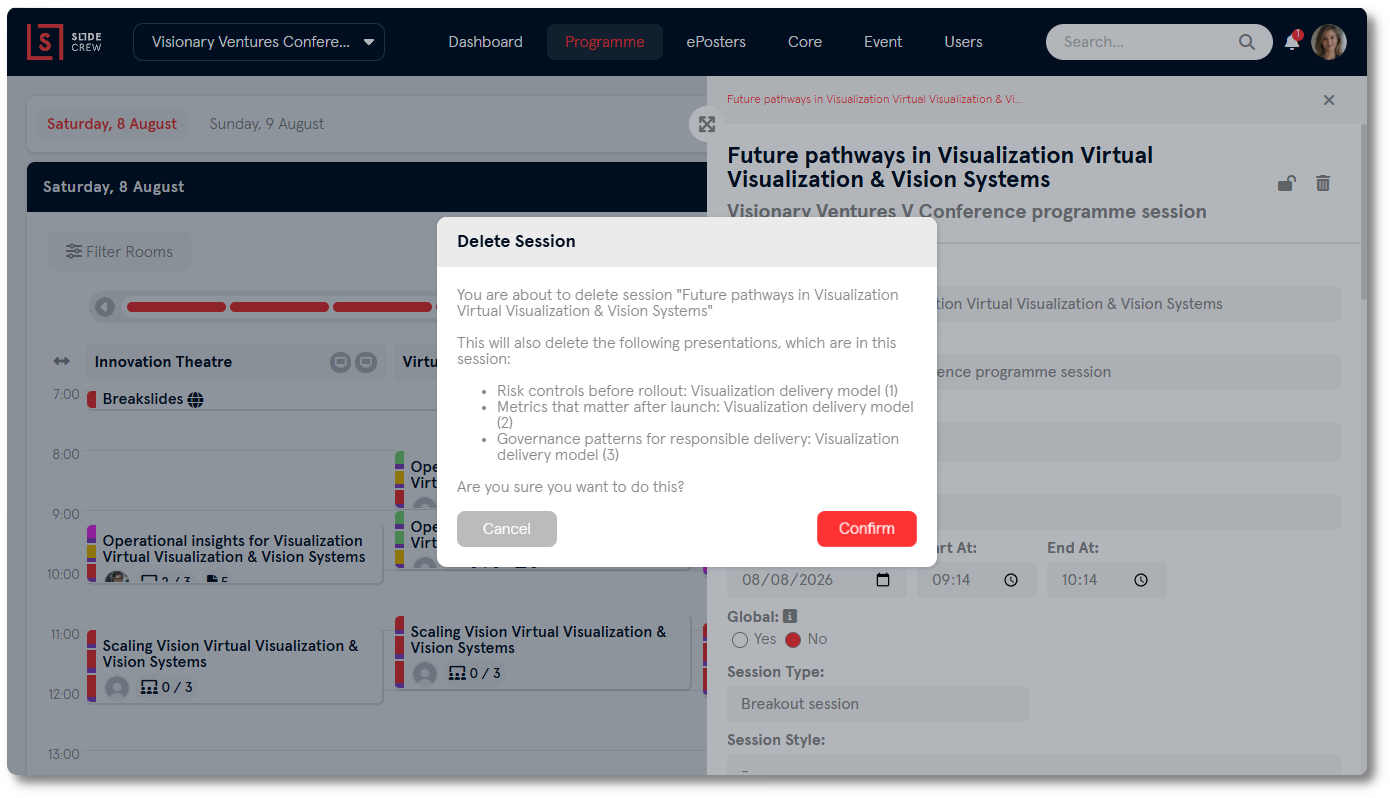
How to add, edit or delete a presentation
To add a presentation, open its session sidebar and click the add button at the bottom of the presentation list. Scroll if needed, then complete the fields.
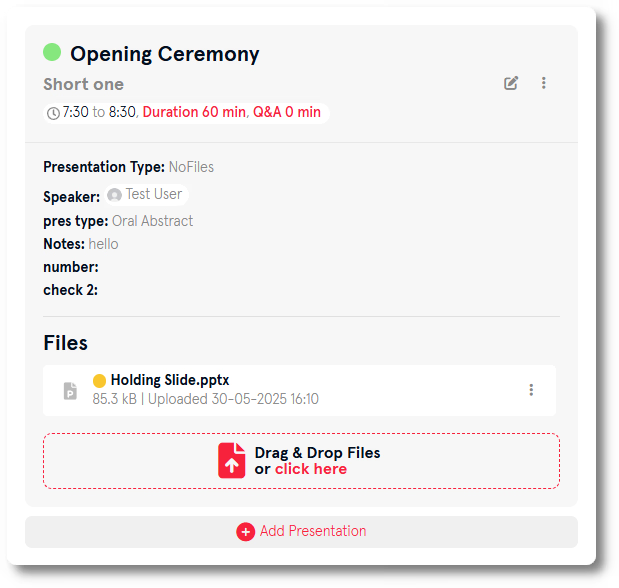
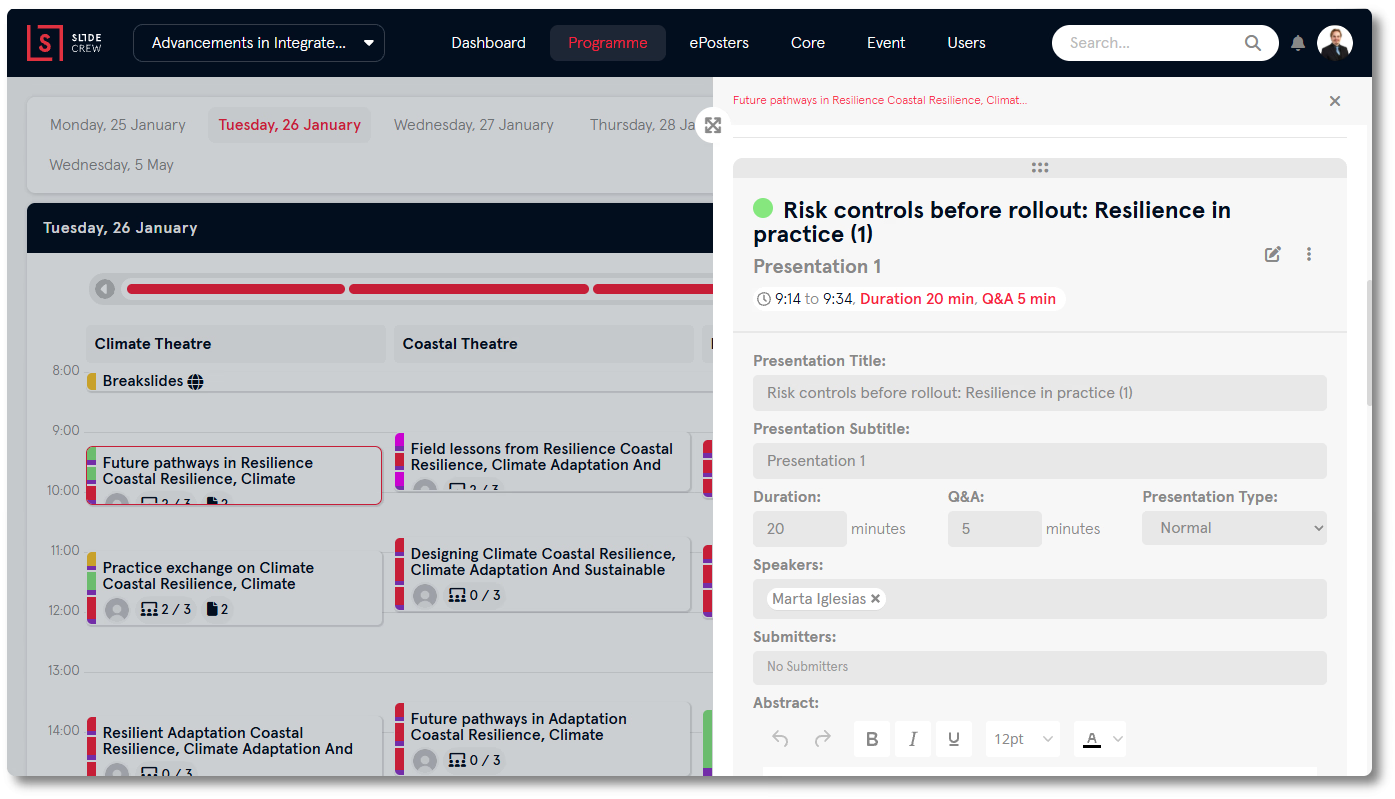
To edit a presentation, open the session sidebar, scroll to its presentation block and click the pen and paper edit icon.
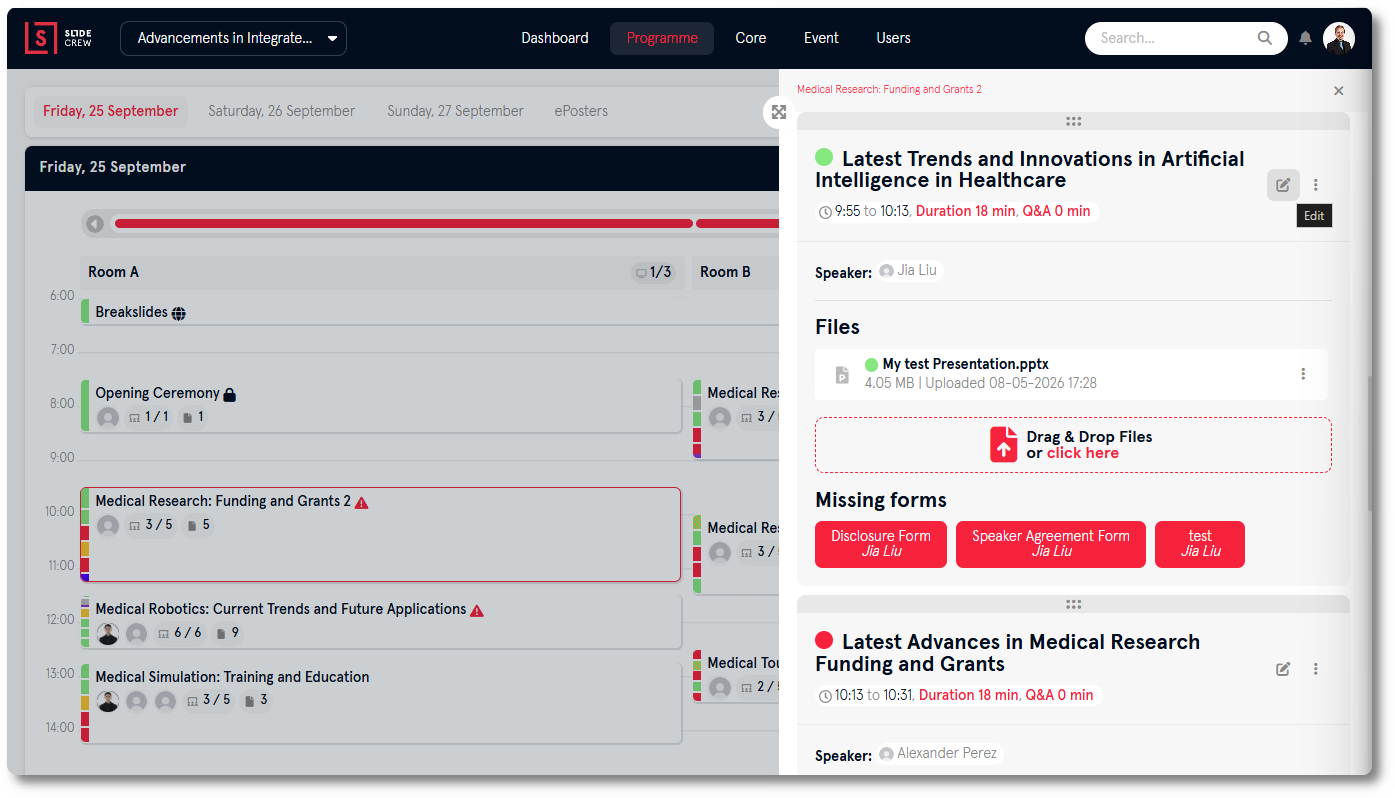
The block expands so you can edit its fields. The Abstract field is available in edit mode, not when adding a presentation.
To delete a presentation, open the three-dot menu on its block in the session sidebar and click Delete Selected.
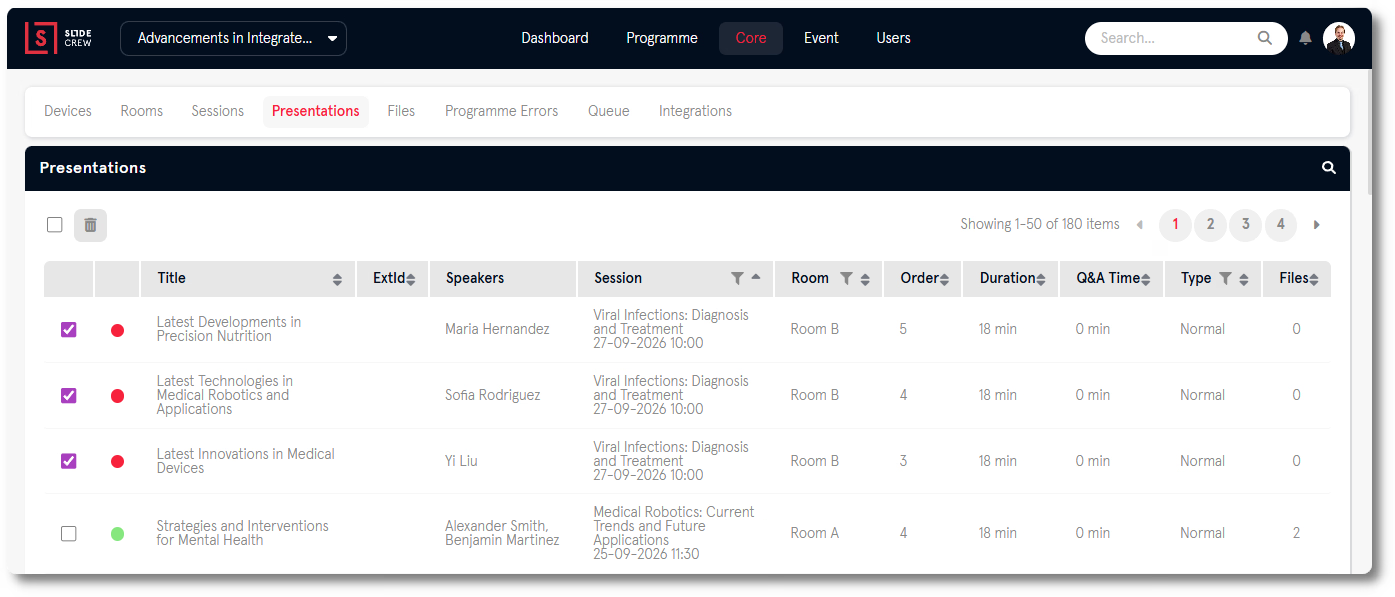
Or go to Core → Presentations, tick the rows and click Delete Selected.
Reference
The Programme view shows the same programme records as the Core list views. These tables define the room, session and presentation fields, along with the columns in the Rooms list.
Room sidebar fields
| Field | Notes |
|---|---|
| Room Name | The name shown throughout the portal and in apps |
| Room Order | Controls the left-to-right order of rooms in the Programme view |
| Room Type | On-site, Hybrid or Virtual |
| Room Location | Free text for internal reference |
| Room Default Style | The Style applied to devices in this room when no device-level Style is set |
| Room Notes | A note log. Each entry is timestamped and linked to the staff user who wrote it. |
Room list columns
| Column | What it shows |
|---|---|
| Order | The room’s position in the Programme view |
| Name | Room name |
| Group | The Room Group this room belongs to, if any |
| Room Type | On-site, Hybrid, Virtual, or Speaker Service Centre |
| Remarks | A short note field, separate from the Room Notes log in the sidebar |
| Location | Room location |
| Style | The assigned Room Default Style |
| Devices | Connected devices shown as a fraction of total, for example 2/3 |
Session sidebar fields
| Field | Notes |
|---|---|
| Session Title | The session name shown throughout the portal and in apps |
| Session Subtitle | Optional subtitle |
| Session Moderators | Search by name and assign one or more moderators |
| Session Room | Dropdown for selecting the room this session belongs to |
| Session Date | The date this session takes place |
| Start At | Session start time |
| End At | Session end time |
| Global | Yes or No. A Global Session spans all rooms in its timeslot and is marked with a globe icon on the Programme view. |
| Session Type | Free text for internal categorisation |
| ePoster | Tick if this is an ePoster session |
| Session Style | The Style applied to this session’s room displays |
| Session Notes | A note log. Each entry is timestamped and linked to the staff user who wrote it. Notes appear in the Technician App under the session title during the event. |
Presentation sidebar fields
| Field | Notes |
|---|---|
| Presentation Name | The title shown throughout the portal and in apps |
| Start time | Presentation start time within the session |
| End time | Presentation end time |
| Duration | Calculated from the start and end times |
| Q&A time | Length of the Q&A period after the presentation |
| Speakers | Assign one or more speakers by searching for their name |
| Submitters | Assign one or more presentation submitters by searching for an existing attendee. See How do I add users and choose their role? |
| Abstract | Rich text field. Only available in edit mode, not when adding a new presentation. |
| Presentation Type | Normal, Withdrawn, No Files, Laptop, Slidedeck, Pre-Recorded, or Remote |
| Notes | Free text notes for internal use |
Related guides
- How do I read the Programme page and its colours? → explains the Programme view’s status colours
- How do I import my programme into Slidecrew from a spreadsheet? → covers bulk programme creation
- How do I add users and choose their role? → explains how to assign presentation submitters
- Organiser Manual → has the complete programme data reference