

Use these checks for the App Launcher message System time not synchronized, a stuck sync, a returned pairing screen, a device that appears disconnected, or text that is too small.
Short answer: The System time not synchronized message means the device’s clock is out of sync with the correct time. Close the pop-up, check the timezone and turn on automatic time synchronisation, then reopen the App Launcher. For a stuck Syncing data screen, check the network connection and reopen the App Launcher if the connection is working.
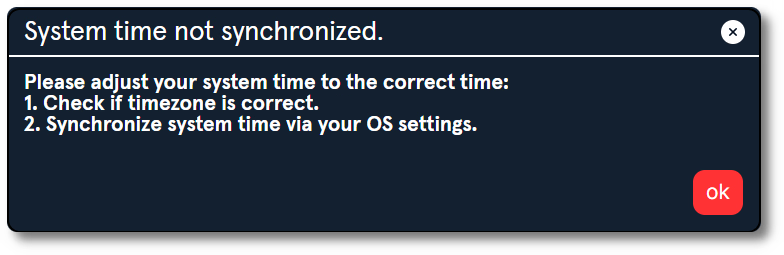
The App Launcher reports a system-time error
The System time not synchronized message means the device’s system clock is out of sync with the correct time, which prevents the App Launcher from connecting reliably. Close the pop-up, then:
- Check that the timezone is correct in the operating system settings.
- Turn on automatic time synchronisation in the operating system settings.
- Once the system time is correct, reopen the App Launcher.
The App Launcher is stuck during syncing
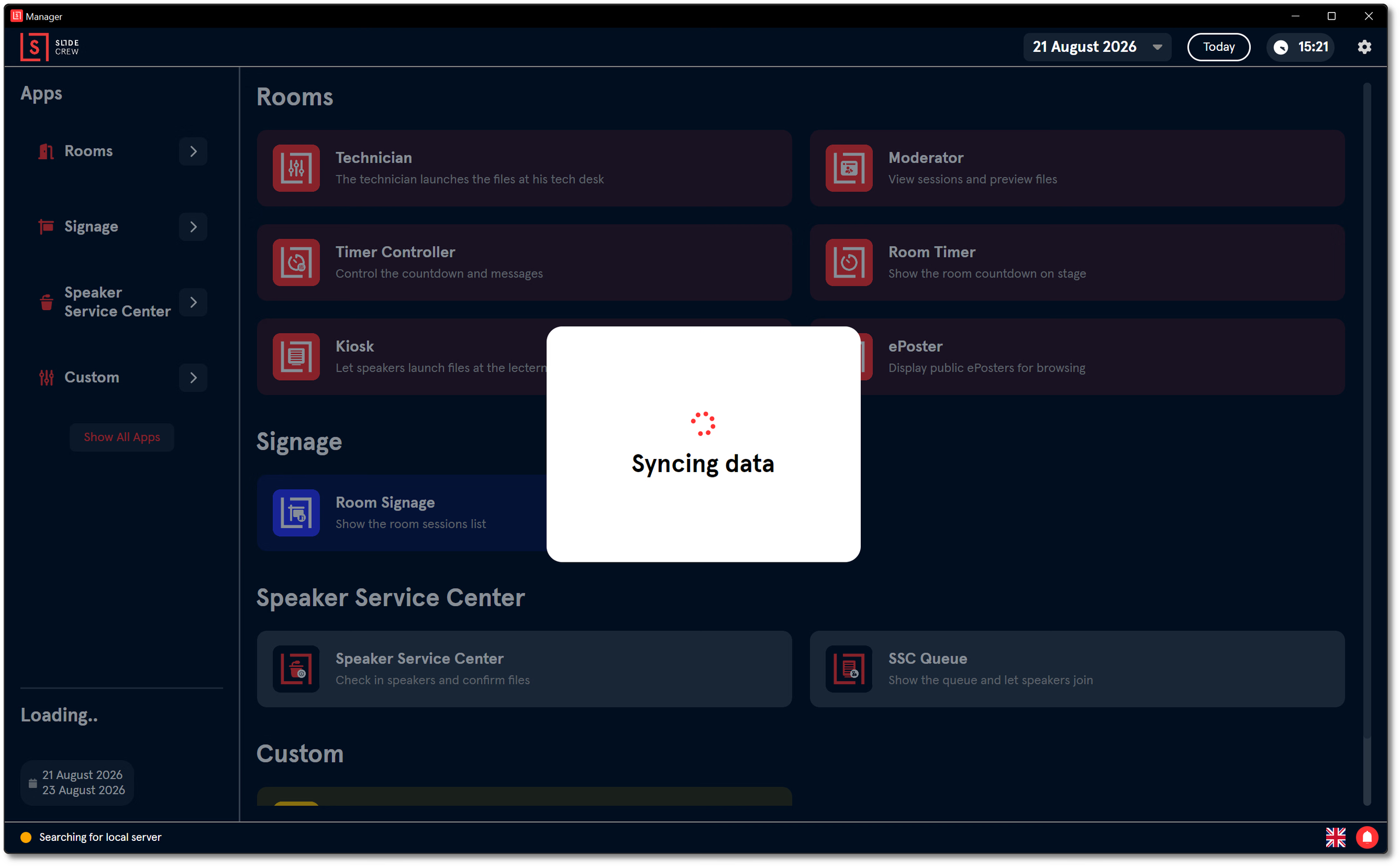
- Check the device’s network connection. The App Launcher needs internet access to complete the sync.
- If the connection is working, close and reopen the App Launcher.
The pairing screen returns after a restart
The device has been unpaired, either because Reset Device was used in the App Launcher or because its device record was deleted in the portal. Pair it again through the portal. Resetting the device or deleting its portal record also removes presentation files downloaded for that event. For the pairing steps, see How do I install the Slidecrew App Launcher and pair a device?.
The portal shows the device as disconnected
Open Core → Devices and find the device. The Activity column shows how long ago the device was last active. To check the current connection state, look at the App Launcher for the green Connected indicator in the bottom left.
Text is too small or names are cut off on Windows
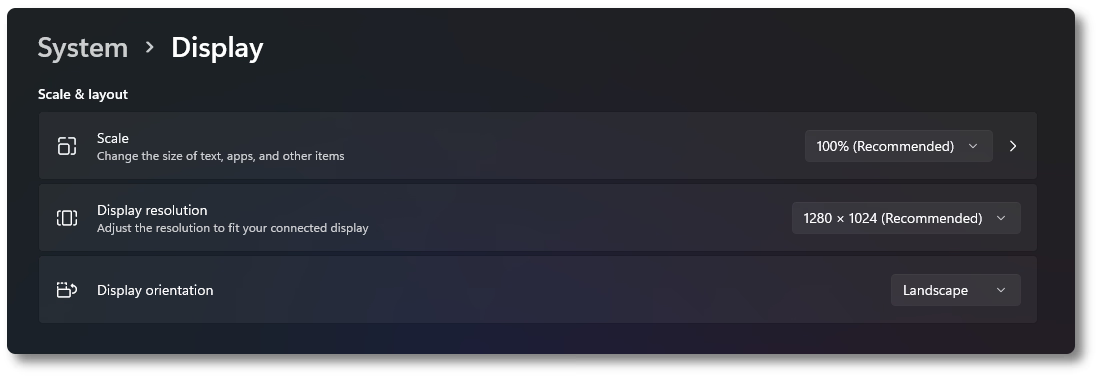
On Windows, text size follows the display scale. Open Settings → System → Display → Scale & layout, then change Scale. Increase it when text is too small to read; reduce it if names are cut off.
Related guides
- Setting up the Slidecrew App Launcher → step-by-step installation and pairing instructions
- How do I manage, reset or update devices and use the Screen Matrix? → device settings and management
- Organiser Manual → the full Organiser Manual